








Timesheets and travel time

Workflow 14 · Start timesheet · Submit · Approve · Approved hours

Each operative records the hours, travel and costs of each visit once, and the office approves them before they are paid or invoiced.

Approved hours are locked; a mistake found later is put right with a correction that keeps the original.

  • Operative on a completed visit
  • Office Administrator or Franchise Owner to approve
Office Administrator

Start timesheet

Operative

Start timesheet

1Step 1 of 13 · workflow step 01

  1. Work date, start and end
  2. Hours and travel
  3. Additional costs

Offered once the visit is completed; one timesheet per person per visit.

Enlarge, then scroll

Open illustrated screen ↗Full image ↗

Office Administrator · Timesheets and travel time01

Fill it in and submit

Operative

Fill it in and submit

2Step 2 of 13 · workflow step 02

  1. Hours worked
  2. Travel in minutes
  3. Save draft or Submit for approval

End before start, a date outside the visit or hours that are not a number are refused with the reason.

Enlarge, then scroll

Open illustrated screen ↗Full image ↗

Office Administrator · Timesheets and travel time02

Submit for approval

Operative

Submit for approval

3Step 3 of 13 · workflow step 02

  1. Submit for approval
  2. Confirm

Enlarge, then scroll

Open illustrated screen ↗Full image ↗

Office Administrator · Timesheets and travel time03

Submitted

Operative

Submitted

4Step 4 of 13 · workflow step 02

  1. With the office
  2. No more changes

Enlarge, then scroll

Open illustrated screen ↗Full image ↗

Office Administrator · Timesheets and travel time04

My timesheets

Operative

My timesheets

5Step 5 of 13 · workflow step 11

  1. Needs you
  2. With the office
  3. Approved and locked

Enlarge, then scroll

Open illustrated screen ↗Full image ↗

The system does this
  • Tell everyone who may approve (Office Administrators and the Franchise Owner) when a timesheet is submitted, except the person who entered it
Office Administrator · Timesheets and travel time05

Workforce, Timesheet approvals

Office Administrator

Workforce, Timesheet approvals

6Step 6 of 13 · workflow step 04

  1. Submitted first
  2. Filters
  3. Open one

Enlarge, then scroll

Open illustrated screen ↗Full image ↗

Office Administrator · Timesheets and travel time06

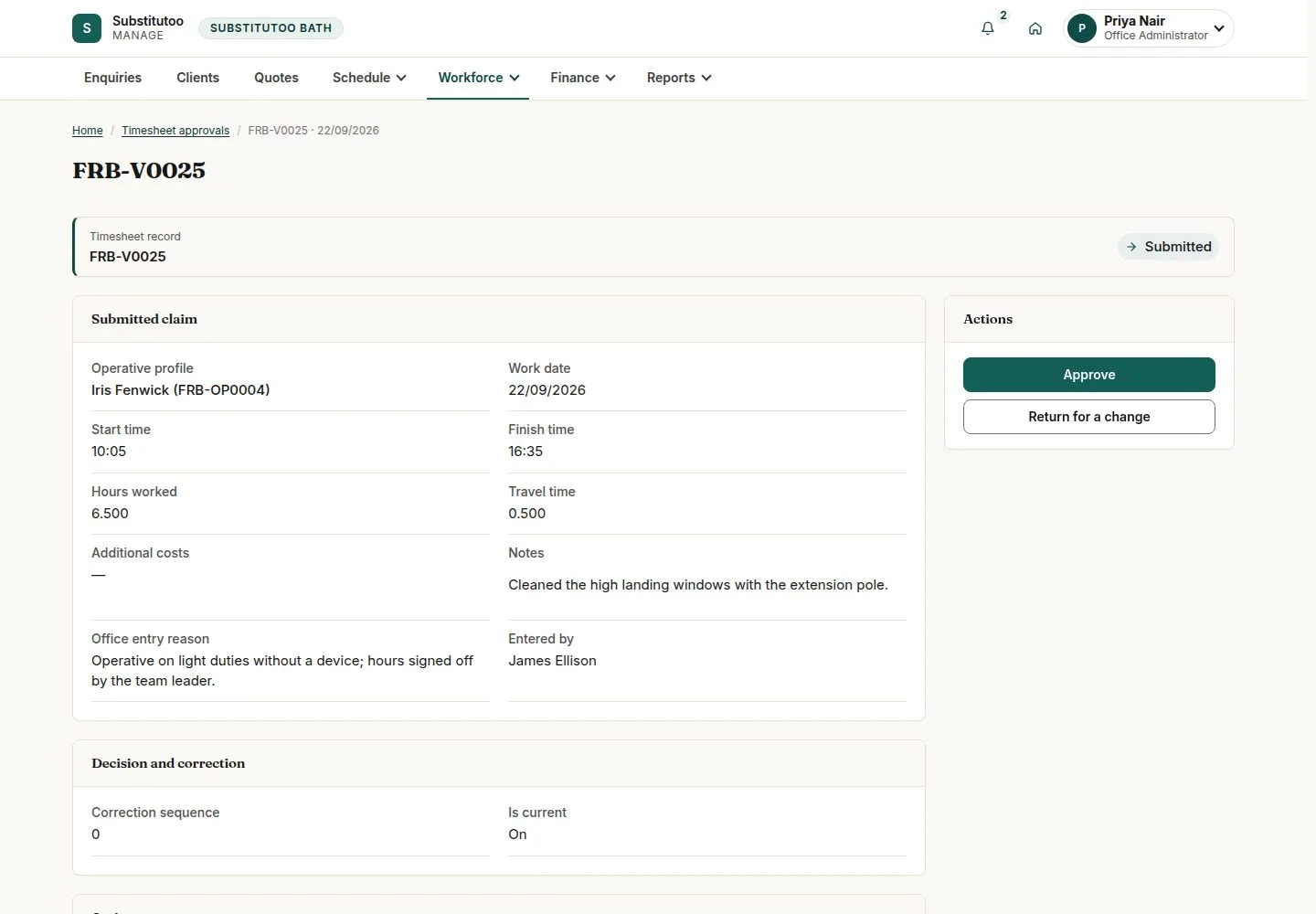
Check the claim

Office Administrator

Check the claim

7Step 7 of 13 · workflow step 05

  1. Hours against planned
  2. Evidence times
  3. Approve or Return

Enlarge, then scroll

Open illustrated screen ↗Full image ↗

Office Administrator · Timesheets and travel time07

Approve

Office Administrator

Approve

8Step 8 of 13 · workflow step 06

  1. Approve
  2. Hours and costs locked

Nobody approves a timesheet they entered themselves.

Enlarge, then scroll

Open illustrated screen ↗Full image ↗

Office Administrator · Timesheets and travel time08

Approved and locked

Office Administrator

Approved and locked

9Step 9 of 13 · workflow step 06

  1. Approved
  2. Operative told

Enlarge, then scroll

Open illustrated screen ↗Full image ↗

Office Administrator · Timesheets and travel time09

Return for a change

Office Administrator

Return for a change

10Step 10 of 13 · workflow step 07

  1. Return
  2. Reason

Enlarge, then scroll

Open illustrated screen ↗Full image ↗

Office Administrator · Timesheets and travel time10

Enter a timesheet for someone

Office Administrator

Enter a timesheet for someone

11Step 11 of 13 · workflow step 08

  1. Enter a timesheet
  2. Reason
  3. Times and travel

Enlarge, then scroll

Open illustrated screen ↗Full image ↗

Office Administrator · Timesheets and travel time11

Open a correction

Office Administrator

Open a correction

12Step 12 of 13 · workflow step 09

  1. Open a correction
  2. Reason

The approved row stays unchanged until the correction is approved.

Enlarge, then scroll

Open illustrated screen ↗Full image ↗

Office Administrator · Timesheets and travel time12

Reports, Approved hours

Office Administrator

Reports, Approved hours

13Step 13 of 13 · workflow step 10

  1. Pay period
  2. Filters
  3. Export CSV

Enlarge, then scroll

Open illustrated screen ↗Full image ↗

Check

Hours and costs approved and locked; in Approved hours for the pay period

Office Administrator · Timesheets and travel time13
1 / 14
Privacy Terms