






Operative profiles

Workflow 09 · Team account · Profile · Skills · Lifecycle

Each cleaner has an operative profile: what they can do, what they hold, when they work and where they start from.

Their sign-in only opens once the profile is Active, and leaving or going on leave closes it again without losing any history.

  • Franchise Owner for the account and restricted data
  • Office Administrator for the profile
Office Administrator
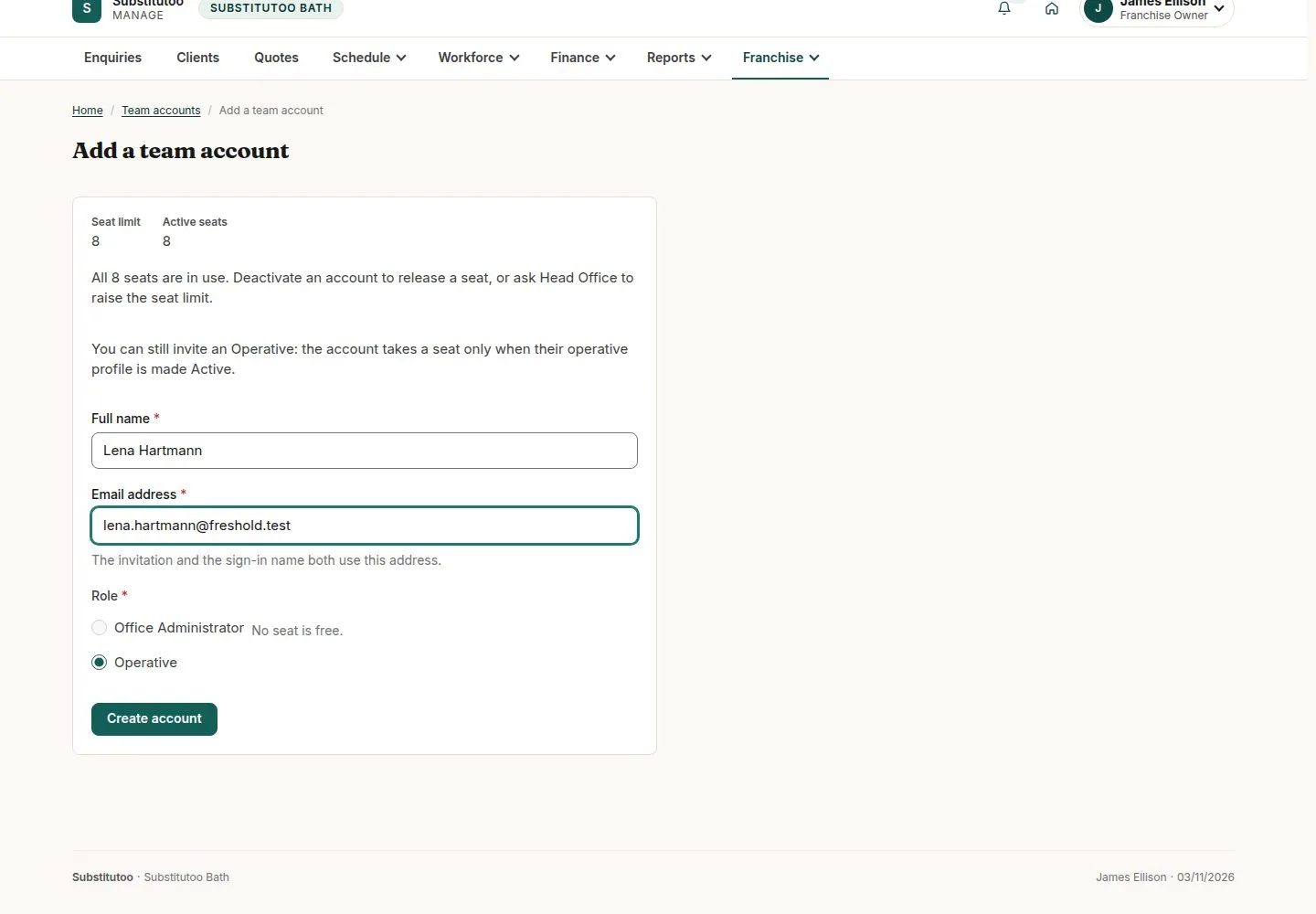
Add a team account for an Operative

Franchise Owner

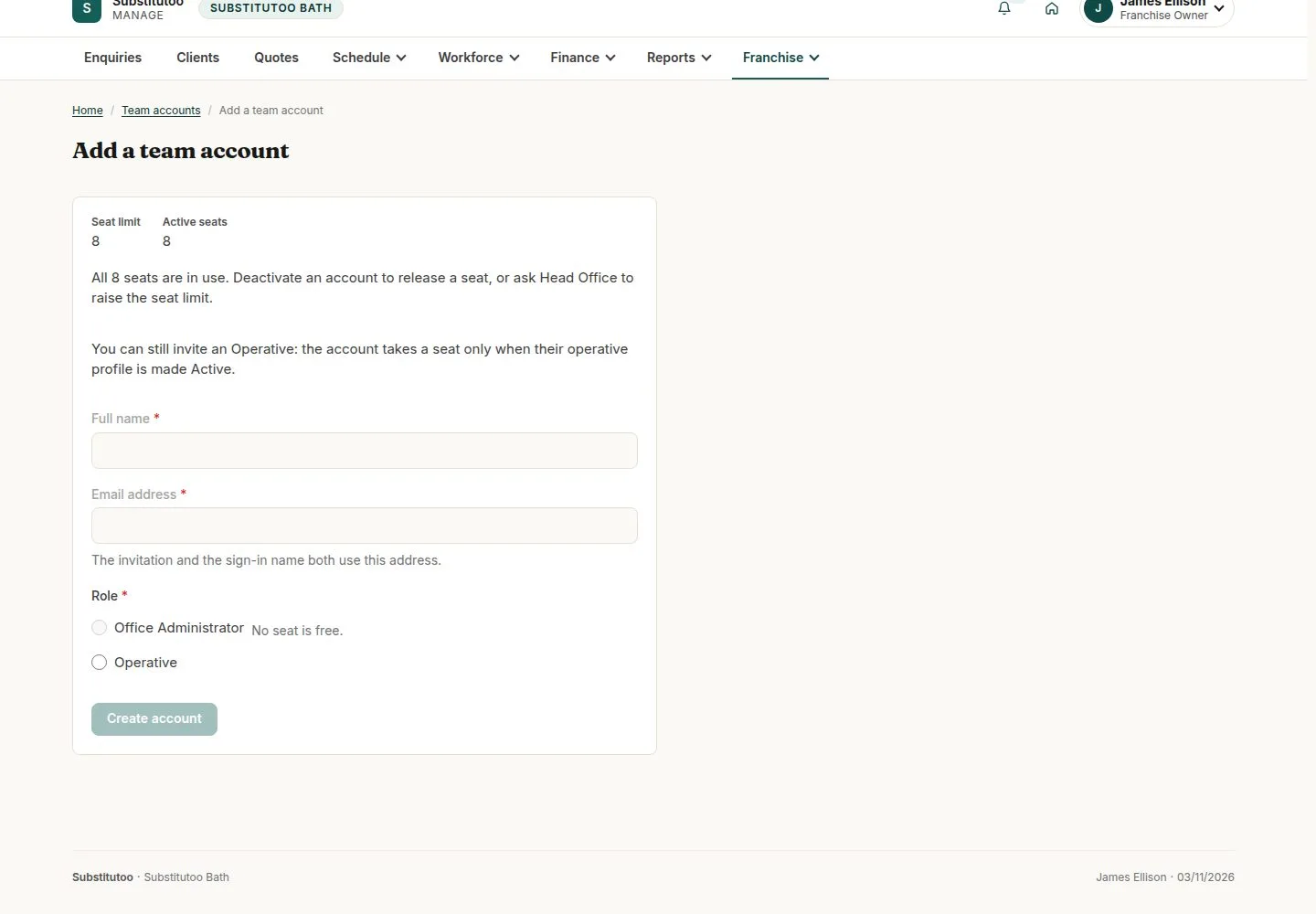
Add a team account for an Operative

1Step 1 of 10 · workflow step 01

  1. Franchise, Team accounts
  2. Add a team account
  3. Role Operative

The account stays blocked and takes no seat until an Active profile is linked to it.

Enlarge, then scroll

Open illustrated screen ↗Full image ↗

Office Administrator · Operative profiles01

When every seat is in use

Franchise Owner

When every seat is in use

2Step 2 of 10 · workflow step 01.1

  1. Office Administrator locked
  2. Operative still possible

Deactivate an account or ask Head Office to raise the seat limit.

Enlarge, then scroll

Open illustrated screen ↗Full image ↗

Office Administrator · Operative profiles02

Operatives

Office Administrator

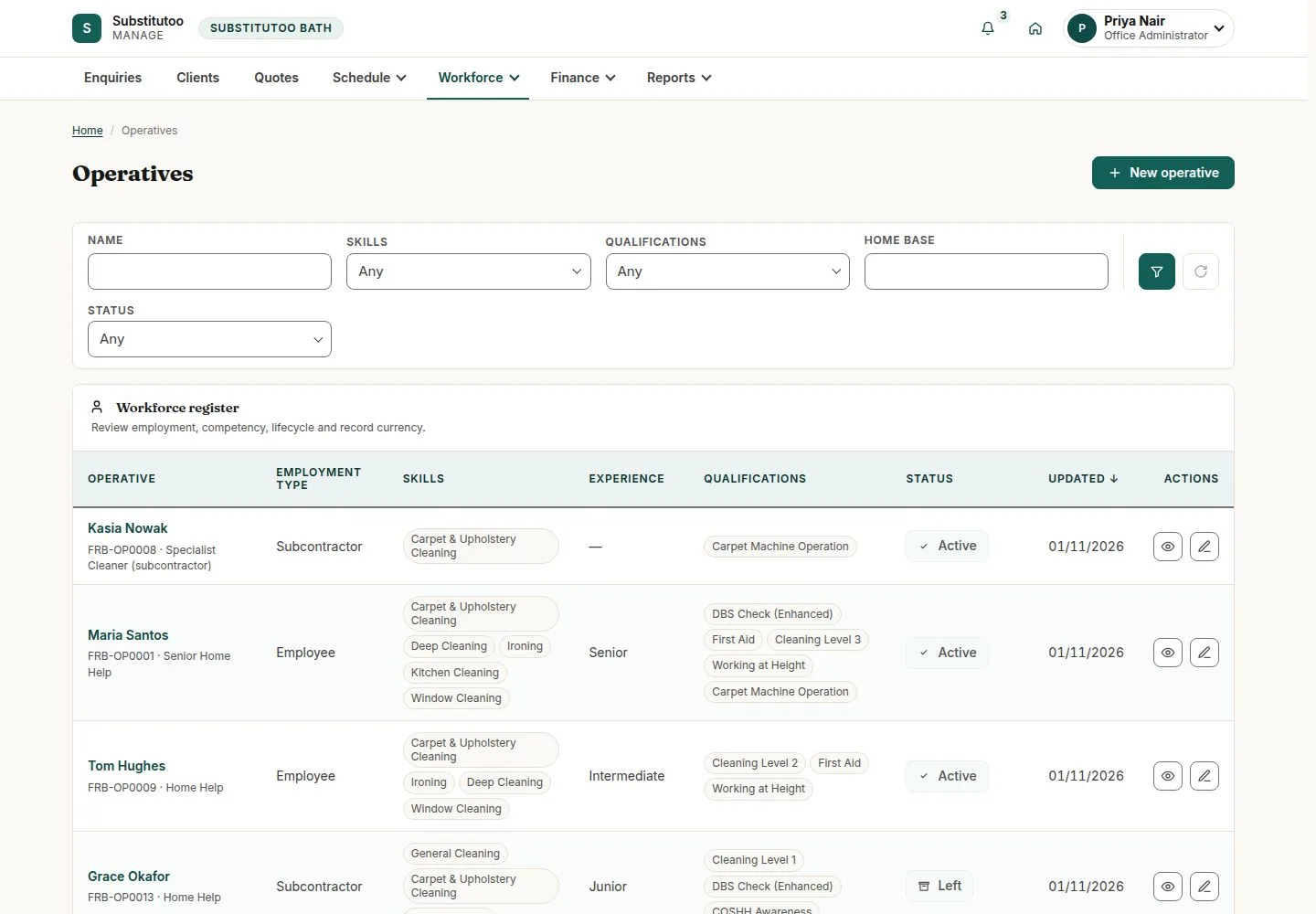
Operatives

3Step 3 of 10 · workflow step 02

  1. Employment, skills, qualifications
  2. Status
  3. Filters

Enlarge, then scroll

Open illustrated screen ↗Full image ↗

Office Administrator · Operative profiles03

New operative

Office Administrator

New operative

4Step 4 of 10 · workflow step 03

  1. Name and job title
  2. Employment type
  3. Age band, experience
  4. Account link

Enlarge, then scroll

Open illustrated screen ↗Full image ↗

Office Administrator · Operative profiles04

Skills and one cleaning level

Office Administrator

Skills and one cleaning level

5Step 5 of 10 · workflow step 03.2

  1. Skills
  2. Qualifications
  3. Highest cleaning level only

Ticking a level clears any other; two levels are refused on save.

Enlarge, then scroll

Open illustrated screen ↗Full image ↗

Office Administrator · Operative profiles05

Pay rates and identifiers

Franchise Owner

Pay rates and identifiers

6Step 6 of 10 · workflow step 04

  1. Cost and charge rates
  2. NI and references
  3. Emergency contact

Franchise Owner only; the Office Administrator neither sees nor edits it.

Enlarge, then scroll

Open illustrated screen ↗Full image ↗

Office Administrator · Operative profiles06

A self-employed operative

Office Administrator

A self-employed operative

7Step 7 of 10 · workflow step 05

  1. VAT registered
  2. VAT number

Needed later to issue self-bills, with the supplier name and billing address the Owner adds.

Enlarge, then scroll

Open illustrated screen ↗Full image ↗

The system does this
  • Link the profile to exactly one Operative account; an Active profile opens the account, takes the seat and sends one welcome email to set the password
Office Administrator · Operative profiles07

On leave or suspended

Office Administrator

On leave or suspended

8Step 8 of 10 · workflow step 07

  1. Set to on leave
  2. Suspend
  3. Future visits listed

The account is blocked; future visits stay and appear in Operations exceptions.

Enlarge, then scroll

Open illustrated screen ↗Full image ↗

Office Administrator · Operative profiles08

Mark as left

Office Administrator

Mark as left

9Step 9 of 10 · workflow step 08

  1. Mark as left
  2. Seat freed

Enlarge, then scroll

Open illustrated screen ↗Full image ↗

Office Administrator · Operative profiles09

The Operative's field app

Operative

The Operative's field app

10Step 10 of 10 · workflow step 09

  1. My Day
  2. Rota
  3. Timesheets
  4. Notifications

Enlarge, then scroll

Open illustrated screen ↗Full image ↗

Check

Active profile linked to one Operative account; seat taken

Office Administrator · Operative profiles10
1 / 11
Privacy Terms