







Enquiry pipeline to client

Workflow 05 · Pipeline · Contacted · Qualify · Convert

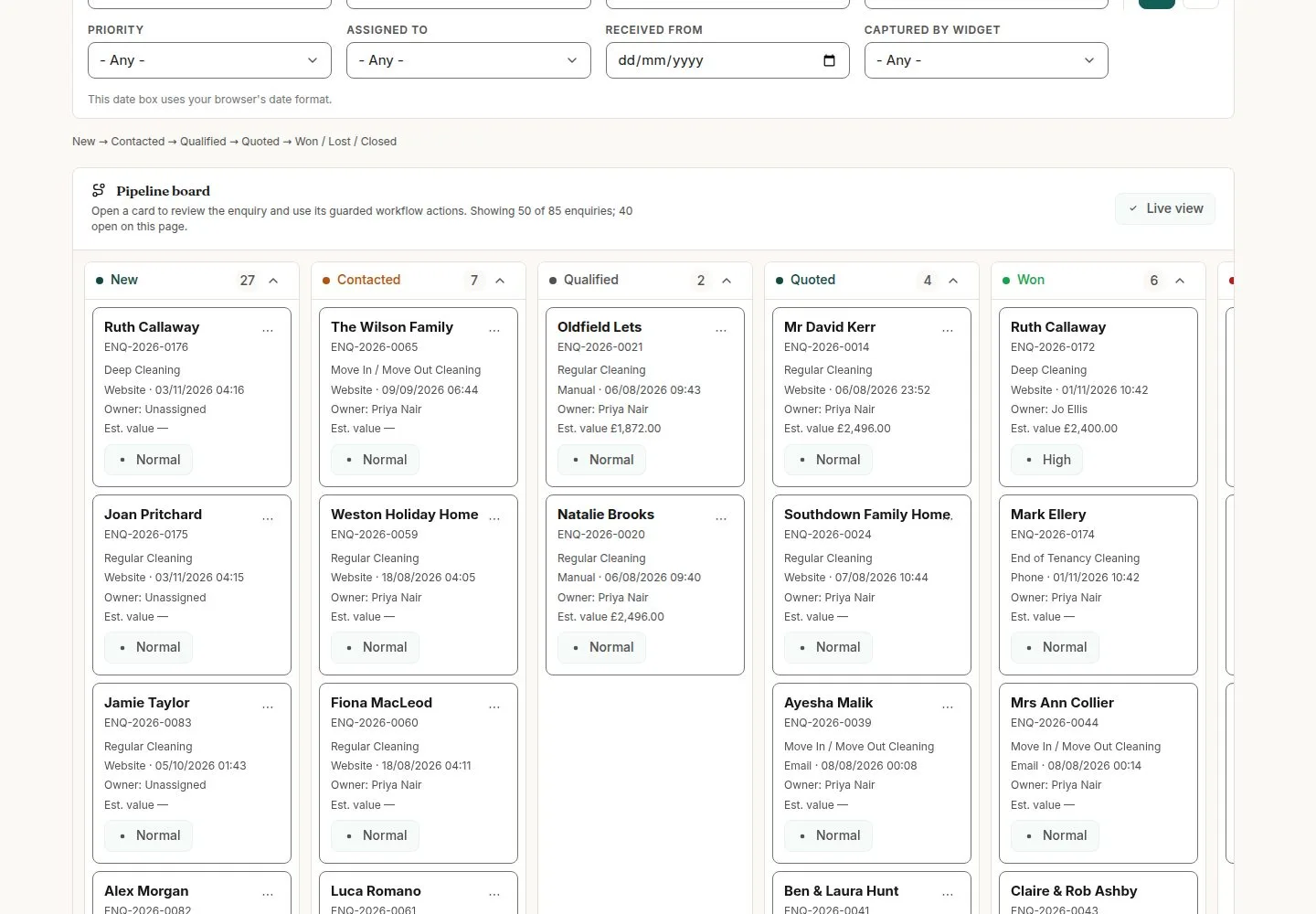
Every enquiry of the franchise is a card on one board, by stage, from the first call to a customer with a home on file.

Each move asks only for what that stage needs, and converting creates the client, the contact and the home in one go.

  • Office Administrator or Franchise Owner
  • An enquiry in the franchise's pipeline
Office Administrator
Enquiry pipeline

Office Administrator

Enquiry pipeline

1Step 1 of 14 · workflow step 01

  1. One column per stage
  2. Filters
  3. Open a card

Enlarge, then scroll

Open illustrated screen ↗Full image ↗

Office Administrator · Enquiry pipeline to client01

New enquiry from a phone call

Office Administrator

New enquiry from a phone call

2Step 2 of 14 · workflow step 01.1

  1. New enquiry
  2. Lead source Phone
  3. Service type
  4. Save

Phone or email: at least one. No acknowledgement is sent.

Enlarge, then scroll

Open illustrated screen ↗Full image ↗

Office Administrator · Enquiry pipeline to client02

Open a new enquiry

Office Administrator

Open a new enquiry

3Step 3 of 14 · workflow step 02

  1. What was sent
  2. Available actions

Enlarge, then scroll

Open illustrated screen ↗Full image ↗

Office Administrator · Enquiry pipeline to client03

Mark contacted

Office Administrator

Mark contacted

4Step 4 of 14 · workflow step 03

  1. Call the sender
  2. Mark contacted
  3. Choose the handler

Dragging a card opens the same form; a jump such as New to Quoted is refused.

Enlarge, then scroll

Open illustrated screen ↗Full image ↗

Office Administrator · Enquiry pipeline to client04

Reassign handler

Franchise Owner

Reassign handler

5Step 5 of 14 · workflow step 04

  1. Reassign handler
  2. Colleague
  3. Reason

Franchise Owner only; the reason goes to the audit log.

Enlarge, then scroll

Open illustrated screen ↗Full image ↗

Office Administrator · Enquiry pipeline to client05

Edit enquiry

Office Administrator

Edit enquiry

6Step 6 of 14 · workflow step 05

  1. Estimated value
  2. Preferred start date
  3. Priority

What the sender typed stays read-only; the service type can be refined.

Enlarge, then scroll

Open illustrated screen ↗Full image ↗

Office Administrator · Enquiry pipeline to client06

Qualify

Office Administrator

Qualify

7Step 7 of 14 · workflow step 06

  1. Qualify
  2. Size, frequency, access

Enlarge, then scroll

Open illustrated screen ↗Full image ↗

Office Administrator · Enquiry pipeline to client07

Ready to convert

Office Administrator

Ready to convert

8Step 8 of 14 · workflow step 06

  1. Qualified enquiries
  2. Convert enquiry

Enlarge, then scroll

Open illustrated screen ↗Full image ↗

The system does this
  • Mark lost asks for a reason: Price, Timing, Competitor, No Response or Out of Area
Office Administrator · Enquiry pipeline to client08

Convert: the client

Office Administrator

Convert: the client

9Step 9 of 14 · workflow step 07.1

  1. New client or link existing
  2. Client type
  3. Payment terms
  4. Billing address

The sender's name, email and phone carry over to the primary contact.

Enlarge, then scroll

Open illustrated screen ↗Full image ↗

Office Administrator · Enquiry pipeline to client09

Convert: the home

Office Administrator

Convert: the home

10Step 10 of 14 · workflow step 08

  1. Property type
  2. Service window
  3. Access, information, risks
  4. Convert

All required, so a converted home can always be scheduled.

Enlarge, then scroll

Open illustrated screen ↗Full image ↗

The system does this
  • Create the client (Prospect), its primary contact and the home in one go, and link them to the enquiry; pressing twice creates nothing more
  • Add coordinates and the three-word address in the background
Office Administrator · Enquiry pipeline to client10

Quote builder

Office Administrator

Quote builder

11Step 11 of 14 · workflow step 10

  1. Client and home linked
  2. Quote builder

First quote sent: Quoted. Quote accepted: Won.

Enlarge, then scroll

Open illustrated screen ↗Full image ↗

Office Administrator · Enquiry pipeline to client11

Mark lost

Office Administrator

Mark lost

12Step 12 of 14 · workflow step 11

  1. Mark lost
  2. Lost reason

Enlarge, then scroll

Open illustrated screen ↗Full image ↗

Office Administrator · Enquiry pipeline to client12

Reopen a lost enquiry

Office Administrator

Reopen a lost enquiry

13Step 13 of 14 · workflow step 12

  1. Reopen
  2. Reason

Back to Contacted; the old lost reason stays in the history.

Enlarge, then scroll

Open illustrated screen ↗Full image ↗

Office Administrator · Enquiry pipeline to client13

Closed enquiries

Office Administrator

Closed enquiries

14Step 14 of 14 · workflow step 13

  1. Close
  2. Status filter

Enlarge, then scroll

Open illustrated screen ↗Full image ↗

The system does this
  • Record every stage change in the audit log; the Franchisor sees enquiry counts only, and Head Office does not see a franchise's enquiries
Check

Client, contact and home created; Quote builder offered

Office Administrator · Enquiry pipeline to client14
1 / 15
Privacy Terms