








Assignment and rota

Workflow 10 · Assign operatives · Checks · Rota · Withdraw

The office puts the right people on each visit: the screen shows what the home needs and who can do it in that window.

A missing skill, a clash or hours outside someone's week are refused with the reason, and the operative sees the visit on their rota at once.

  • Office Administrator
  • A scheduled visit with nobody on it
Office Administrator

A visit with nobody on it

Office Administrator

A visit with nobody on it

1Step 1 of 6 · workflow step 01

  1. Visits, Calendar or Exceptions
  2. Assign operatives

Enlarge, then scroll

Open illustrated screen ↗Full image ↗

Office Administrator · Assignment and rota01

What the visit needs, who can do it

Office Administrator

What the visit needs, who can do it

2Step 2 of 6 · workflow step 02

  1. Skills and qualifications needed
  2. Hours left in the window
  3. Can be assigned first

A missing skill or qualification is a hard block; a clash or hours outside the week are refused with the reason.

Enlarge, then scroll

Open illustrated screen ↗Full image ↗

Office Administrator · Assignment and rota02

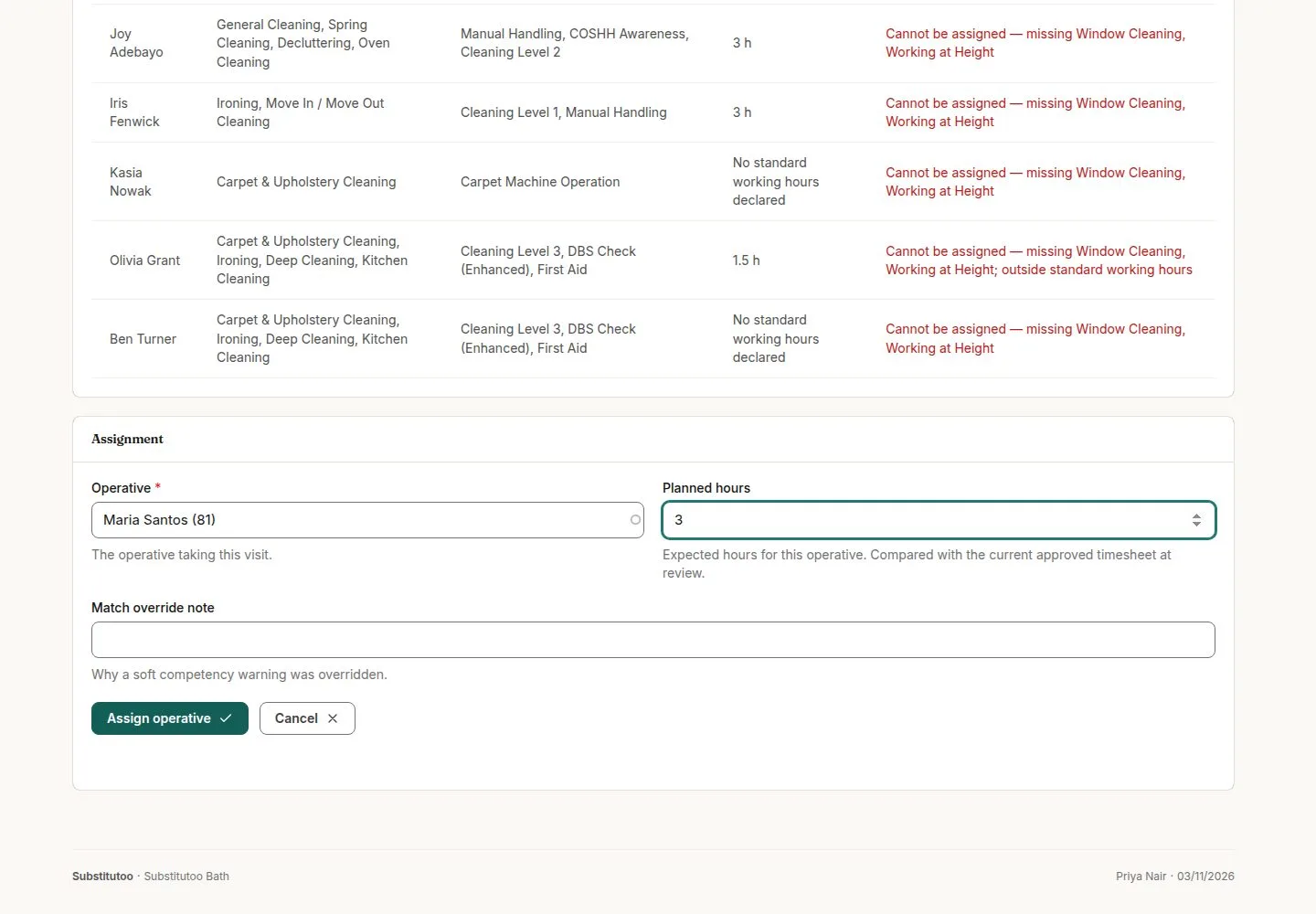
Assign operative

Office Administrator

Assign operative

3Step 3 of 6 · workflow step 05

  1. Pick the operative
  2. Planned hours
  3. Assign operative

The operative is emailed; a second operative is added the same way for a two-person job.

Enlarge, then scroll

Open illustrated screen ↗Full image ↗

Office Administrator · Assignment and rota03

The assignment on the visit

Office Administrator

The assignment on the visit

4Step 4 of 6 · workflow step 05

  1. Assigned operative
  2. Planned hours

Enlarge, then scroll

Open illustrated screen ↗Full image ↗

Office Administrator · Assignment and rota04

The Operative's rota

Operative

The Operative's rota

5Step 5 of 6 · workflow step 06

  1. Week Mon–Sun
  2. Planned and free hours
  3. Jobs per day

Enlarge, then scroll

Open illustrated screen ↗Full image ↗

Office Administrator · Assignment and rota05

Withdraw before the work starts

Office Administrator

Withdraw before the work starts

6Step 6 of 6 · workflow step 08

  1. Current assignments
  2. Withdraw with a reason

Refused once work, evidence or a timesheet exists; replacing someone is withdraw, then assign.

Enlarge, then scroll

Open illustrated screen ↗Full image ↗

The system does this
  • Email the operative when they are assigned and when they are withdrawn; operatives never accept or decline
Check

Operative assigned within skills and hours; the visit on their rota

Office Administrator · Assignment and rota06
1 / 7
Privacy Terms