





Franchise website and widgets

Workflow 23 · Website pages · Sections · Site settings · Widgets

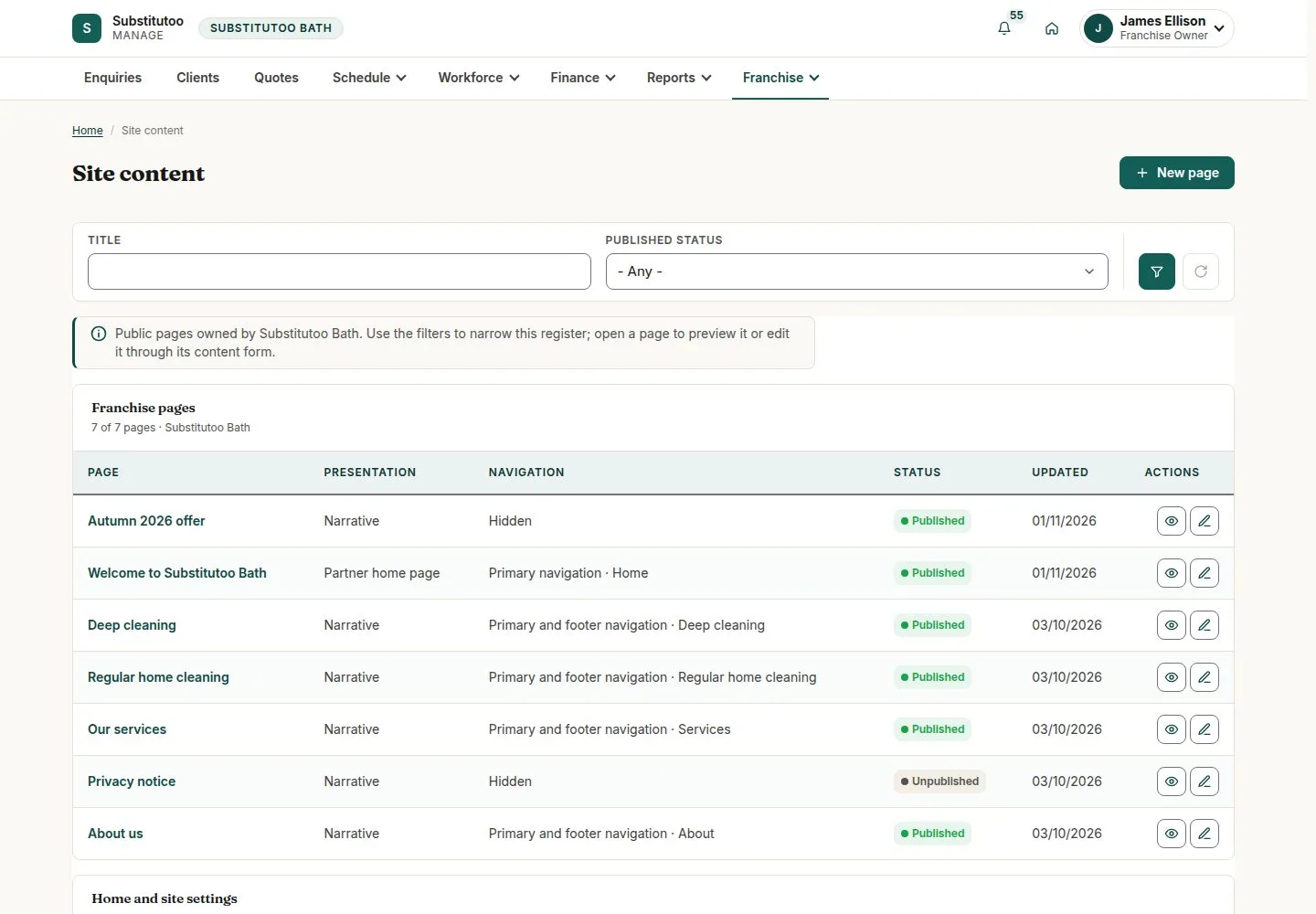
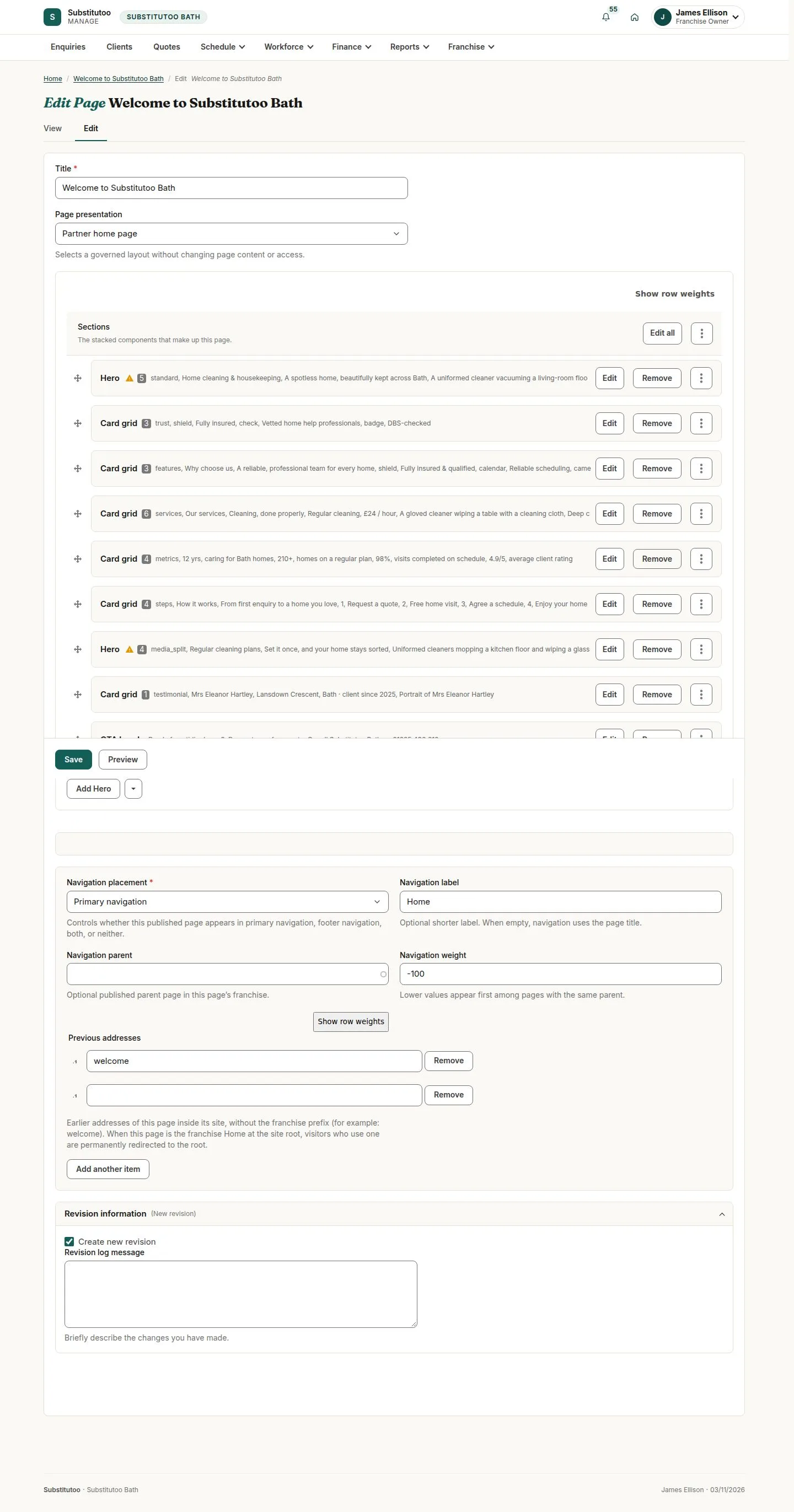
Each franchise has its own pages on the brand site, built from sections the owner edits: words, pictures and buttons.

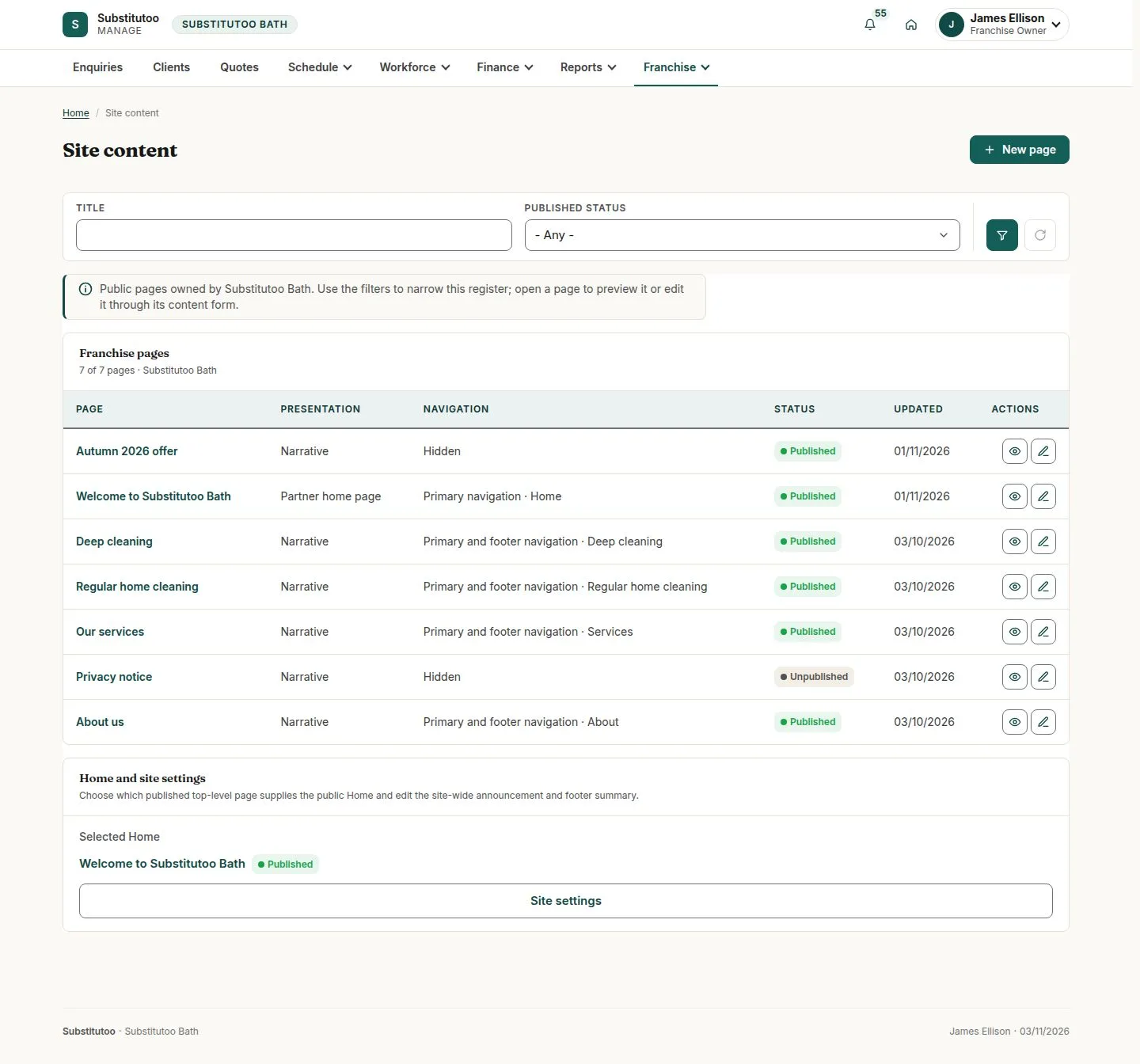
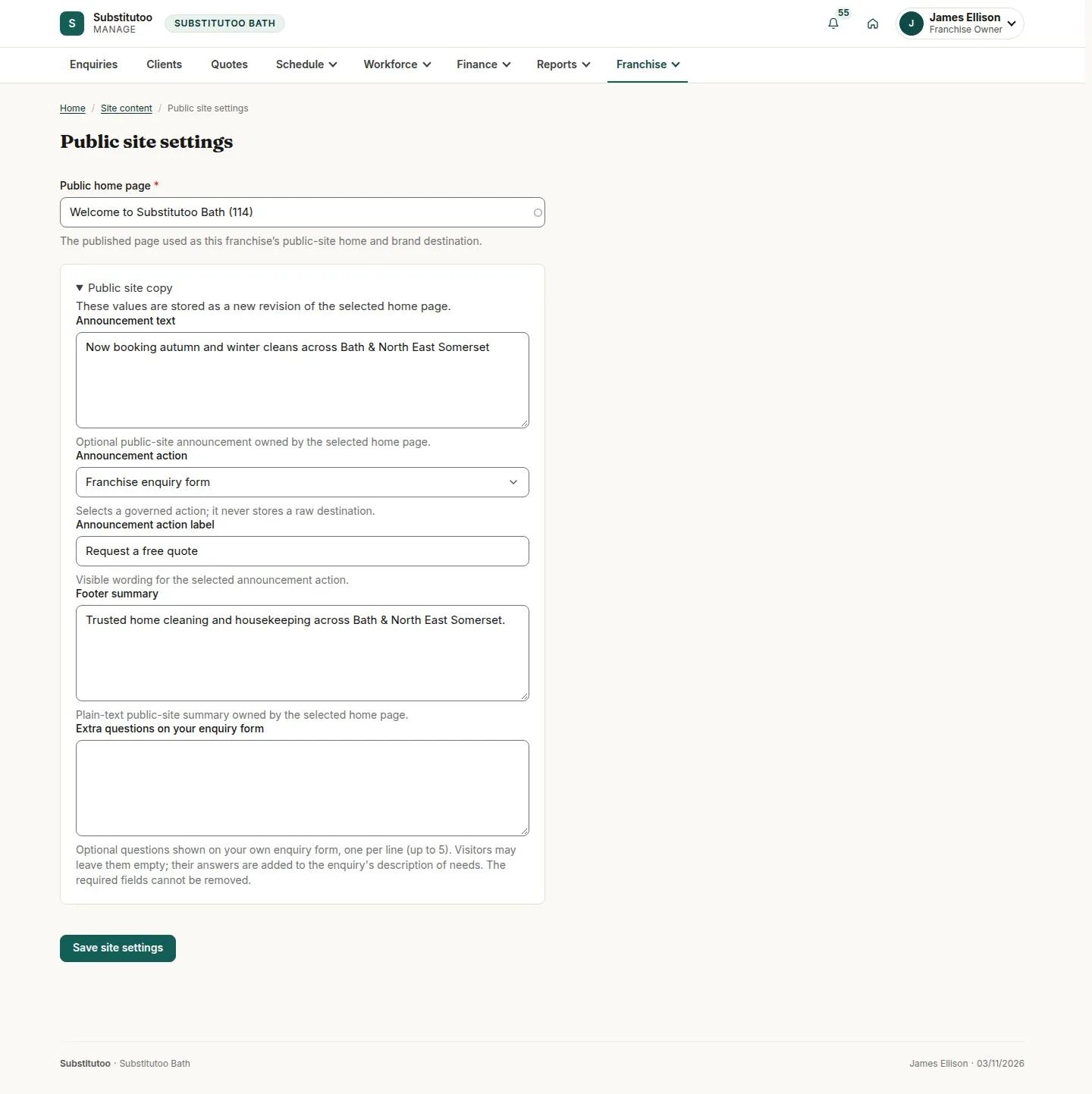
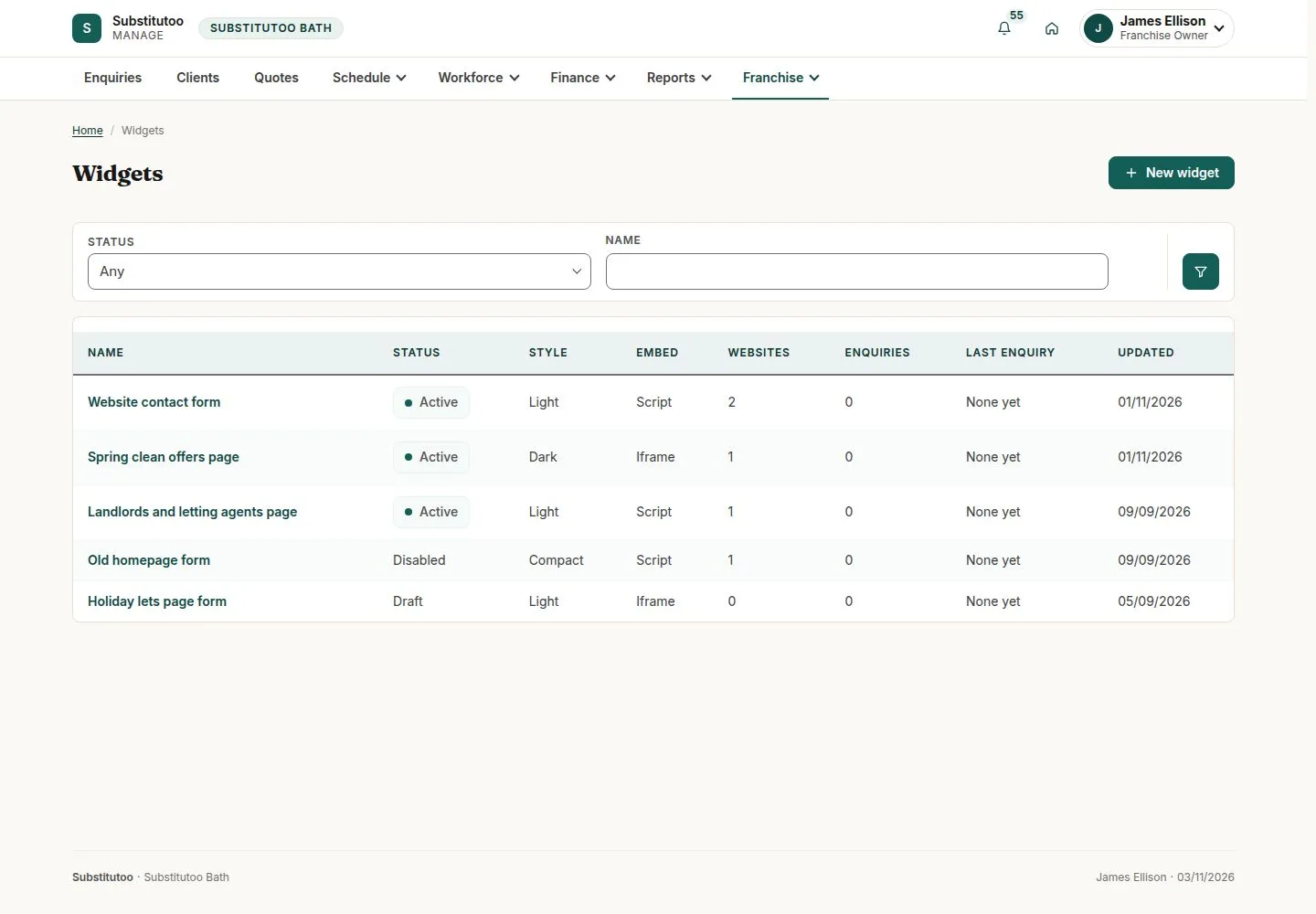
Site settings choose the home page, an announcement bar and extra questions on the enquiry form; widgets put the enquiry form on other websites.

  • Franchise Owner
Franchise Owner
Franchise, Website

Franchise Owner

Franchise, Website

1Step 1 of 6 · workflow step 01

  1. Your pages
  2. Edit
  3. Site settings

Enlarge, then scroll

Open illustrated screen ↗Full image ↗

Franchise Owner · Franchise website and widgets01

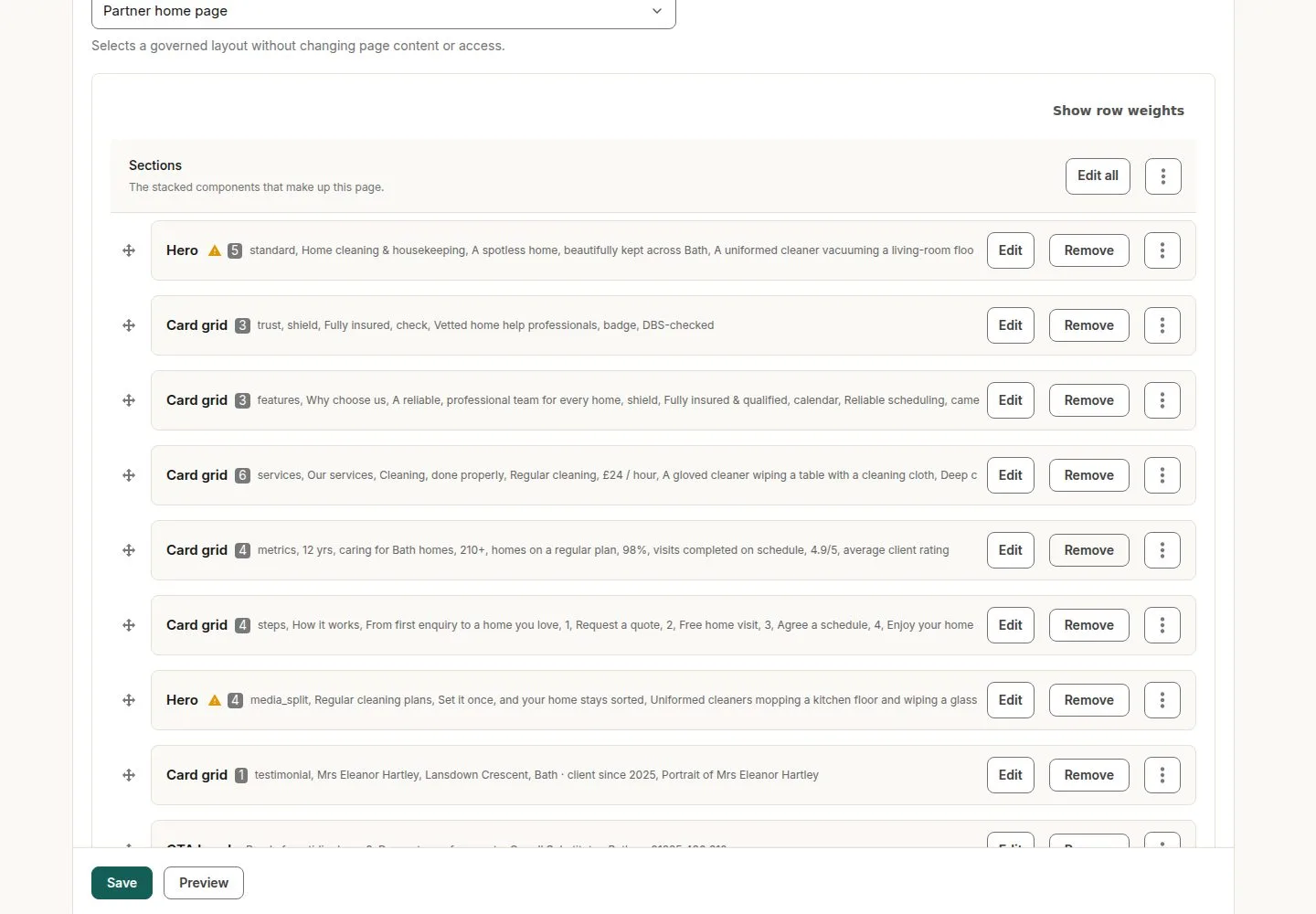
A page is a stack of sections

Franchise Owner

A page is a stack of sections

2Step 2 of 6 · workflow step 02

  1. Sections
  2. Add a section
  3. Collapse all

Enlarge, then scroll

Open illustrated screen ↗Full image ↗

Franchise Owner · Franchise website and widgets02

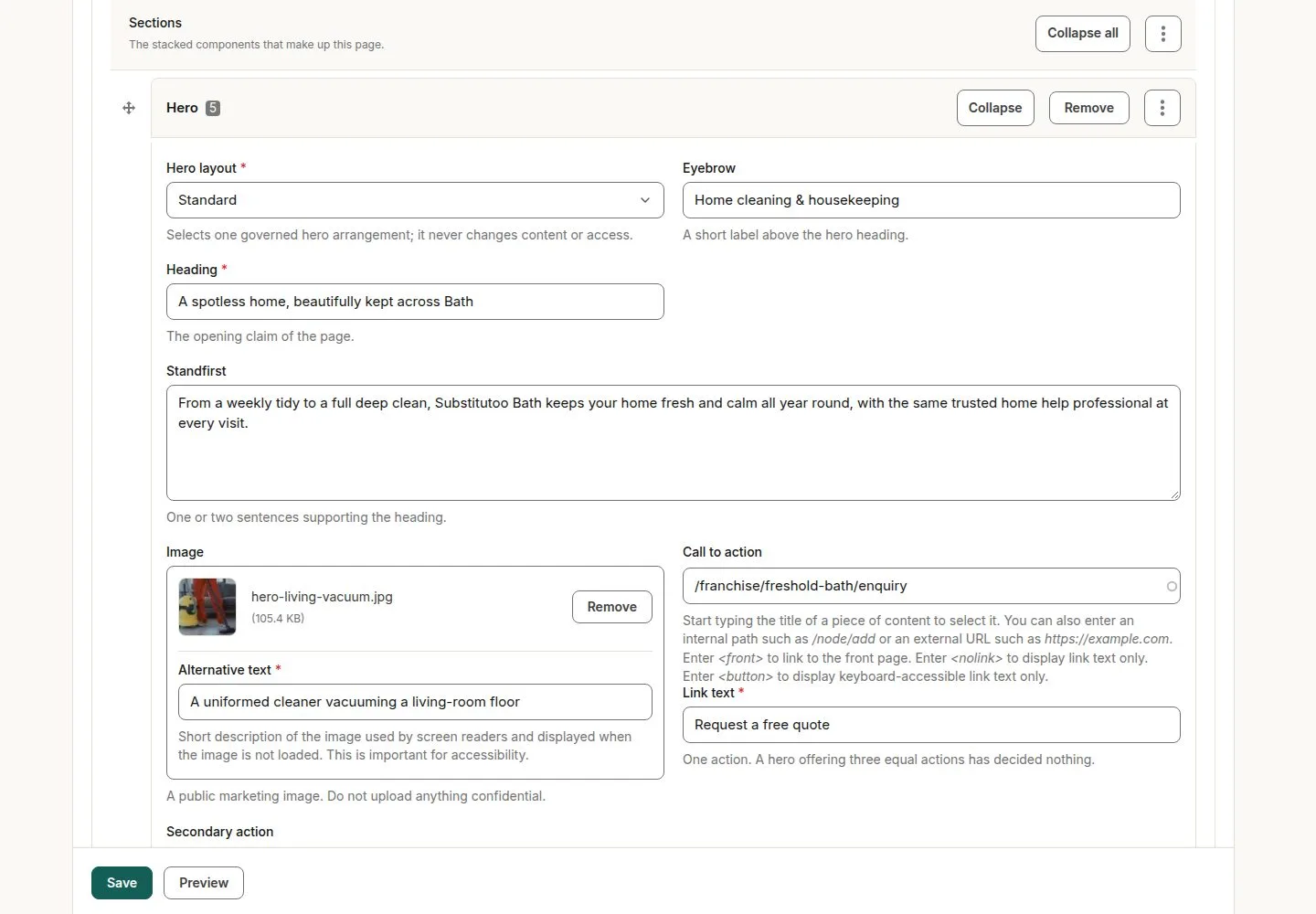
Change words and pictures

Franchise Owner

Change words and pictures

3Step 3 of 6 · workflow step 03

  1. Heading and text
  2. Picture
  3. Button

Enlarge, then scroll

Open illustrated screen ↗Full image ↗

Franchise Owner · Franchise website and widgets03

Site settings

Franchise Owner

Site settings

4Step 4 of 6 · workflow step 04

  1. Home page
  2. Announcement bar
  3. Enquiry questions

Enlarge, then scroll

Open illustrated screen ↗Full image ↗

Franchise Owner · Franchise website and widgets04

Franchise, Widgets

Franchise Owner

Franchise, Widgets

5Step 5 of 6 · workflow step 05

  1. Status
  2. Websites allowed
  3. New widget

Enlarge, then scroll

Open illustrated screen ↗Full image ↗

Franchise Owner · Franchise website and widgets05

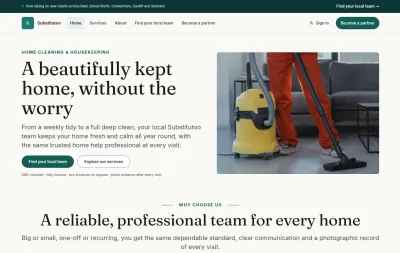
What visitors see

Visitor

What visitors see

6Step 6 of 6 · workflow step 06

  1. The franchise's home page

Enlarge, then scroll

Open illustrated screen ↗Full image ↗

Check

The franchise's pages and widgets say what the owner wants

Franchise Owner · Franchise website and widgets06
1 / 7
Privacy Terms