

Tables and QR codes

Tables · Table QR poster · Rotate QR code

  • Signed in as a Manager
Manager

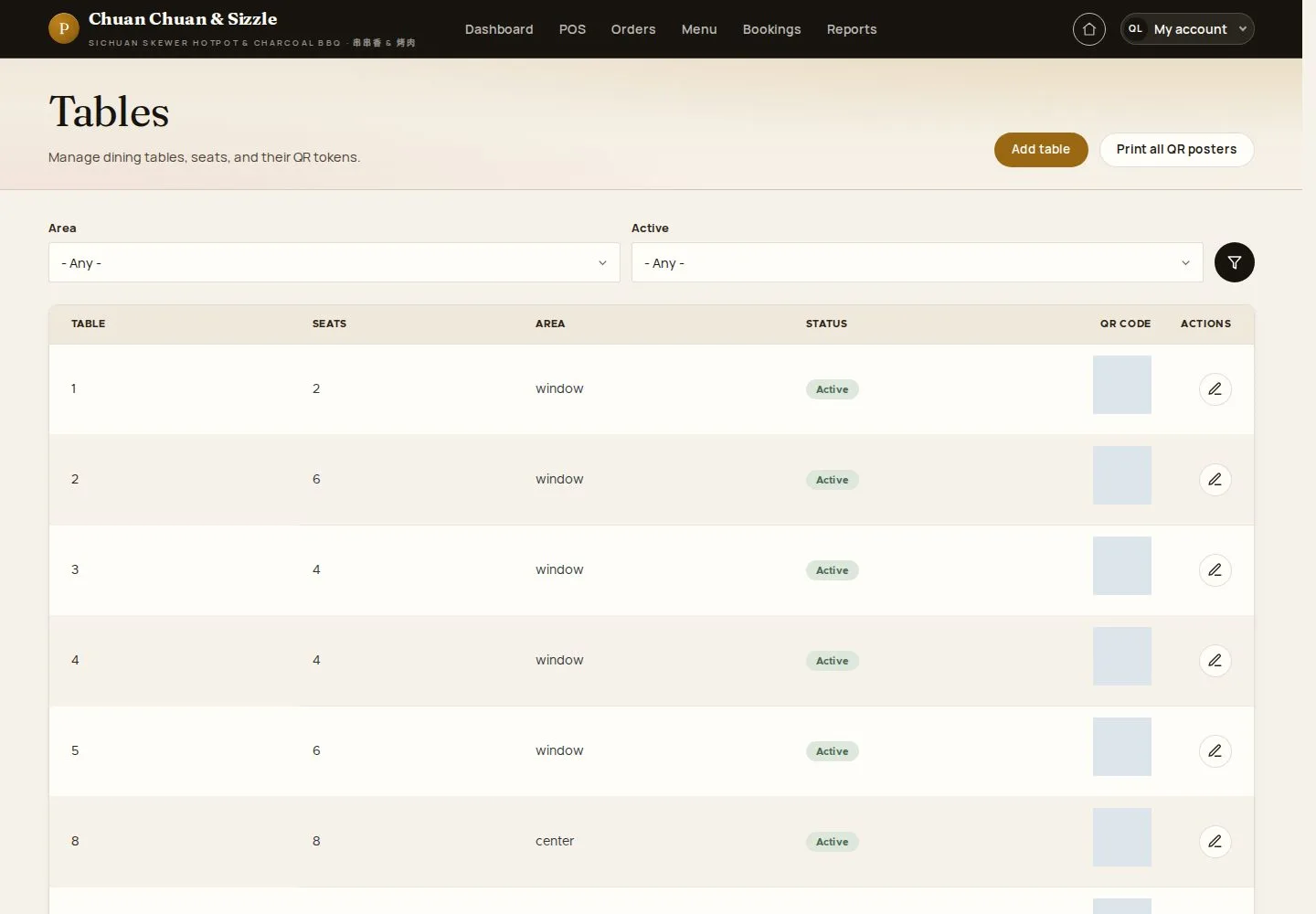
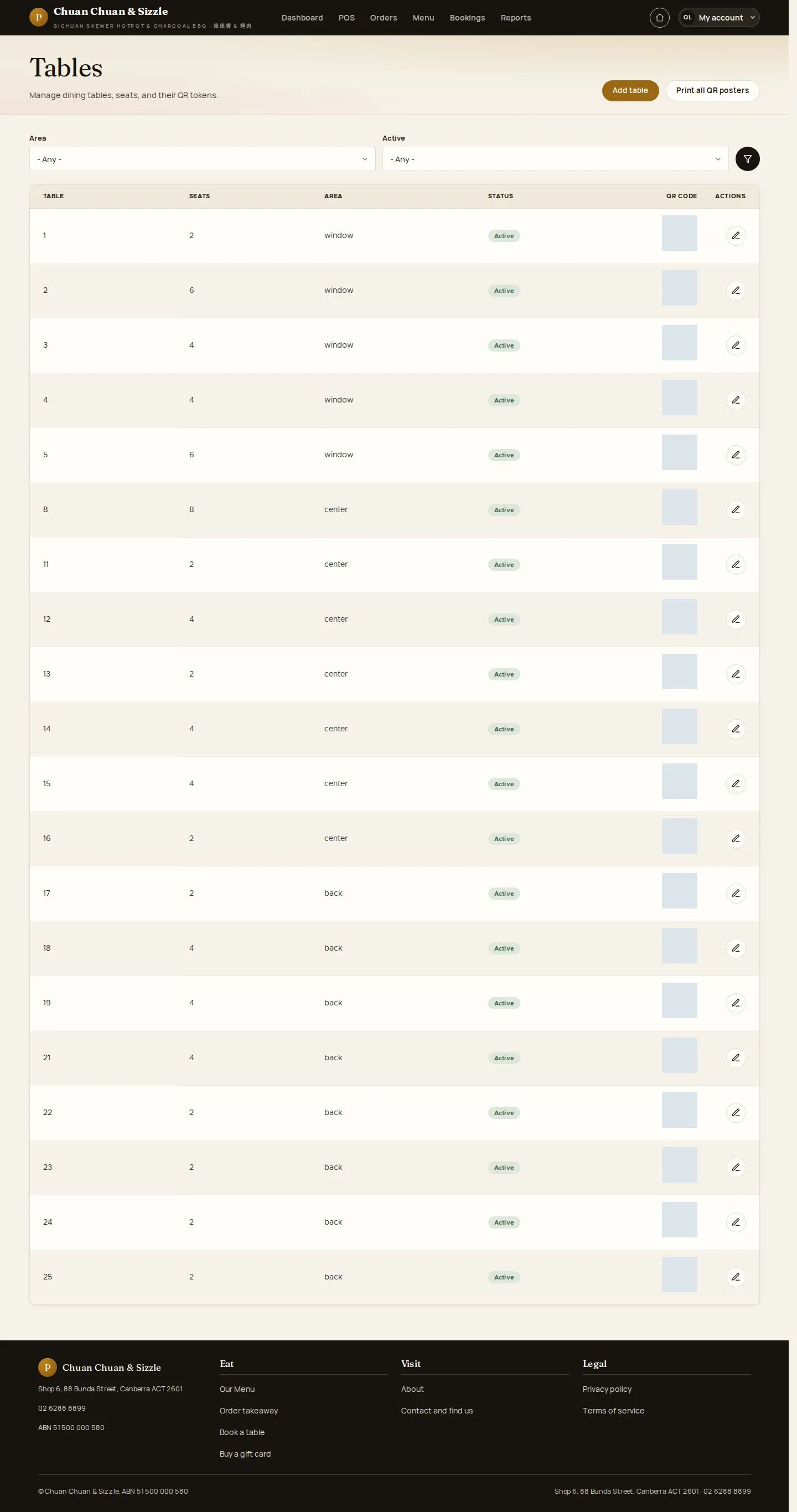
Tables

Manager

Tables

1Step 1 of 6

  1. Seats · Area · Active
  2. Add table · QR code · Edit

Enlarge, then scroll

Open illustrated screen ↗Full image ↗

Manager · Tables and QR codes01

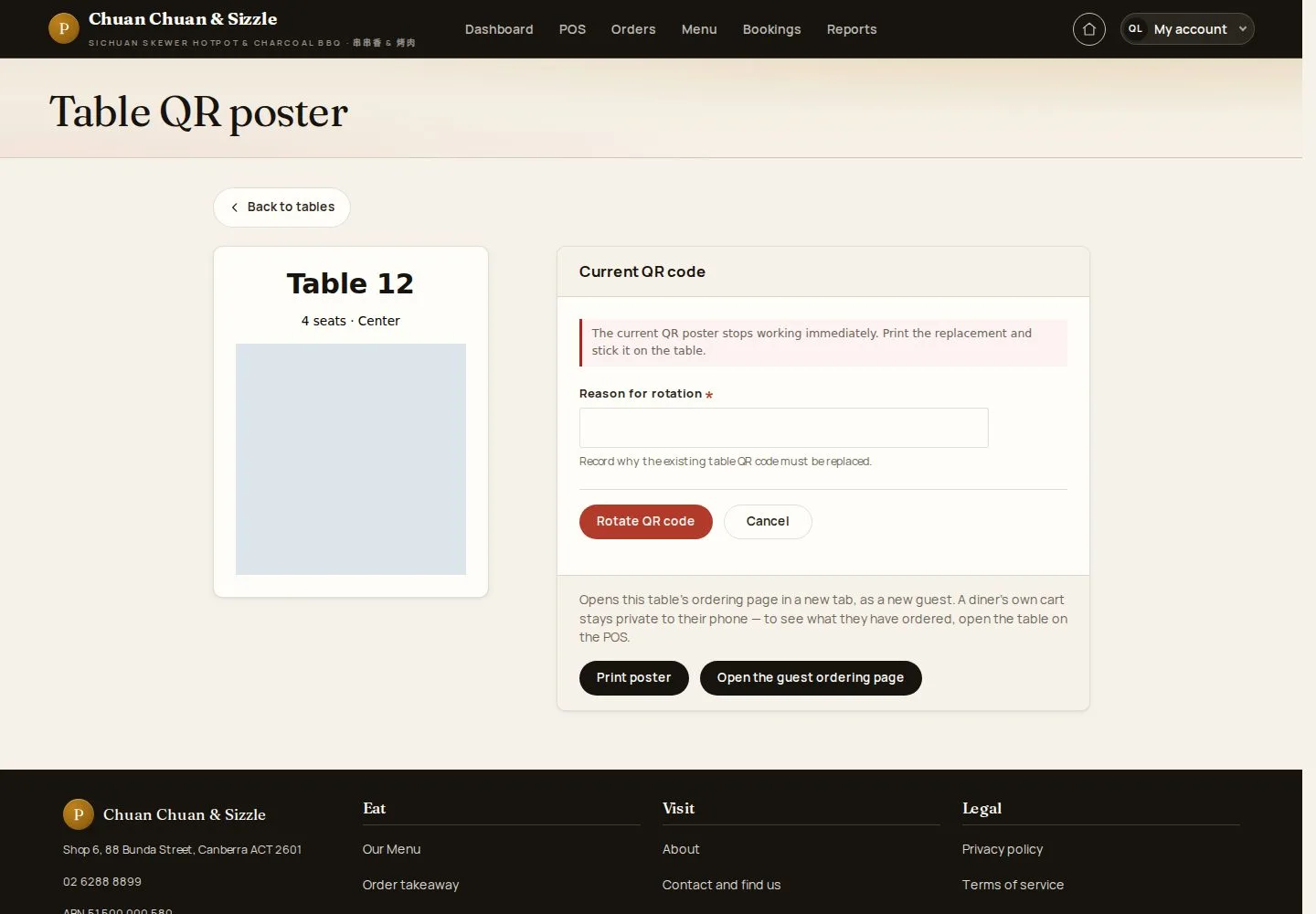
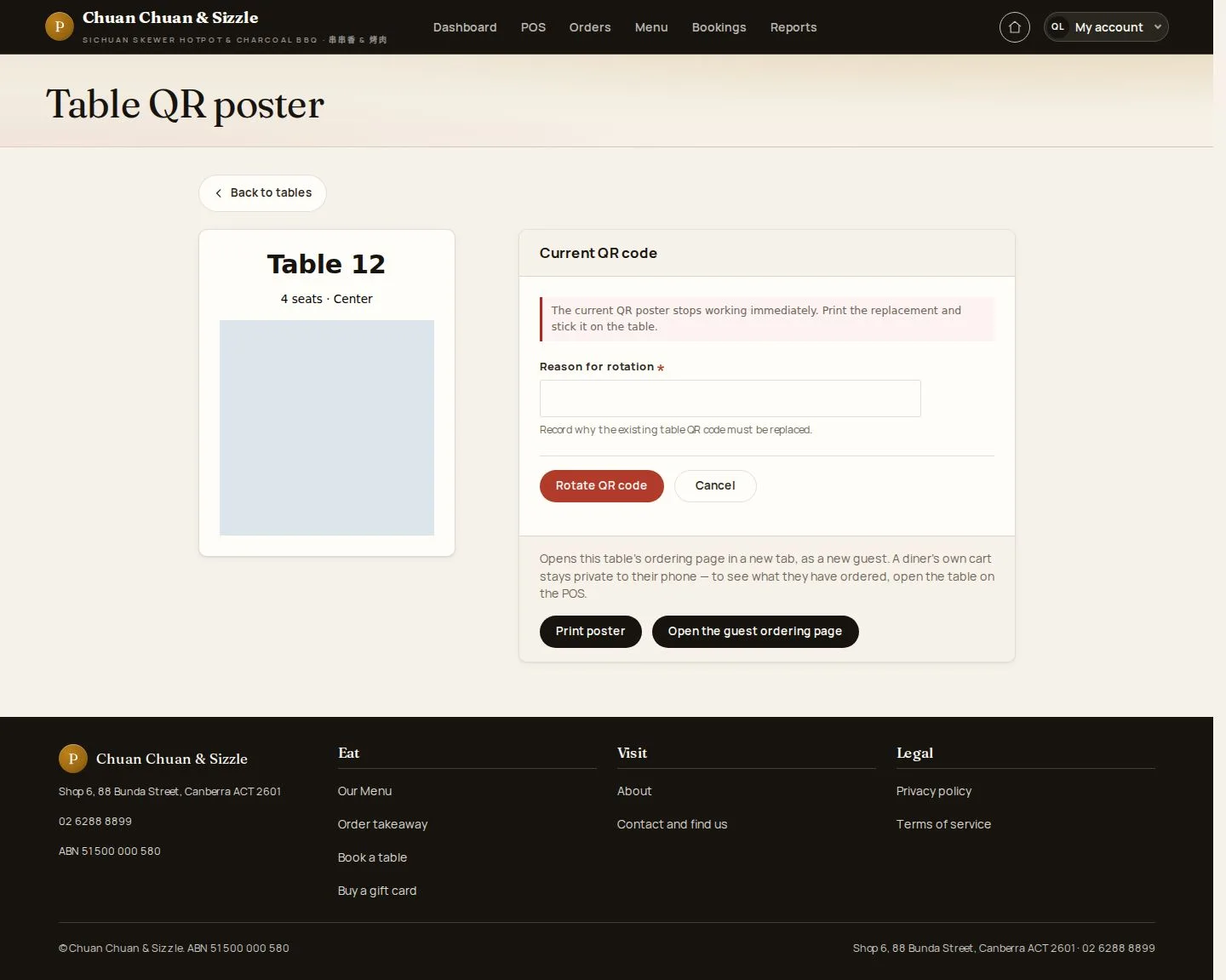
Table QR poster

Manager

Table QR poster

2Step 2 of 6

  1. Current QR code
  2. Print poster

Enlarge, then scroll

Open illustrated screen ↗Full image ↗

Manager · Tables and QR codes02

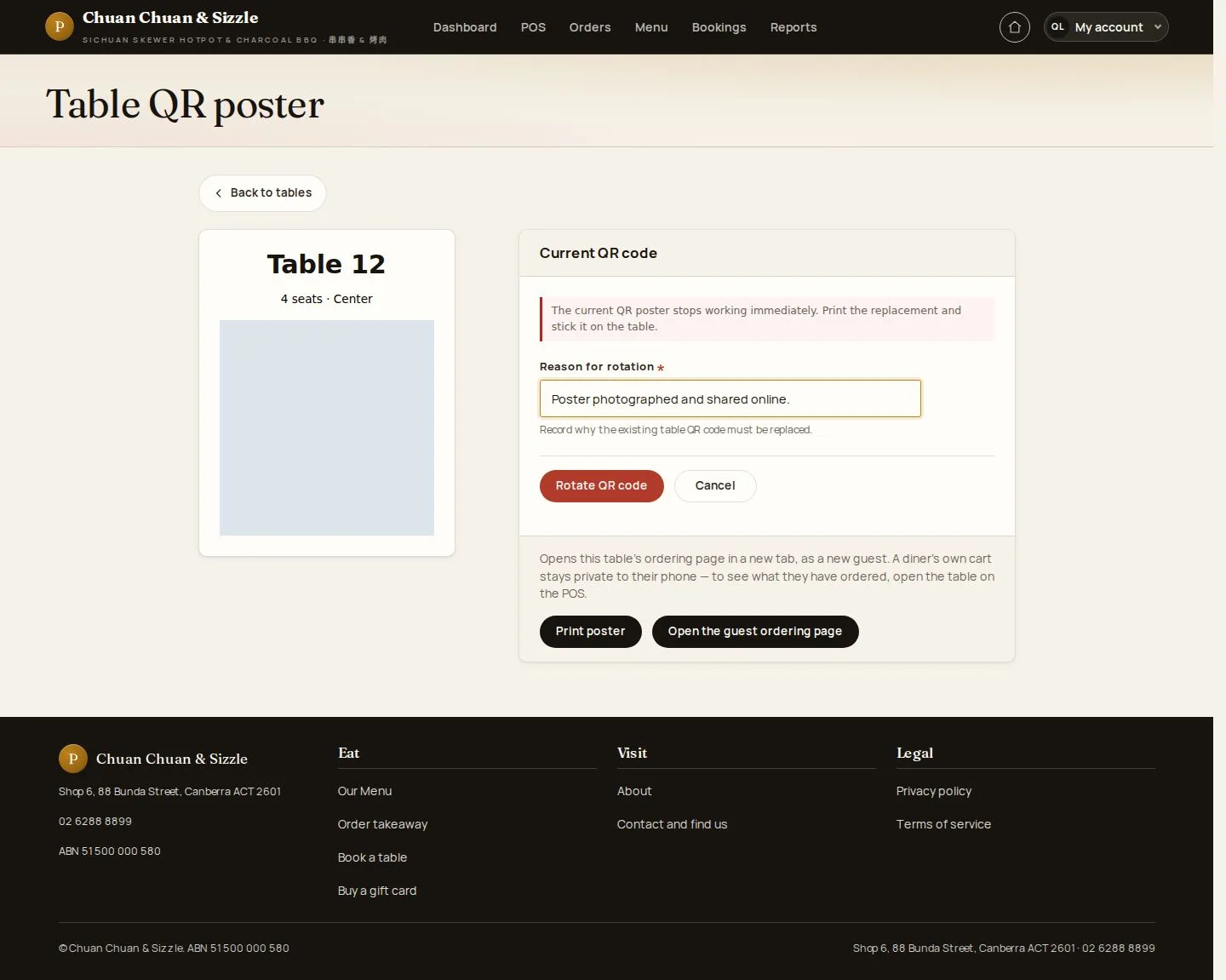
Rotate QR code

Manager

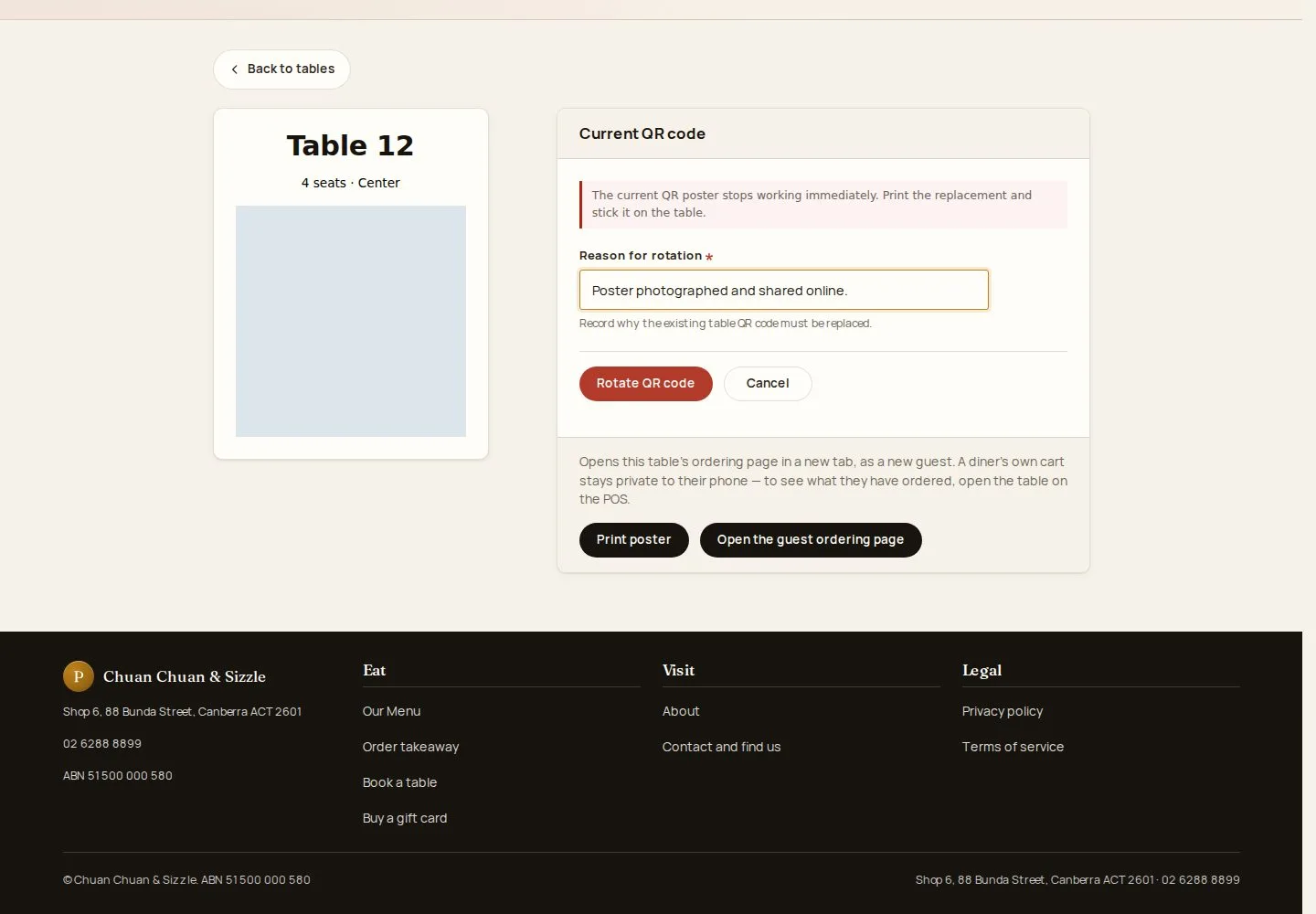
Rotate QR code

3Step 3 of 6

  1. Reason for rotation
  2. Rotate QR code

Rotate when a poster is damaged or shared; the old poster stops working at once.

Enlarge, then scroll

Open illustrated screen ↗Full image ↗

Manager · Tables and QR codes03

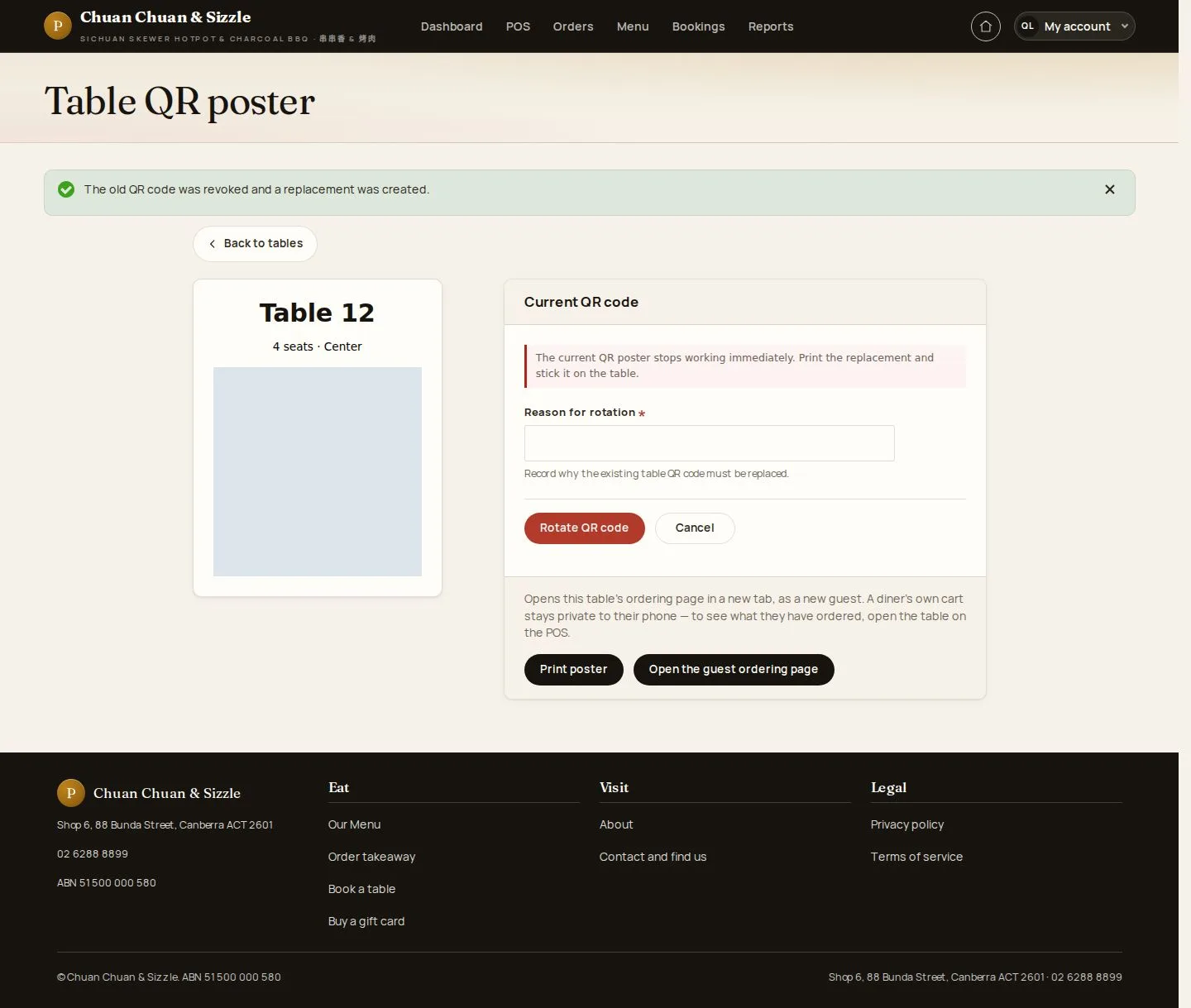
New code issued

Manager

New code issued

4Step 4 of 6

  1. Print the new poster

Enlarge, then scroll

Open illustrated screen ↗Full image ↗

Manager · Tables and QR codes04

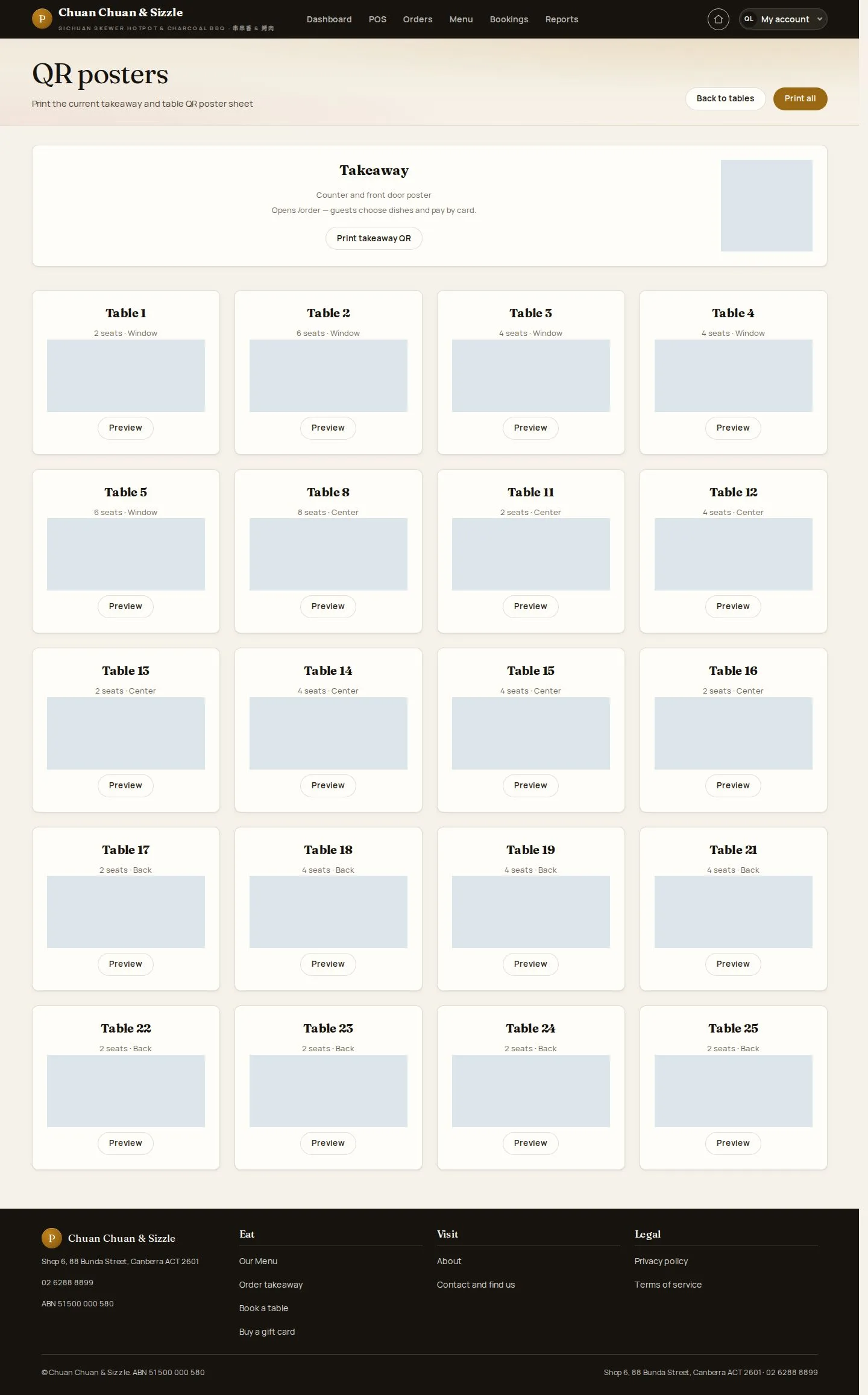
QR posters

Manager

QR posters

5Step 5 of 6

  1. Every table and the takeaway code
  2. Print

Enlarge, then scroll

Open illustrated screen ↗Full image ↗

Manager · Tables and QR codes05

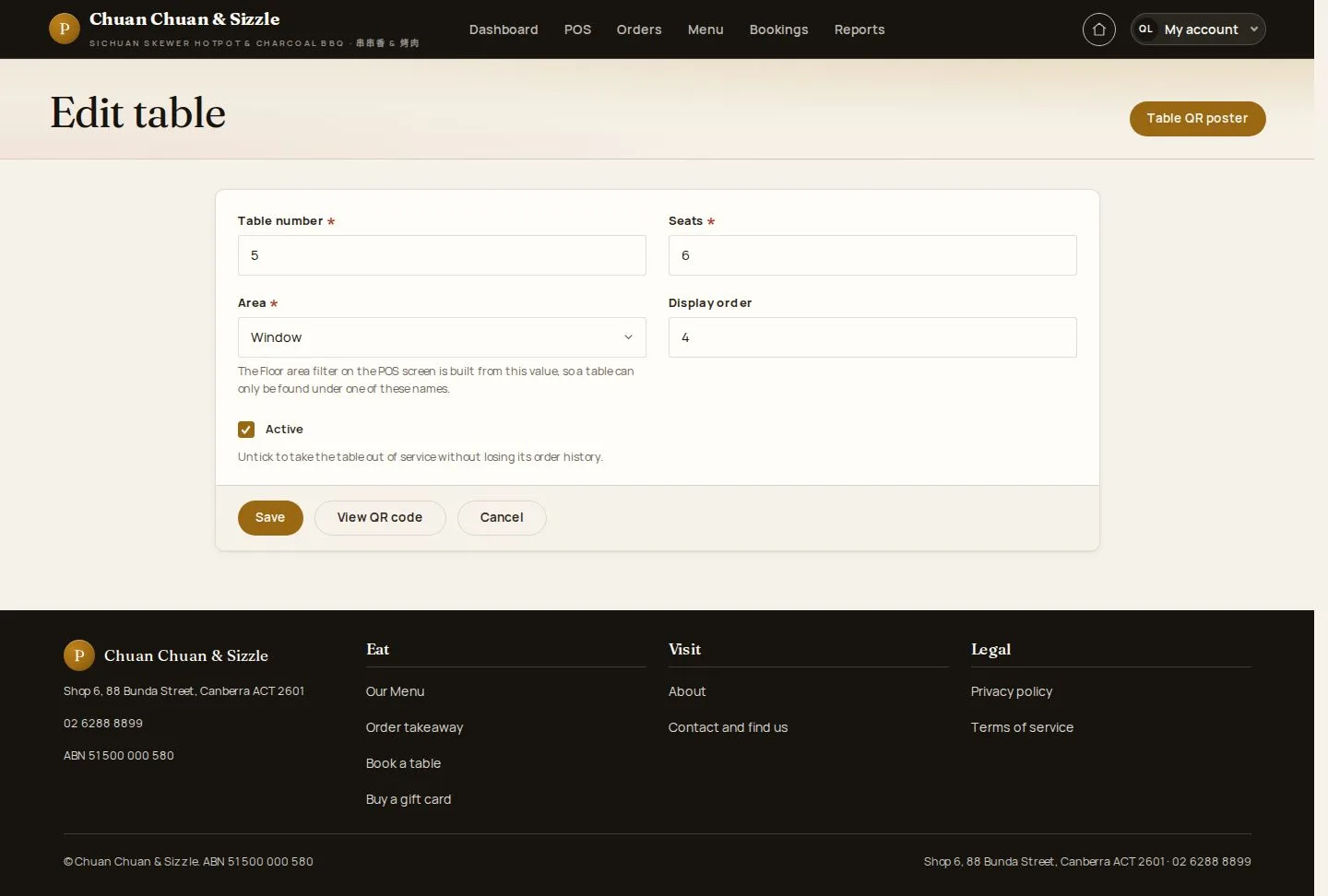
Edit table

Manager

Edit table

6Step 6 of 6

  1. Number · Seats · Area
  2. Active

The POS does not open a new order for an inactive table.

Open illustrated screen ↗Full image ↗

Check

The new poster is printed; the old code no longer opens ordering

Manager · Tables and QR codes06
1 / 7
Privacy Terms