



Quizzes & manual grading

Quiz · Questions · Pending review · Grade

  • Assessment management permission
Administrator
Quiz Management

Administrator

Quiz Management

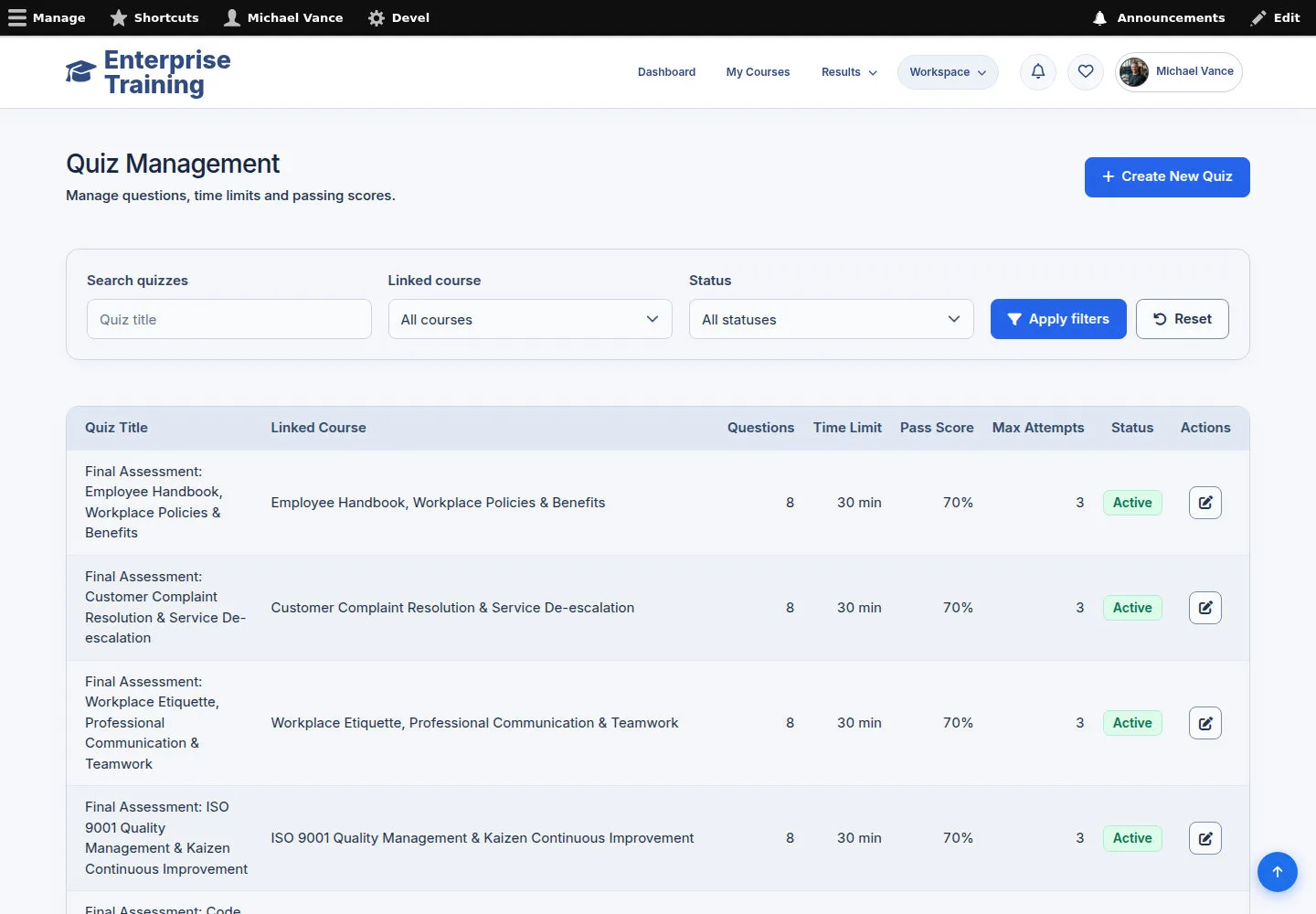
1Step 1 of 6

  1. Quiz Management
  2. Search quiz name
  3. Linked course → All if needed

Enlarge, then scroll

Open illustrated screen ↗Full image ↗

Administrator · Quizzes & manual grading01

Assessment rules

Administrator

Assessment rules

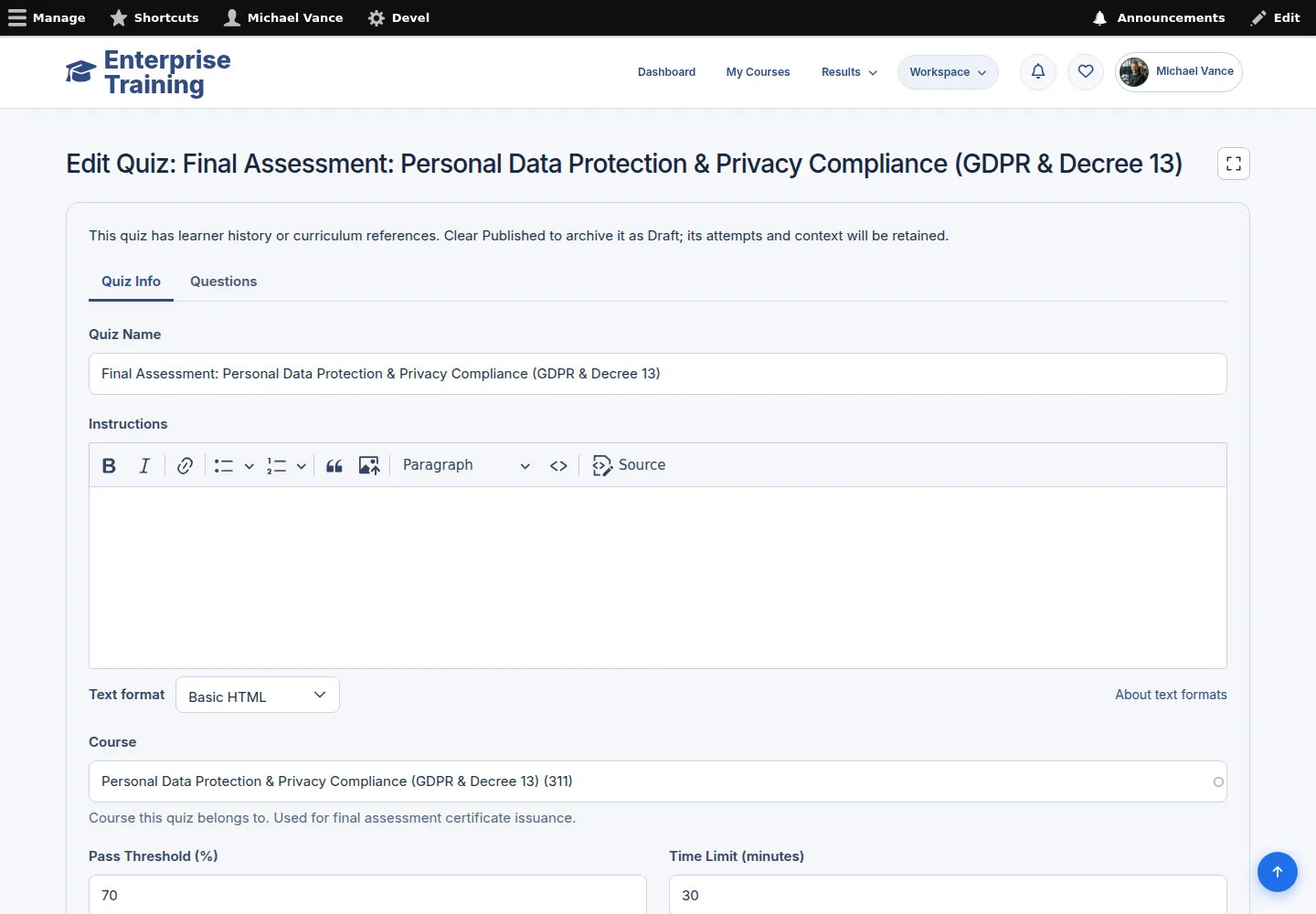
2Step 2 of 6

  1. Quiz Name / Instructions
  2. Pass Threshold / Time Limit
  3. Review settings
  4. Save

Enlarge, then scroll

Open illustrated screen ↗Full image ↗

Administrator · Quizzes & manual grading02

Questions & points

Administrator

Questions & points

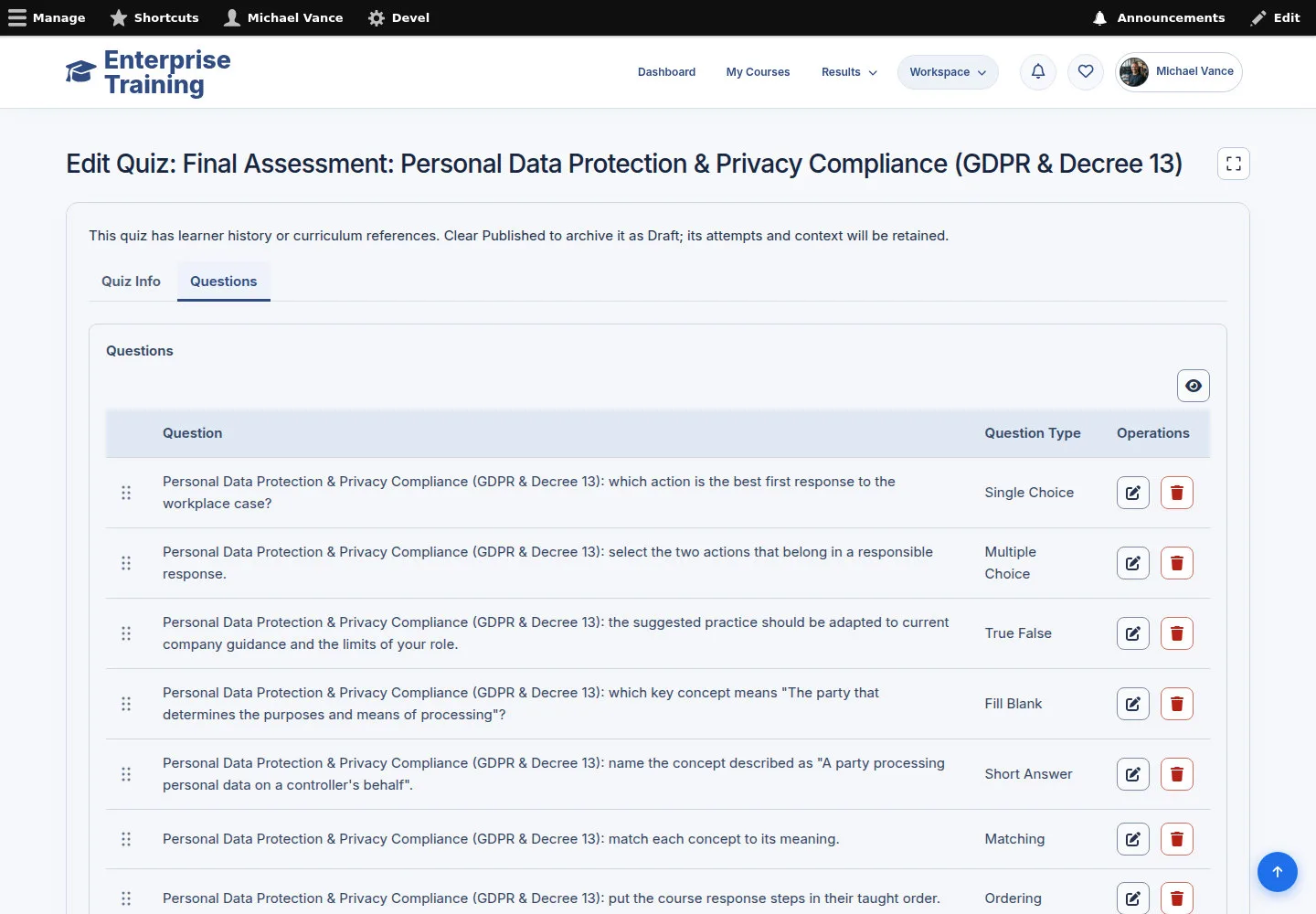
3Step 3 of 6

  1. Questions
  2. Add / choose question
  3. Review order & points
  4. Save quiz

Enlarge, then scroll

Open illustrated screen ↗Full image ↗

Administrator · Quizzes & manual grading03

Single Choice question

Administrator

Single Choice question

4Step 4 of 6

  1. Question / Details / Points
  2. Choices → Add new answer
  3. Mark correct answer
  4. Save → add to quiz

Create each answer before saving the question.

Enlarge, then scroll

Open illustrated screen ↗Full image ↗

Administrator · Quizzes & manual grading04

Pending Manual Review

Administrator

Pending Manual Review

5Step 5 of 6

  1. Check learner / course / quiz
  2. Review answers
  3. Pending Manual Review

Enlarge, then scroll

Open illustrated screen ↗Full image ↗

Administrator · Quizzes & manual grading05

Manual grading

Administrator

Manual grading

6Step 6 of 6

  1. Read response & criteria
  2. Points awarded
  3. Feedback to learner
  4. Finalize grade

Check the learner and stay within the displayed points maximum.

Enlarge, then scroll

Open illustrated screen ↗Full image ↗

Check

Assessment saved or pending grade finalized

Administrator · Quizzes & manual grading06
1 / 7
Privacy Terms