




Employees & branches

Employees · Roles · Branch membership

  • Administrator access
Administrator

Employee directory

Administrator

Employee directory

1Step 1 of 5

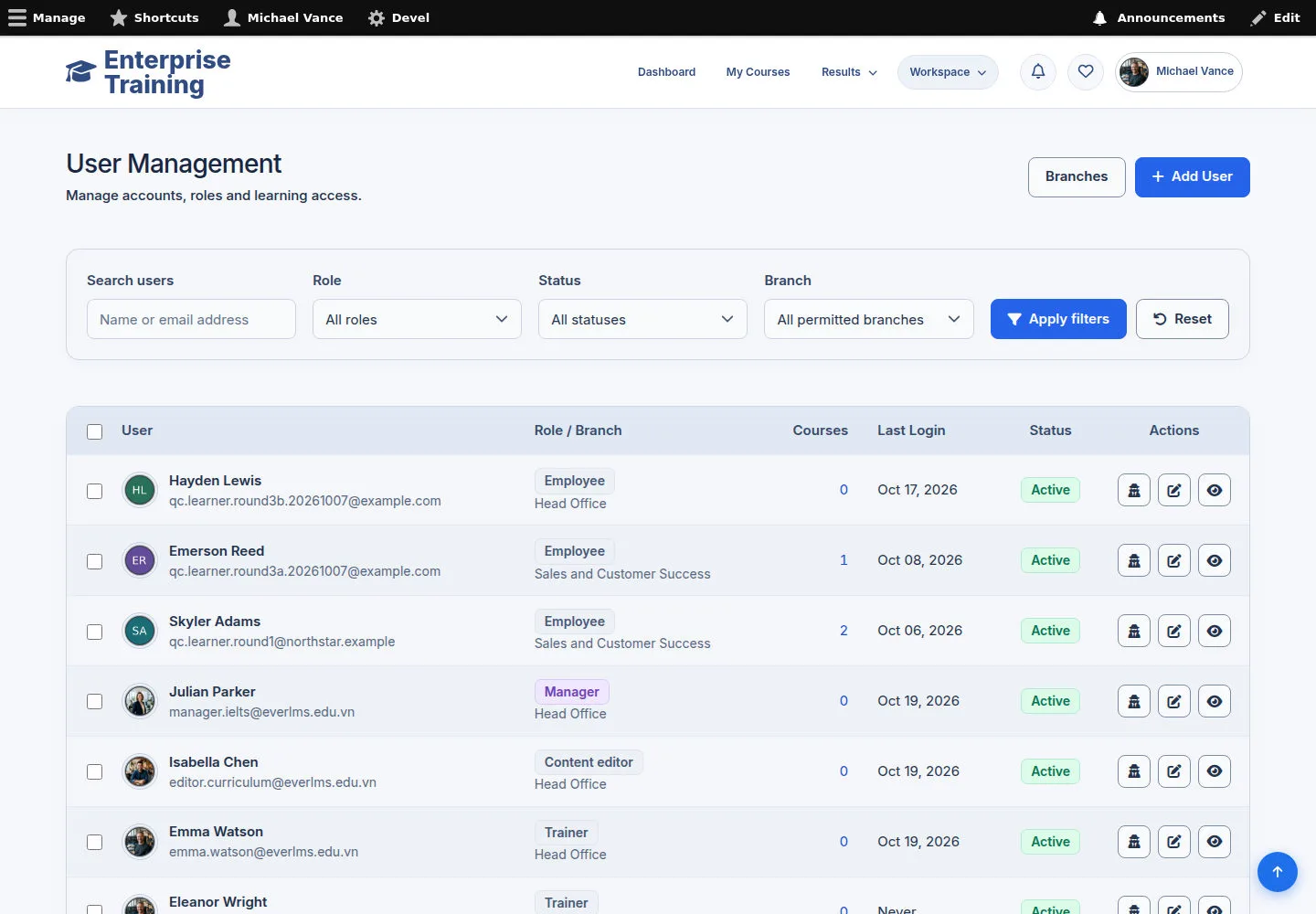
  1. Search name / email
  2. Role / Status / Branch
  3. Open employee

Administrator can review all branches.

Enlarge, then scroll

Open illustrated screen ↗Full image ↗

Administrator · Employees & branches01

Branch membership

Administrator

Branch membership

2Step 2 of 5

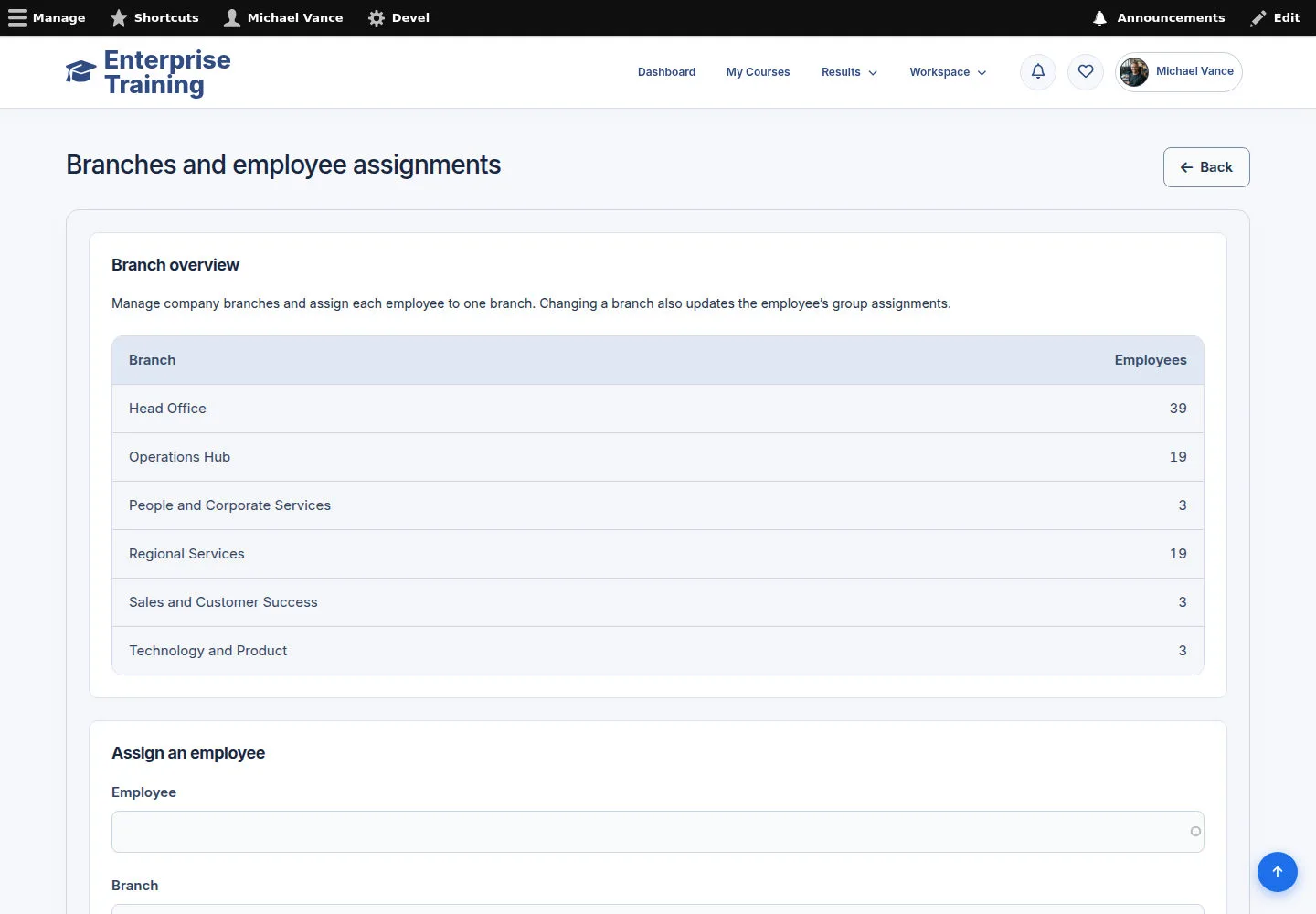
  1. Branch overview
  2. Choose employee & branch
  3. Assign employee to branch
  4. Create a branch if needed

Enlarge, then scroll

Open illustrated screen ↗Full image ↗

Administrator · Employees & branches02

Employee identity & scope

Administrator

Employee identity & scope

3Step 3 of 5

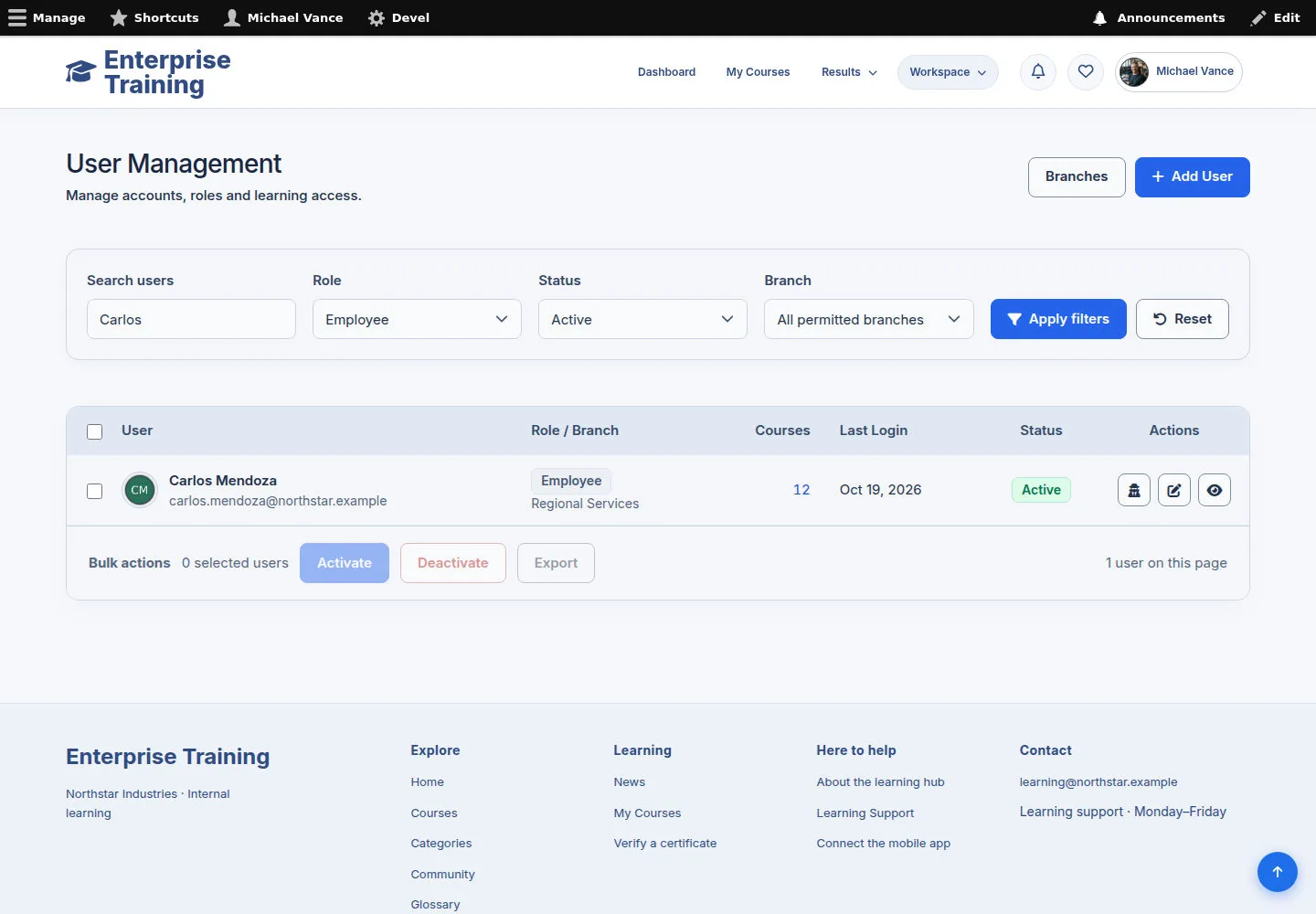
  1. Confirm employee identity
  2. Check branch & status
  3. Edit / assign course

Enlarge, then scroll

Open illustrated screen ↗Full image ↗

Administrator · Employees & branches03

New employee

Administrator

New employee

4Step 4 of 5

  1. Username / email
  2. Required fields
  3. Check role / status / branch
  4. Create account

Enlarge, then scroll

Open illustrated screen ↗Full image ↗

Administrator · Employees & branches04

Edit employee account

Administrator

Edit employee account

5Step 5 of 5

  1. Confirm identity / branch
  2. Edit permitted fields
  3. Full screen / Esc
  4. Save changes / Cancel

Cancel leaves edits unsaved. Cancel account is a separate account action.

Enlarge, then scroll

Open illustrated screen ↗Full image ↗

Check

Employee details and branch membership maintained

Administrator · Employees & branches05
1 / 6
Privacy Terms