


Company content

FAQ · News · Glossary · Homepage

  • Company content editing permission
Administrator
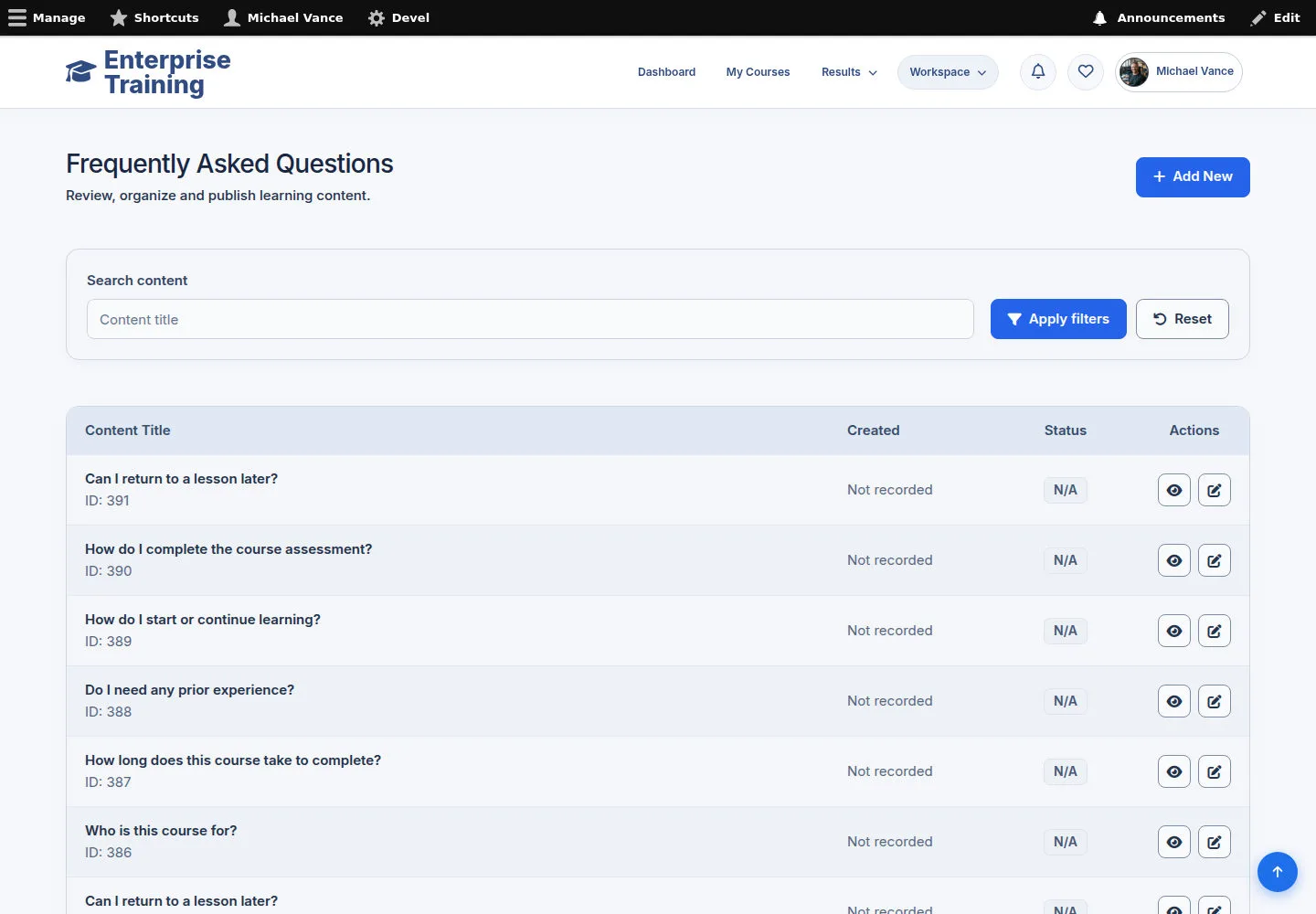
FAQ library

Administrator

FAQ library

1Step 1 of 10

  1. FAQ list
  2. Find a record
  3. Add / Edit

Enlarge, then scroll

Open illustrated screen ↗Full image ↗

Administrator · Company content01

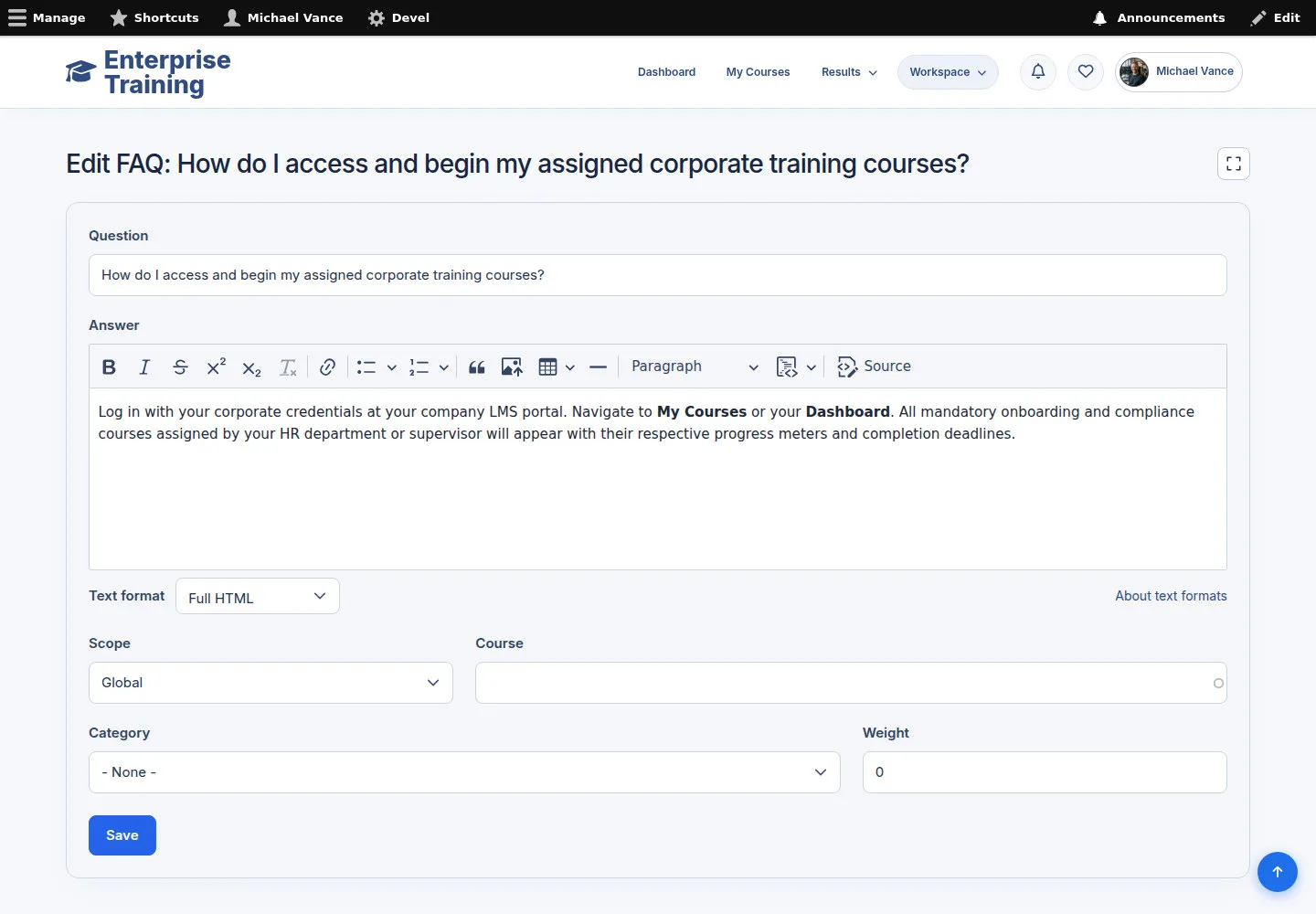
Edit FAQ

Administrator

Edit FAQ

2Step 2 of 10

  1. Question / Answer
  2. Scope / Course
  3. Category / Weight
  4. Save

Enlarge, then scroll

Open illustrated screen ↗Full image ↗

Administrator · Company content02

News library

Administrator

News library

3Step 3 of 10

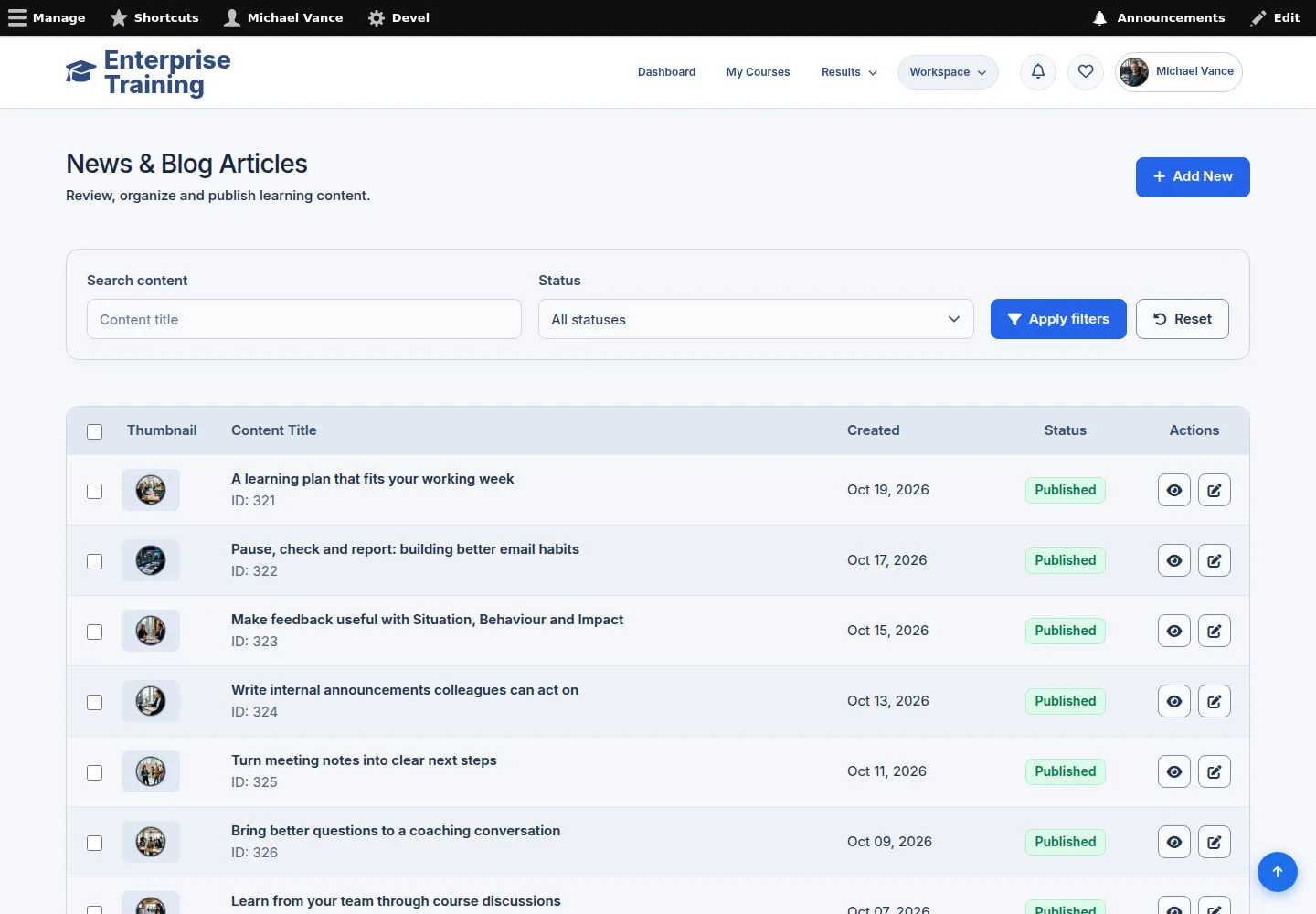
  1. News list
  2. Find a record
  3. Add / Edit

Enlarge, then scroll

Open illustrated screen ↗Full image ↗

Administrator · Company content03

Edit News

Administrator

Edit News

4Step 4 of 10

  1. Title / Thumbnail / Alternative text
  2. Blog tags
  3. Summary / Body
  4. Save / Cancel

Enlarge, then scroll

Open illustrated screen ↗Full image ↗

Administrator · Company content04

Glossary library

Administrator

Glossary library

5Step 5 of 10

  1. Glossary list
  2. Find a record
  3. Add / Edit

Enlarge, then scroll

Open illustrated screen ↗Full image ↗

Administrator · Company content05

Edit Glossary

Administrator

Edit Glossary

6Step 6 of 10

  1. Title / Synonyms or Abbreviations
  2. Related Course
  3. Summary / Body
  4. Save / Cancel

Summary opens when it has content; expand it to add an optional summary.

Enlarge, then scroll

Open illustrated screen ↗Full image ↗

Administrator · Company content06

Introduction library

Administrator

Introduction library

7Step 7 of 10

  1. Introduction list
  2. Find a record
  3. Add / Edit

Enlarge, then scroll

Open illustrated screen ↗Full image ↗

Administrator · Company content07

Edit Introduction

Administrator

Edit Introduction

8Step 8 of 10

  1. Title / Subheading / Description
  2. Introduction Image / Alternative text
  3. Image Position / Background Color
  4. Call to Action Button → Save

Set the button URL and Link text. Cancel leaves changes unsaved.

Enlarge, then scroll

Open illustrated screen ↗Full image ↗

Administrator · Company content08

Slideshow library

Administrator

Slideshow library

9Step 9 of 10

  1. Slideshow list
  2. Find a record
  3. Add / Edit

Enlarge, then scroll

Open illustrated screen ↗Full image ↗

Administrator · Company content09

Edit Slideshow

Administrator

Edit Slideshow

10Step 10 of 10

  1. Title / Slide Heading / Slide Subheading
  2. Slide Image / Body
  3. Slide Link / Text Position
  4. Save / Cancel

Enlarge, then scroll

Open illustrated screen ↗Full image ↗

Check

Content saved with the intended scope and links

Administrator · Company content10
1 / 11
Privacy Terms