





Warranty tickets

New ticket · Record coverage decision · Reopen ticket · Resume work

  • The original handed-over job
  • The customer’s photographs
Project coordinator
New ticket

Project coordinator

New ticket

1Step 1 of 4

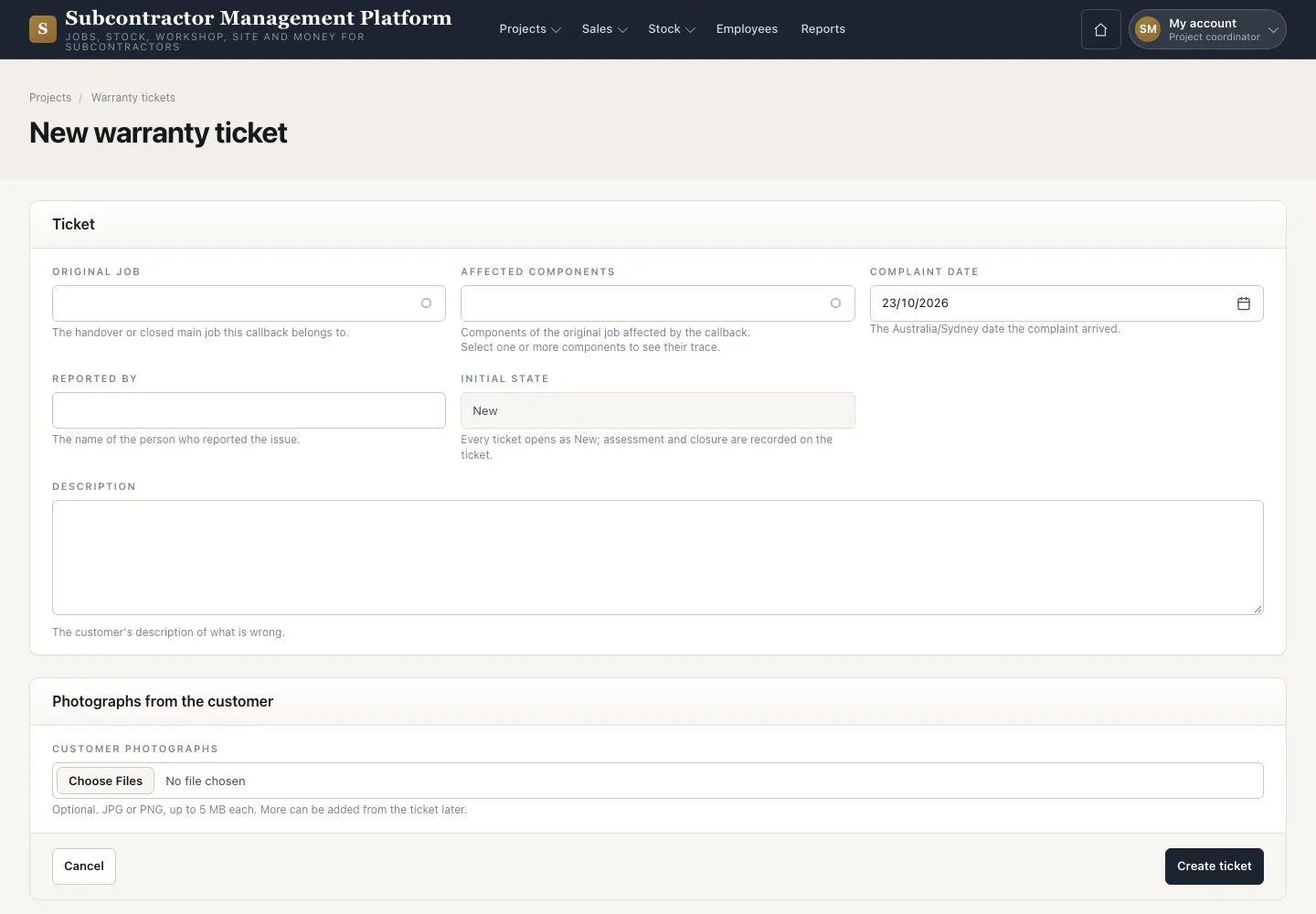
  1. Open Projects → “Warranty tickets” → “New ticket”
  2. Enter the original job, affected components, date, reporter and description
  3. Attach the photographs and press “Create ticket”

Enlarge, then scroll

Open illustrated screen ↗Full image ↗

Project coordinator · Warranty tickets01

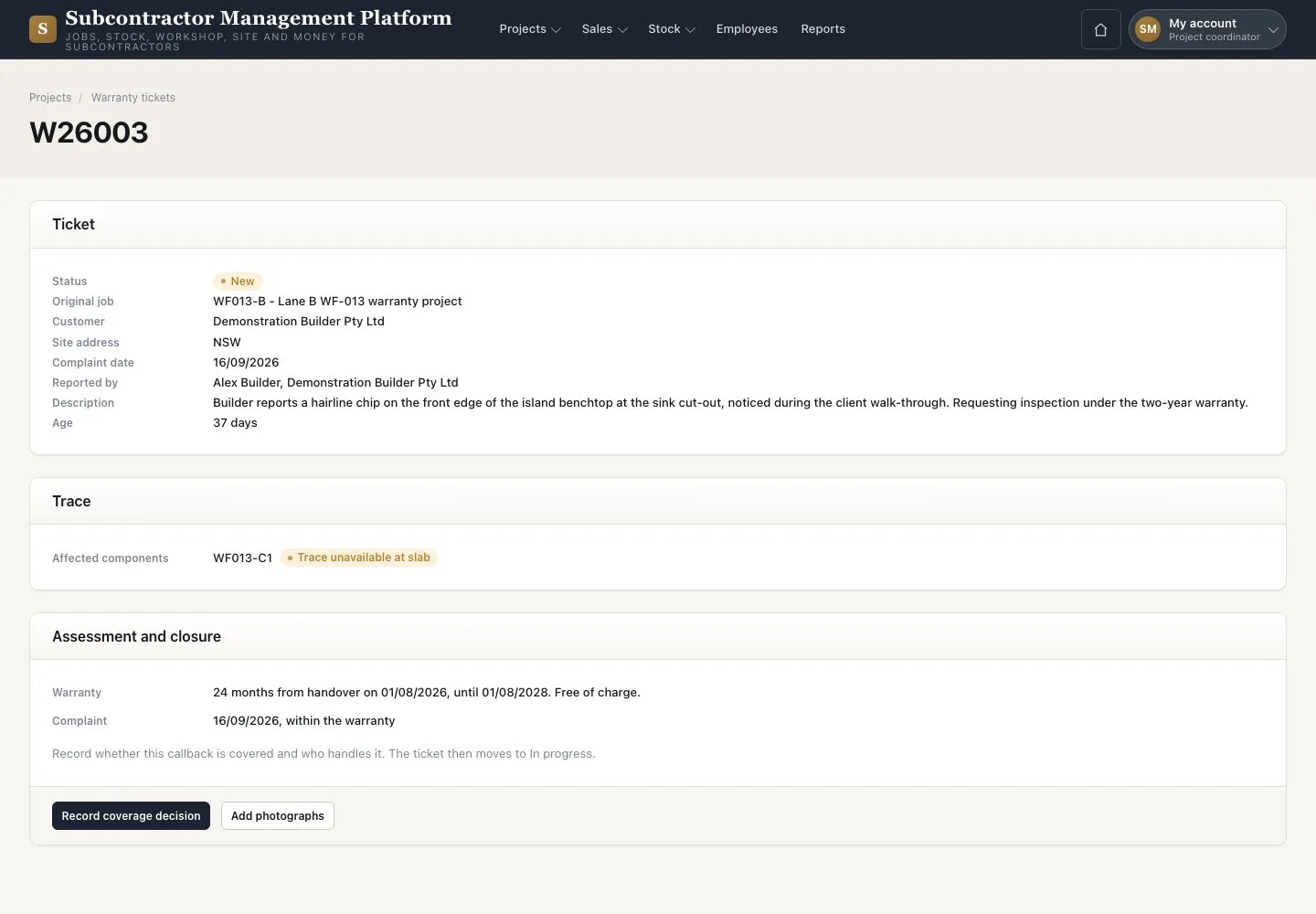
Ticket

Project coordinator

Ticket

2Step 2 of 4

  1. Open the ticket and its “Trace”
  2. Use “Add photographs” while it is open

Enlarge, then scroll

Open illustrated screen ↗Full image ↗

Project coordinator · Warranty tickets02

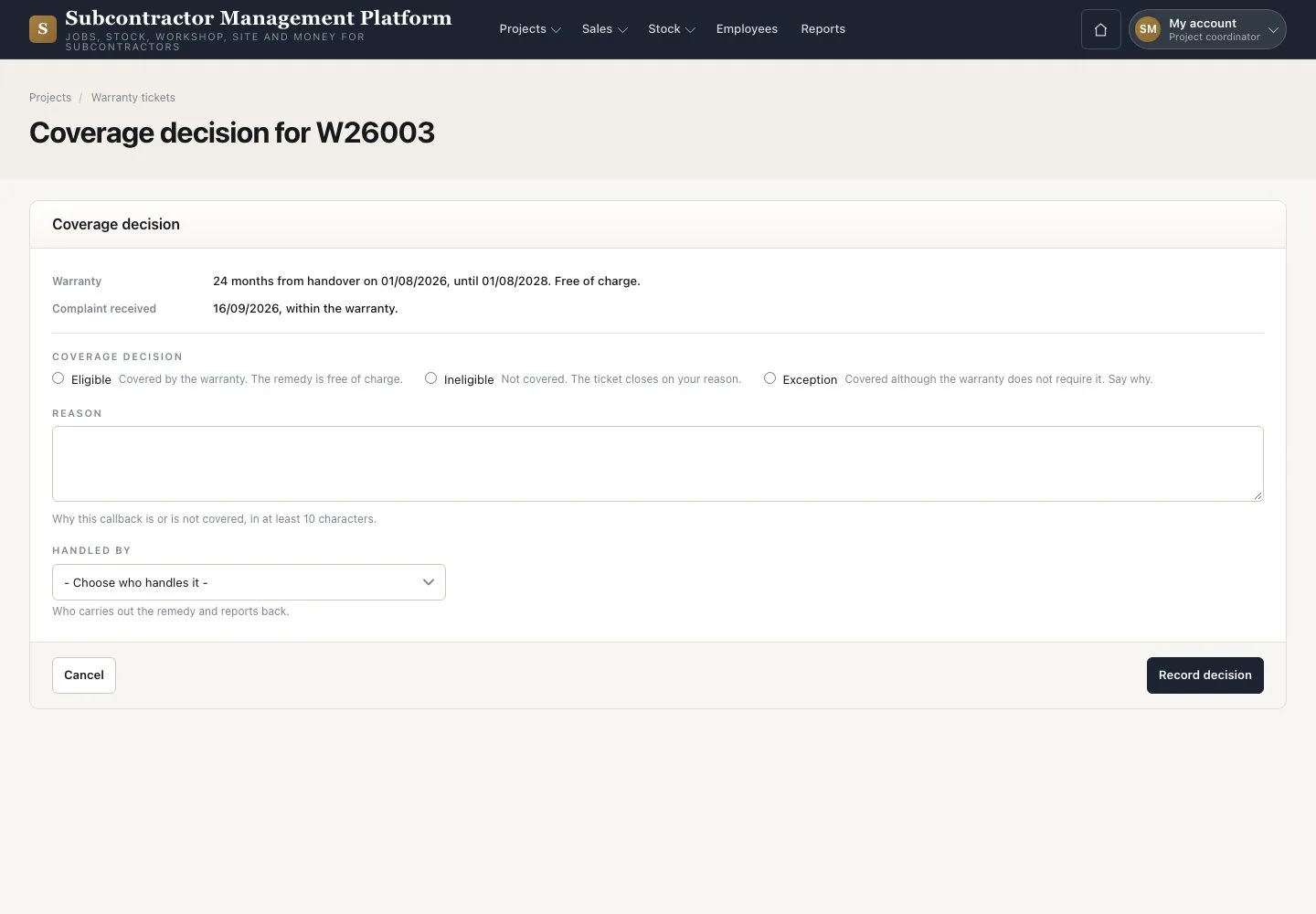
Coverage decision

Project coordinator

Coverage decision

3Step 3 of 4

  1. Press “Record coverage decision”
  2. Choose Eligible, Ineligible or Exception with a reason and “Handled by”
  3. Press “Record decision”

After the warranty expires, coverage cannot be Eligible.

Open illustrated screen ↗Full image ↗

Project coordinator · Warranty tickets03

Reopen a ticket

Project coordinator

Reopen a ticket

4Step 4 of 4

  1. On a Closed ticket press “Reopen ticket”
  2. Enter the reason and a photograph of the new complaint
  3. Then press “Resume work”

Open illustrated screen ↗Full image ↗

Check

The ticket keeps its coverage, remedy, closure and any reopening.

Project coordinator · Warranty tickets04
1 / 5
Privacy Terms