

Start with a PDF

PDFs up to 500 pages, scanned at once

  • An email address you can read
  • A PDF up to 100 MB and 500 pages
Creator
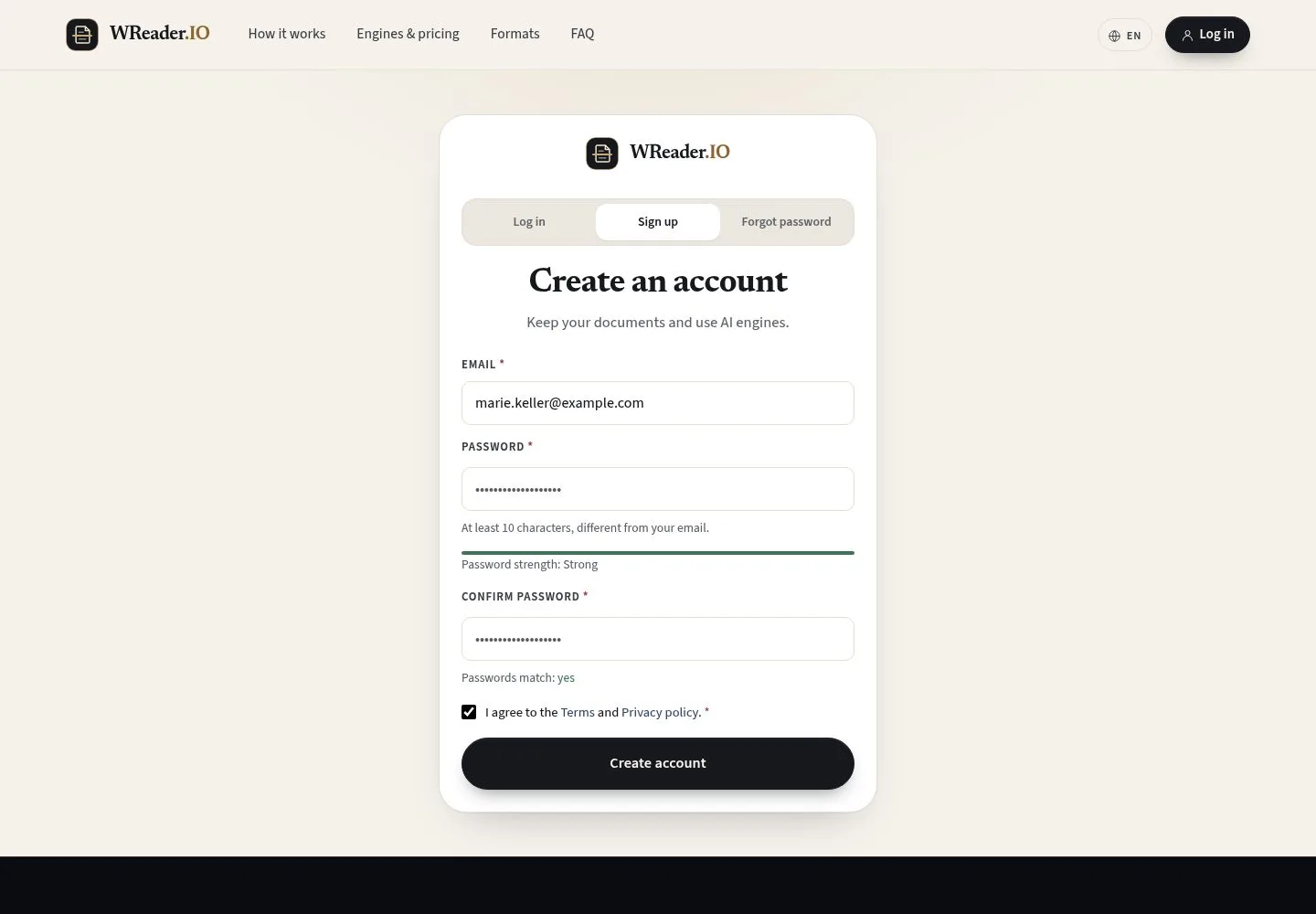
Create an account

Visitor

Create an account

1Step 1 of 8

  1. Log in and Sign up sit on one card.
  2. Enter your email and a password of at least 10 characters, and agree to the Terms and the Privacy policy.
  3. Create account sends a code; no credits and no role come with it yet.

Enlarge, then scroll

Open illustrated screen ↗Full image ↗

Creator · Start with a PDF01

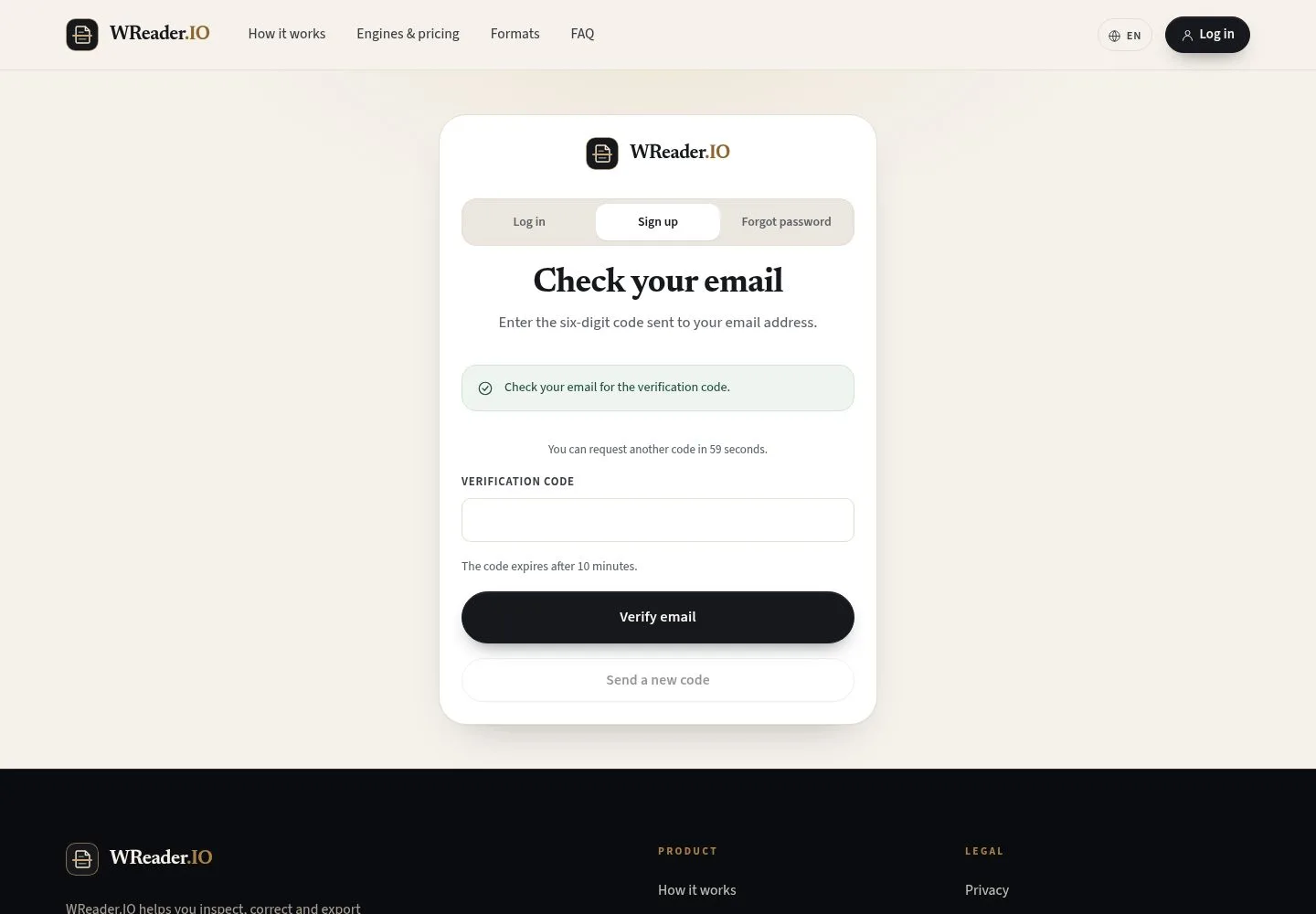
Confirm your email

Visitor

Confirm your email

2Step 2 of 8

  1. A six-digit code arrives by email and expires after 10 minutes.
  2. Send a new code works after a minute.
  3. Verify email makes the account a Creator; then log in.

Five wrong codes end that code. Without this browser, log in with the same password and Verify opens again.

Enlarge, then scroll

Open illustrated screen ↗Full image ↗

Creator · Start with a PDF02

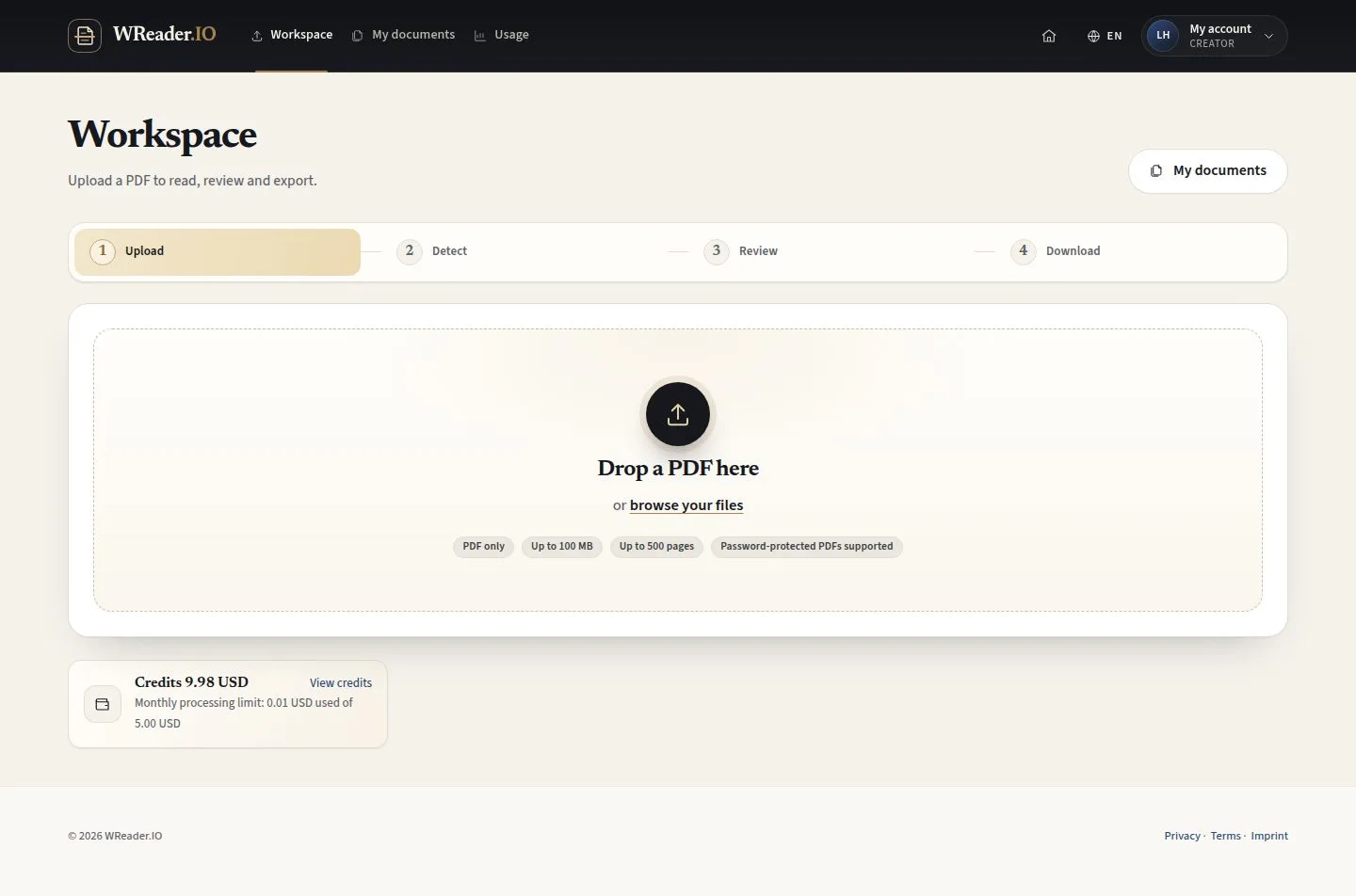
The Workspace

Creator

The Workspace

3Step 3 of 8

  1. Drop a PDF or browse your files.
  2. PDF only, up to 100 MB and 500 pages.
  3. Credits shows what is available for AI.

Open illustrated screen ↗Full image ↗

Creator · Start with a PDF03

While it uploads

Creator

While it uploads

4Step 4 of 8

  1. The bar follows the bytes; Cancel stops them in your browser.
  2. At 100% the server checks the file.

A file that is not a PDF is refused and no document is made.

Open illustrated screen ↗Full image ↗

Creator · Start with a PDF04

A protected PDF

Creator

A protected PDF

5Step 5 of 8

  1. Enter the password and choose Open PDF.
  2. A wrong password keeps the dialog open.

The password is used once and is not stored.

Open illustrated screen ↗Full image ↗

Creator · Start with a PDF05

The quick scan

Creator

The quick scan

6Step 6 of 8

  1. Pages, text layer, scanned pages and language.
  2. Previews fill in as they are ready.
  3. Nothing is read or charged yet.

Enlarge, then scroll

Open illustrated screen ↗Full image ↗

Creator · Start with a PDF06

The same file again

Creator

The same file again

7Step 7 of 8

  1. Open existing goes back to your document and its results.
  2. Continue as new makes a separate document.

Open illustrated screen ↗Full image ↗

Creator · Start with a PDF07

Another language

Creator

Another language

8Step 8 of 8

  1. The scan suggests a language from the first pages.
  2. Outside English and German, choose one of them before starting an engine.

Enlarge, then scroll

Open illustrated screen ↗Full image ↗

Check

The document opens at Detect with its pages, text layers, scanned pages and language

Creator · Start with a PDF08
1 / 9
Privacy Terms