







Credits

Prepaid in US dollars, Stripe or PayPal

  • Signed in as a Creator
Creator

Credits

Creator

Credits

1Step 1 of 10

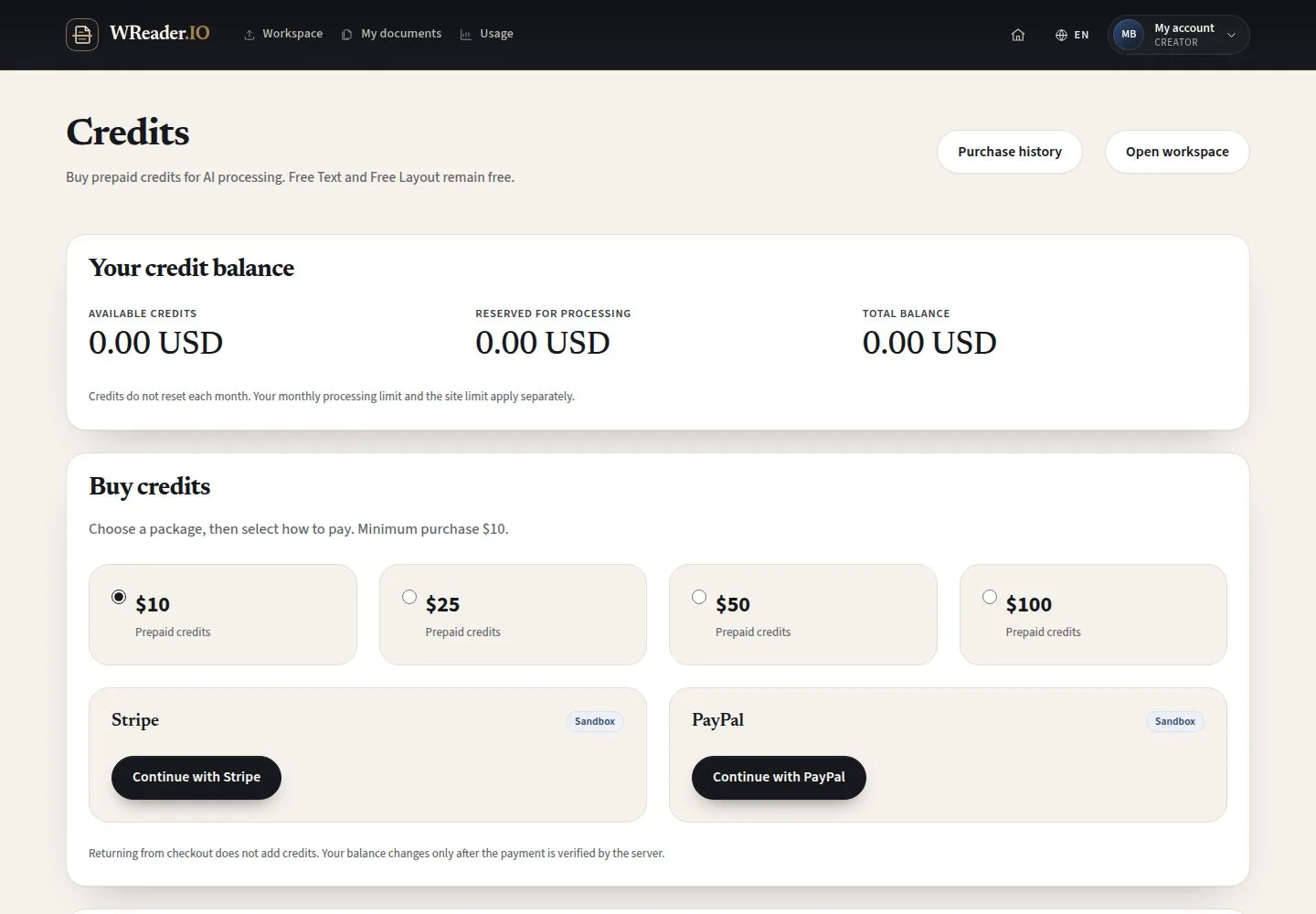
  1. Available, reserved and total balance.
  2. Free Text and Free Layout need no credits.
  3. A new account starts at zero.

Enlarge, then scroll

Open illustrated screen ↗Full image ↗

Creator · Credits01

From a PDF

Creator

From a PDF

2Step 2 of 10

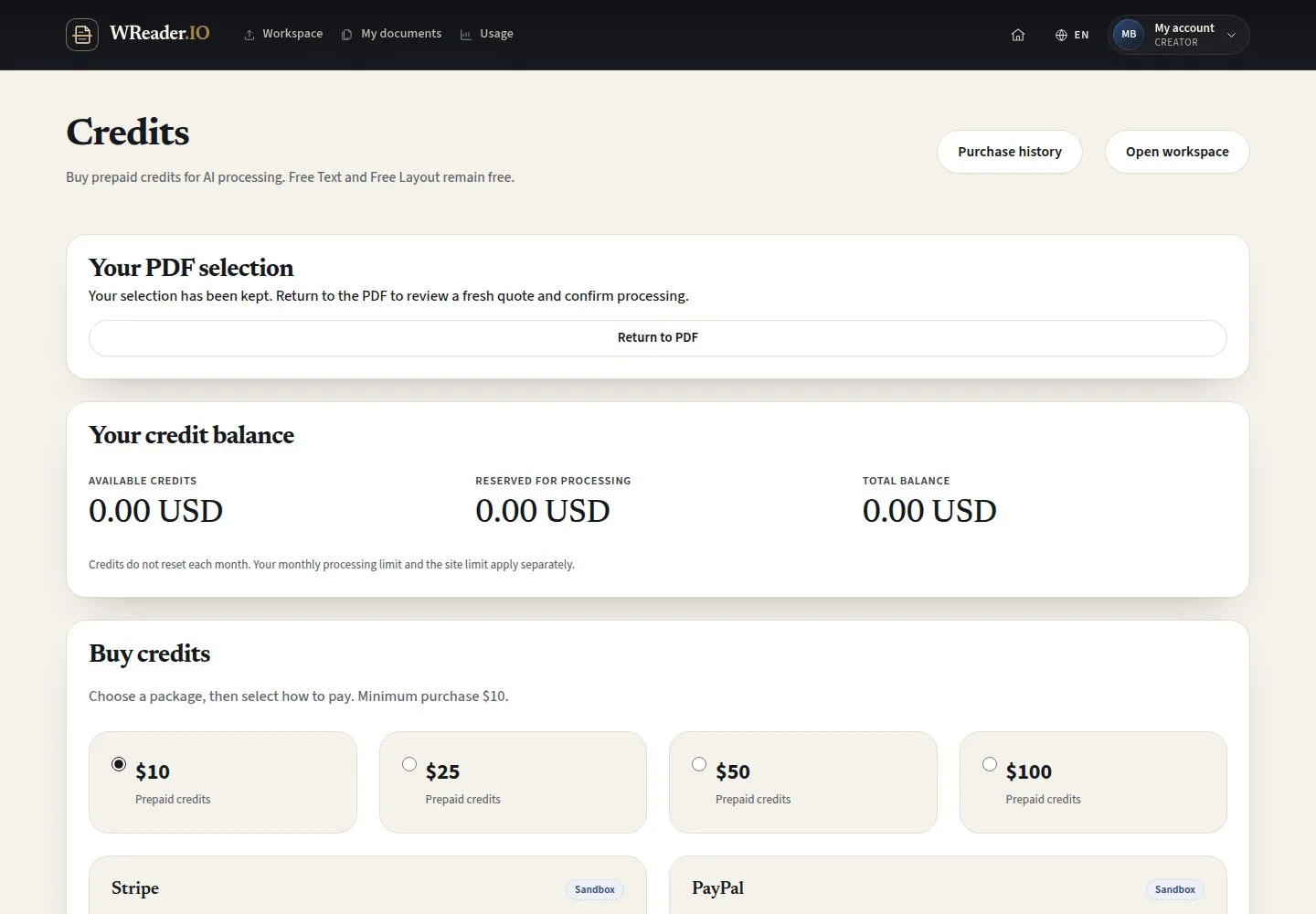
  1. Buy credits on the picker opens this page with the way back to your PDF.

Enlarge, then scroll

Open illustrated screen ↗Full image ↗

Creator · Credits02

Choose a package

Creator

Choose a package

3Step 3 of 10

  1. $10, $25, $50 or $100.
  2. Continue with Stripe or Continue with PayPal.

Sandbox on the DEV site: no money is charged.

Enlarge, then scroll

Open illustrated screen ↗Full image ↗

Creator · Credits03

Checkout

Creator

Checkout

4Step 4 of 10

  1. Purchase reference, package and amount.
  2. Pay opens the page of the provider; Cancel checkout comes back.

Enlarge, then scroll

Open illustrated screen ↗Full image ↗

Creator · Credits04

After verification

Creator

After verification

5Step 5 of 10

  1. Coming back alone adds nothing.
  2. The balance changes when the server has verified the payment.
  3. Check payment asks again.

Enlarge, then scroll

Open illustrated screen ↗Full image ↗

Creator · Credits05

Back at your PDF

Creator

Back at your PDF

6Step 6 of 10

  1. Return to your PDF: AI is open now.
  2. Nothing starts by itself.

Enlarge, then scroll

Open illustrated screen ↗Full image ↗

Creator · Credits06

Purchase history

Creator

Purchase history

7Step 7 of 10

  1. Every purchase with its status, what was paid and what was added.
  2. An unfinished payment can be continued from here.

Open illustrated screen ↗Full image ↗

Creator · Credits07

Purchase details

Creator

Purchase details

8Step 8 of 10

  1. Reference, provider, package and amount.
  2. Credits added and net credits.

Enlarge, then scroll

Open illustrated screen ↗Full image ↗

Creator · Credits08

A partial refund

Creator

A partial refund

9Step 9 of 10

  1. A refund made at the provider shows as Refunded at provider.
  2. Credits reversed and Net credits follow, once.

Credits already spent stay spent; what cannot be reversed goes to review.

Enlarge, then scroll

Open illustrated screen ↗Full image ↗

Creator · Credits09

Credit history

Creator

Credit history

10Step 10 of 10

  1. Every change of balance and reservation, with its sign.
  2. Purchases, charges of Runs and reversals stay apart.

Enlarge, then scroll

Open illustrated screen ↗Full image ↗

Check

The payment is verified, the credits are available and the purchase is in your history

Creator · Credits10
1 / 11
Privacy Terms