







Staff accounts

Users & roles · Add account · Employee record · Account changes

  • The person’s name, email and business roles
Platform administrator
Users & roles

Platform administrator

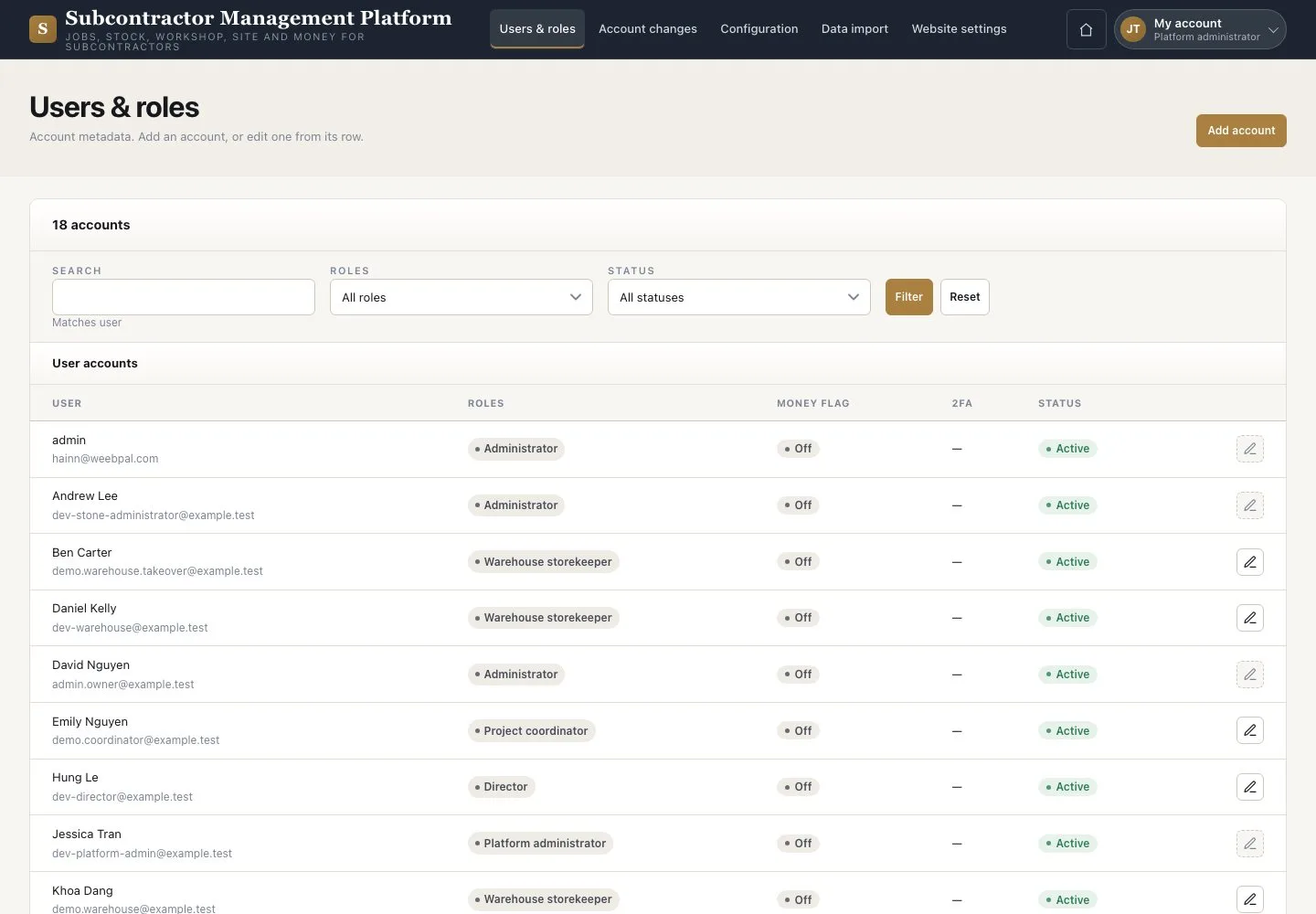
Users & roles

1Step 1 of 4

  1. Open “Users & roles”
  2. Filter the accounts
  3. Press “Add account” or “Edit”

“The money flag” decides who may see money.

Enlarge, then scroll

Open illustrated screen ↗Full image ↗

Platform administrator · Staff accounts01

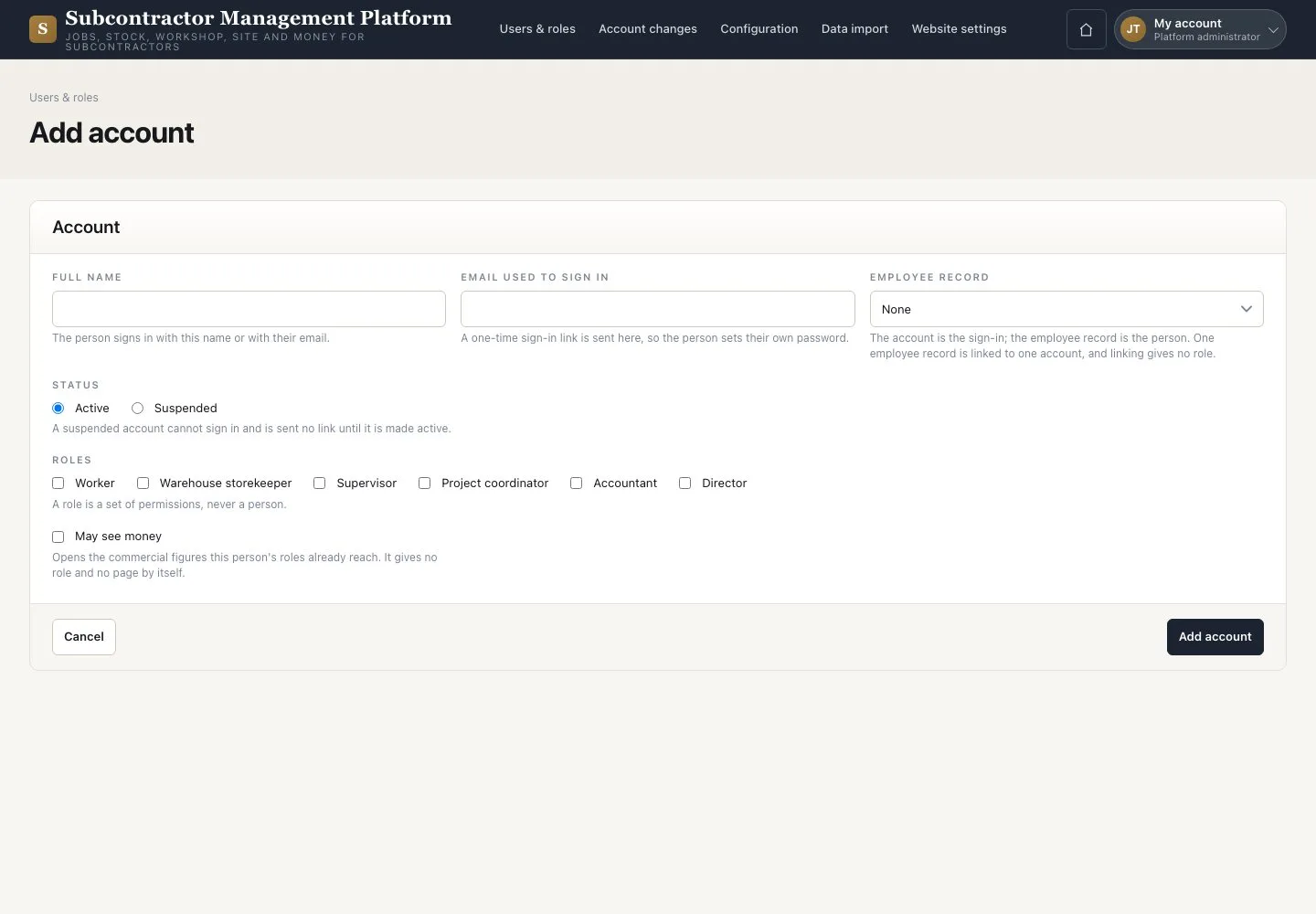
Add account

Platform administrator

Add account

2Step 2 of 4

  1. Enter the name, email and status
  2. Choose the business roles and whether they may see money
  3. Press “Add account”

You cannot assign Platform administrator or Administrator, delete accounts or reset someone else’s password.

Open illustrated screen ↗Full image ↗

Platform administrator · Staff accounts02

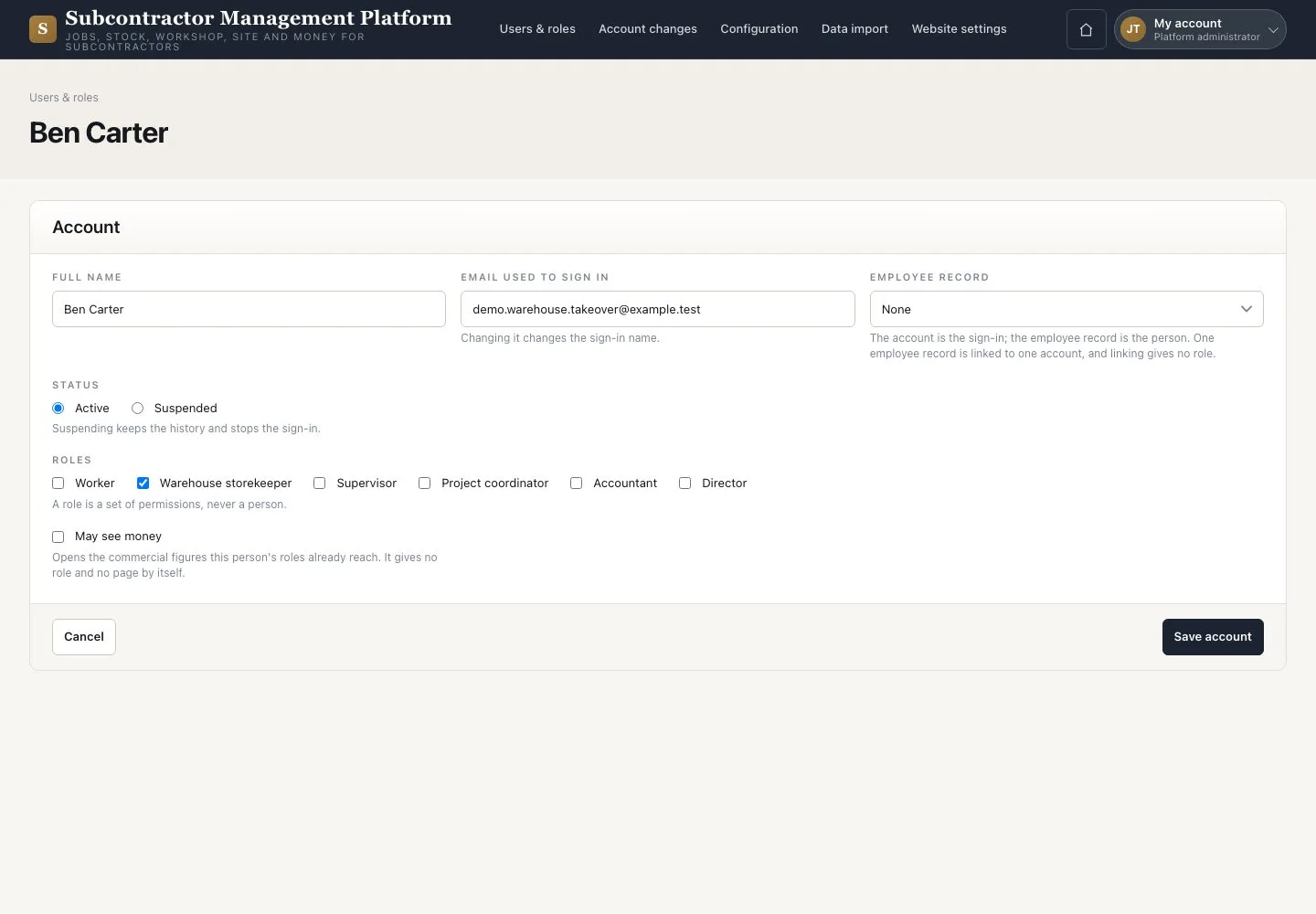
Edit an account

Platform administrator

Edit an account

3Step 3 of 4

  1. Change the details, status or roles within your authority
  2. Link the “Employee record”
  3. Press “Save account”

One Employee record links to one account; the link grants no role.

Open illustrated screen ↗Full image ↗

Platform administrator · Staff accounts03

Account changes

Platform administrator

Account changes

4Step 4 of 4

  1. Open “Account changes”
  2. Choose the account and dates, then press “Filter”

The list is read-only; passwords are never shown.

Open illustrated screen ↗Full image ↗

Check

The account is saved and the person receives a one-time sign-in link.

Platform administrator · Staff accounts04
1 / 5
Privacy Terms