







Margin, claims and rewards

Reports · Project contribution margin · Payment claims · Approve reward

  • Signed in on a desktop
Director

Reports

Director

Reports

1Step 1 of 4

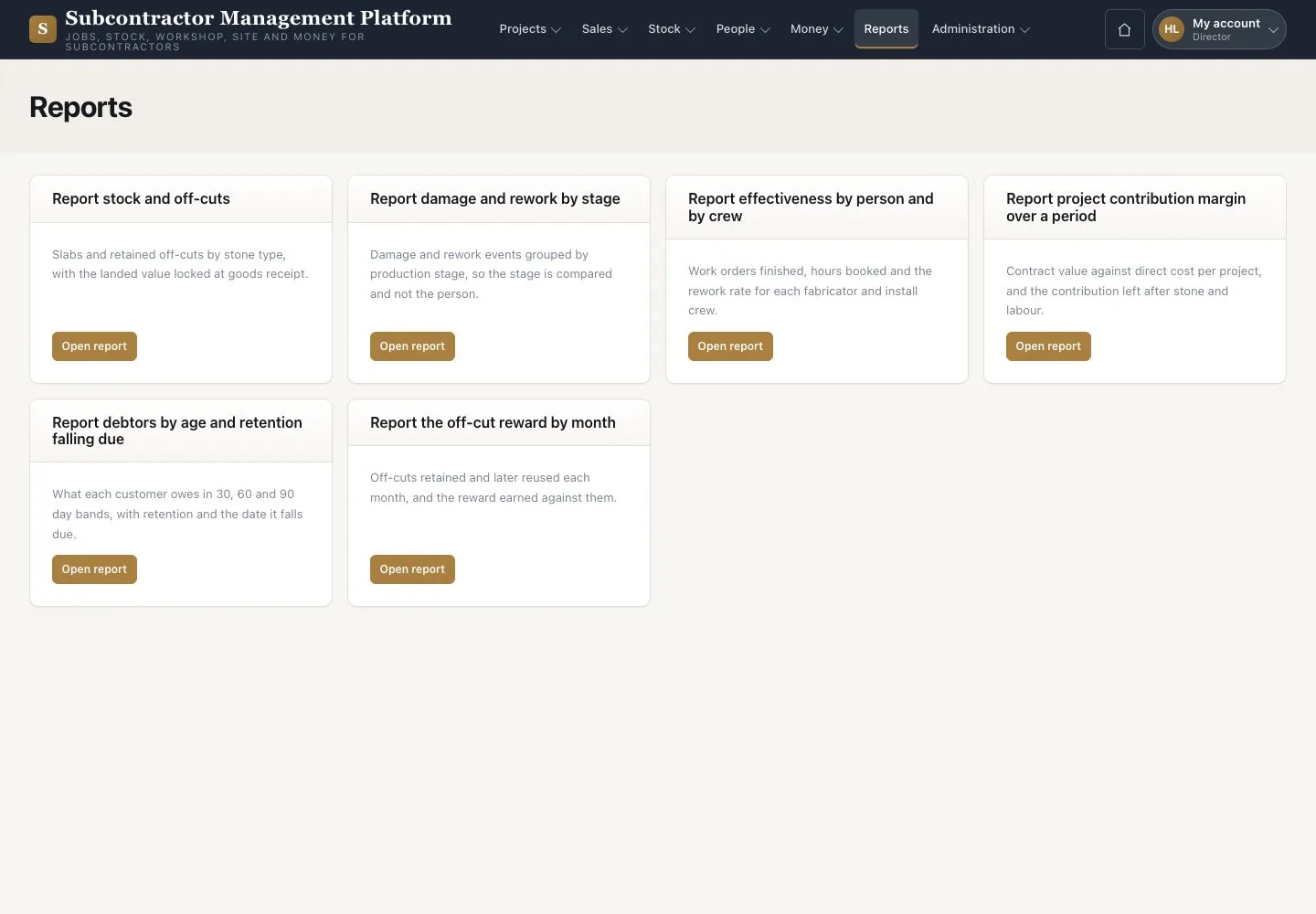
  1. Open “Reports”
  2. Press “Open report” on a report

Reports are on screen; printing and export are not available.

Open illustrated screen ↗Full image ↗

Director · Margin, claims and rewards01

Project contribution margin

Director

Project contribution margin

2Step 2 of 4

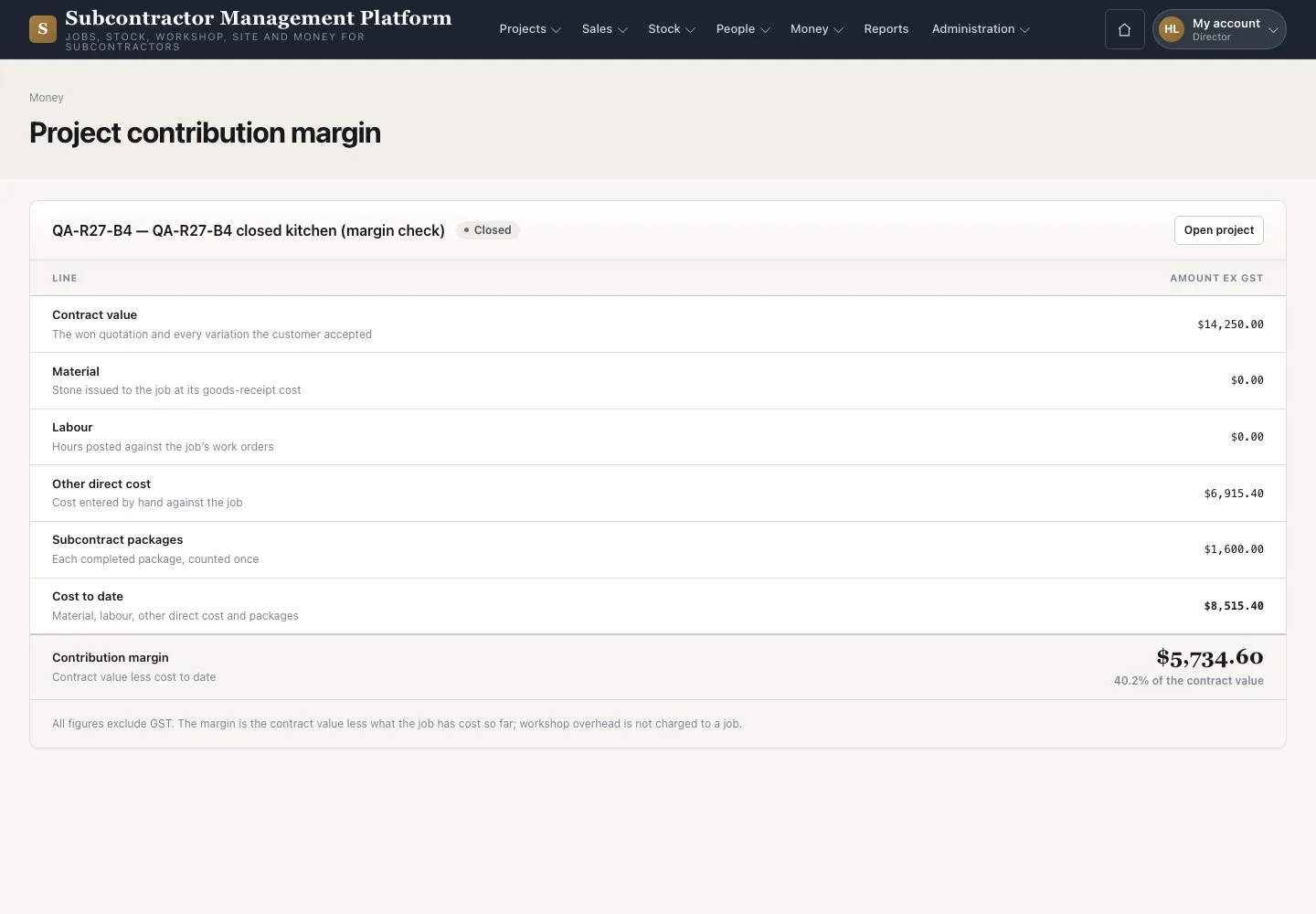
  1. Open a Project’s contribution margin
  2. Read the contract value less the direct costs

Contribution margin is not profit.

Open illustrated screen ↗Full image ↗

Director · Margin, claims and rewards02

Payment claims

Director

Payment claims

3Step 3 of 4

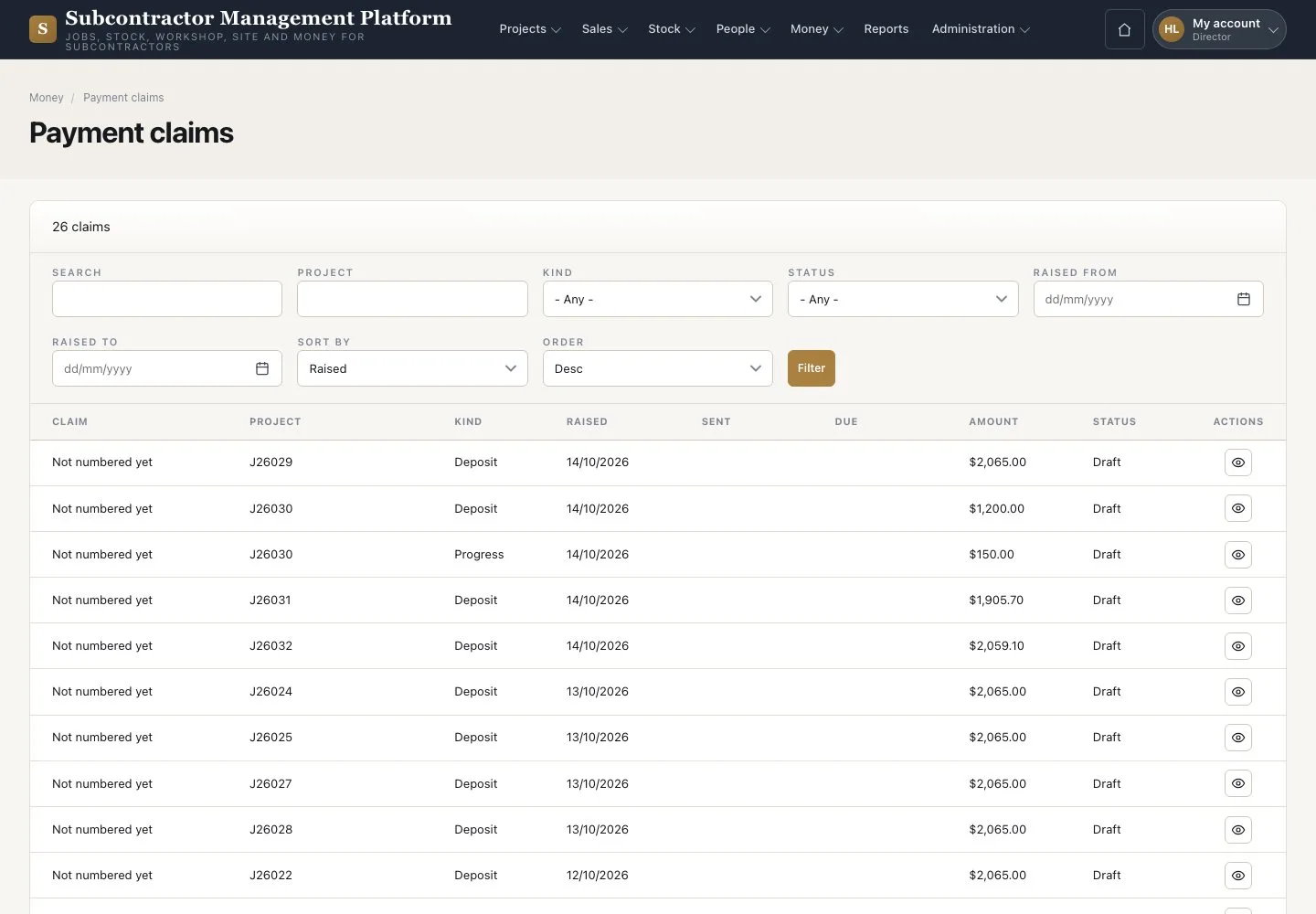
  1. Open Money → “Payment claims”
  2. Read claims, receipts and balances

Sending claims and recording receipts belong to the Accountant.

Enlarge, then scroll

Open illustrated screen ↗Full image ↗

Director · Margin, claims and rewards03

Off-cut rewards

Director

Off-cut rewards

4Step 4 of 4

  1. Open Money → “Off-cut rewards”
  2. Open a Pending entry and press “Expand evidence”
  3. Press “Approve reward”

A reward is earned only after the reuse stage is closed with Passed QC.

Open illustrated screen ↗Full image ↗

Check

You read margin, claims and reports, and approve earned rewards.

Director · Margin, claims and rewards04
1 / 5
Privacy Terms