




Training assignments

Employee · Collection · Learning group

  • Manager access
  • Active employee in your branch; published course
Manager
Open Workspace

Manager

Open Workspace

1Step 1 of 8

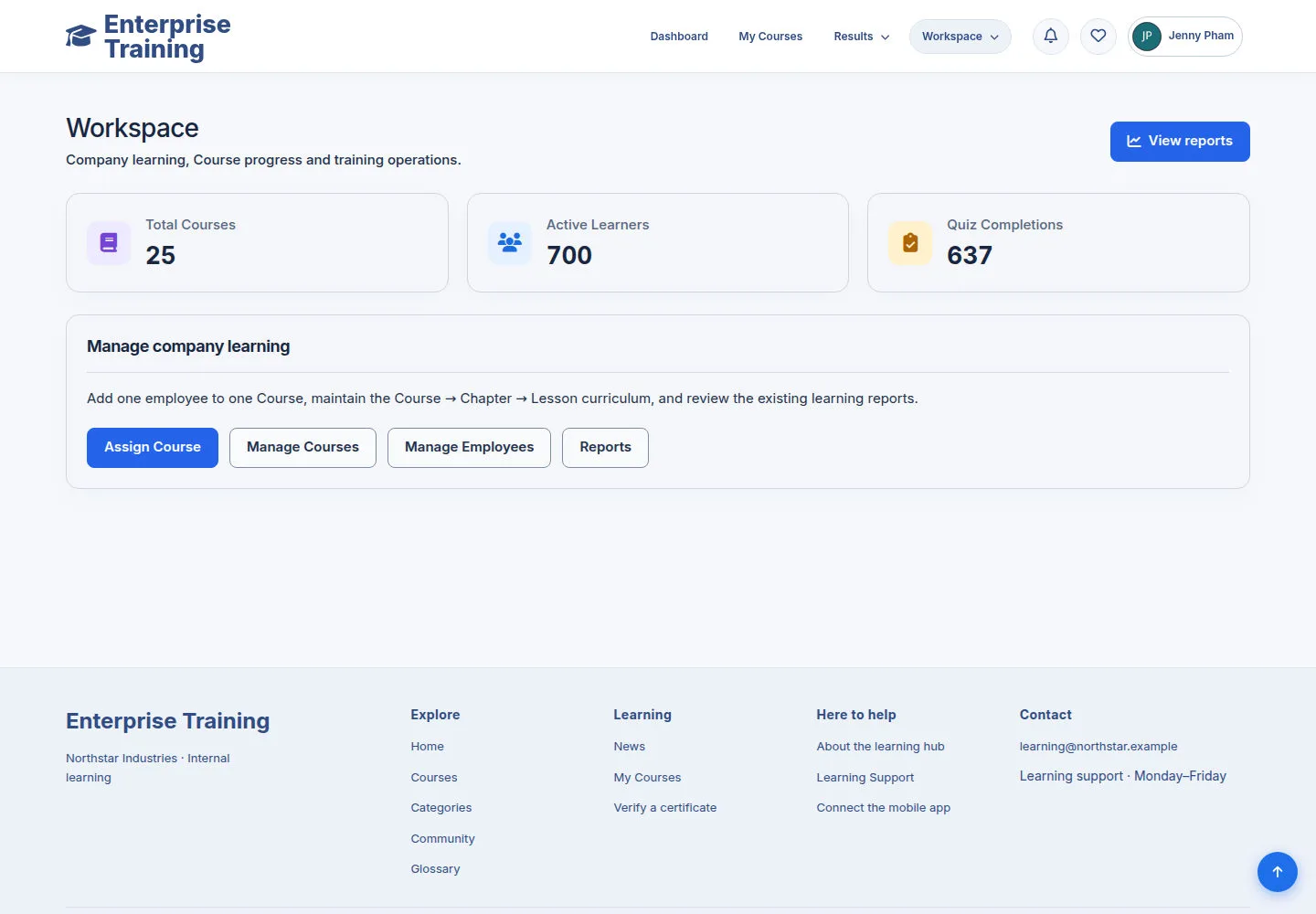
  1. Workspace
  2. Choose a management task
  3. Logo → Home

Enlarge, then scroll

Open illustrated screen ↗Full image ↗

Manager · Training assignments01

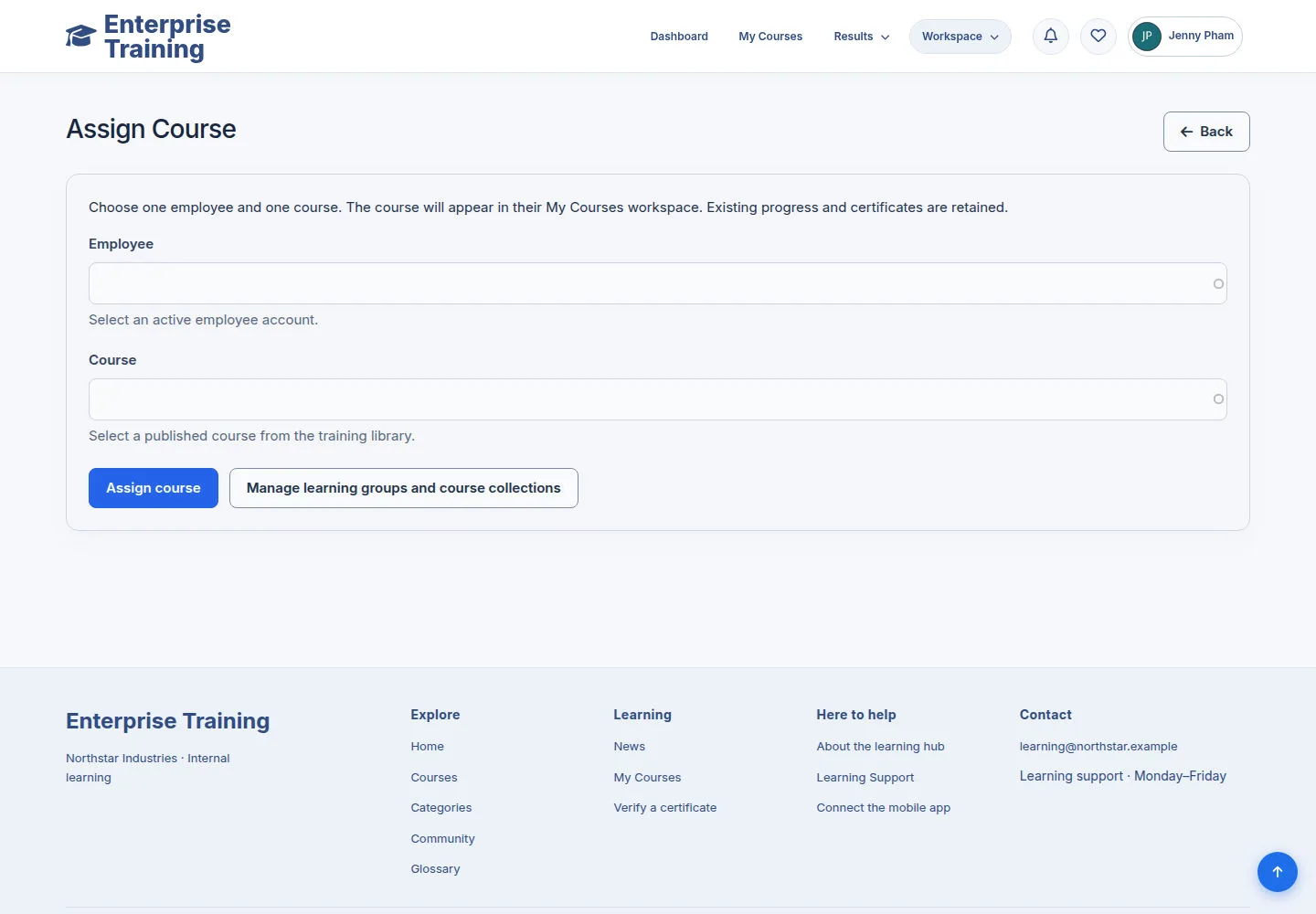
Direct course assignment

Manager

Direct course assignment

2Step 2 of 8

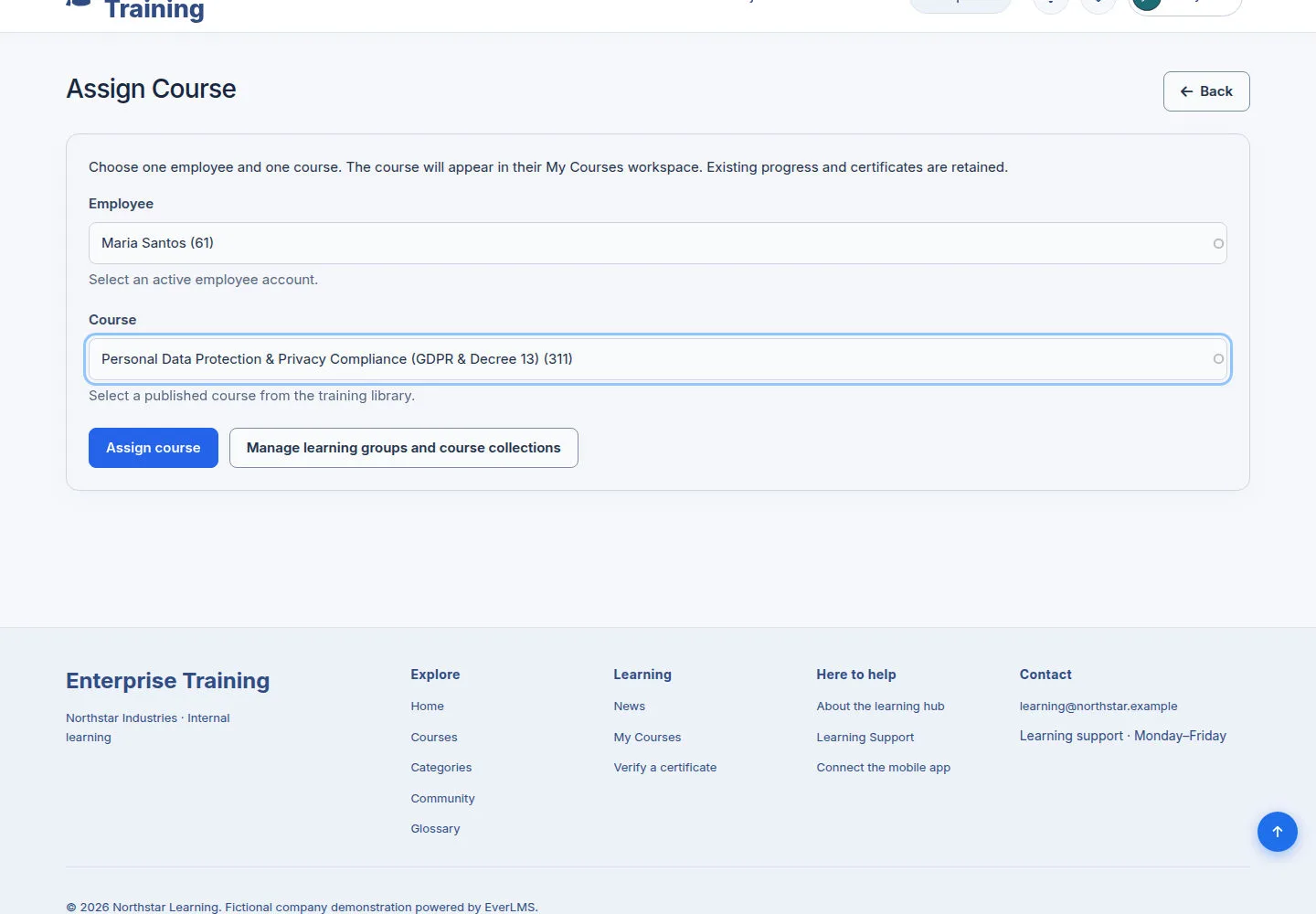
  1. Choose Employee suggestion
  2. Choose Course suggestion
  3. Check both selections

Choose an active employee in your own branch and a published course.

Enlarge, then scroll

Open illustrated screen ↗Full image ↗

Manager · Training assignments02

Review & assign

Manager

Review & assign

3Step 3 of 8

  1. Check employee & course
  2. Assign course / Back
  3. Manage learning groups and course collections

Existing enrollment, progress and certificates are retained.

Enlarge, then scroll

Open illustrated screen ↗Full image ↗

Manager · Training assignments03

Assignment on mobile

Manager

Assignment on mobile

4Step 4 of 8

  1. Choose Employee suggestion
  2. Choose Course suggestion
  3. Review → Assign course

Enlarge, then scroll

Open illustrated screen ↗Full image ↗

Manager · Training assignments04

Course collections

Manager

Course collections

5Step 5 of 8

  1. Manage learning groups and course collections
  2. Course collections
  3. Add Course collection

Enlarge, then scroll

Open illustrated screen ↗Full image ↗

Manager · Training assignments05

Create a collection

Manager

Create a collection

6Step 6 of 8

  1. Name / Description
  2. Choose published Courses
  3. Check Active / ownership
  4. Save / Cancel

Enlarge, then scroll

Open illustrated screen ↗Full image ↗

Manager · Training assignments06

Learning groups

Manager

Learning groups

7Step 7 of 8

  1. Learning groups
  2. Review list
  3. Add Learning group

Enlarge, then scroll

Open illustrated screen ↗Full image ↗

Manager · Training assignments07

Create & assign a learning group

Manager

Create & assign a learning group

8Step 8 of 8

  1. Name / Course collections / Courses
  2. Check scope & Active → Save
  3. Assignments → choose target
  4. Assign group

Save the group before assigning within your branch. Removing a source preserves started learning and certificates.

Enlarge, then scroll

Open illustrated screen ↗Full image ↗

Check

Training assigned within your branch

Manager · Training assignments08
1 / 9
Privacy Terms