




Learner support & grading

Courses I Teach · Progress · Notifications · Grading

  • Instructor workspace access
  • Course owned or assigned to you
Trainer

Instructor Dashboard

Trainer

Instructor Dashboard

1Step 1 of 10

  1. Workspace → Instructor Dashboard
  2. Courses I Teach
  3. Employees I Teach

Enlarge, then scroll

Open illustrated screen ↗Full image ↗

Trainer · Learner support & grading01

Courses I Teach

Trainer

Courses I Teach

2Step 2 of 10

  1. Courses I Teach
  2. Category → hover / focus
  3. Open course activity
  4. Edit, if permitted

Enlarge, then scroll

Open illustrated screen ↗Full image ↗

Trainer · Learner support & grading02

Course activity

Trainer

Course activity

3Step 3 of 10

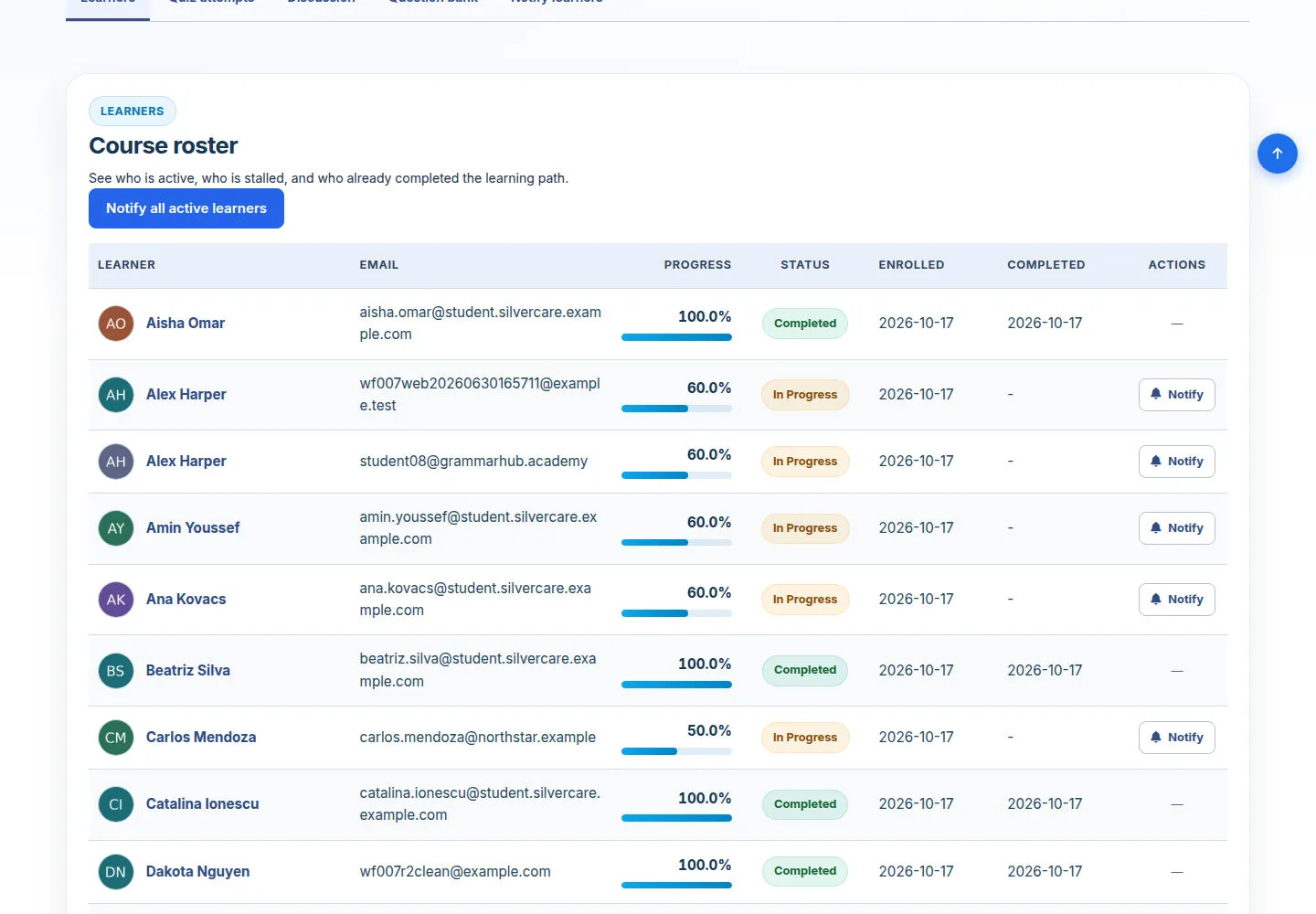
  1. Learners
  2. Progress / status / dates
  3. Quiz / discussion activity
  4. Choose a learner

Enlarge, then scroll

Open illustrated screen ↗Full image ↗

Trainer · Learner support & grading03

Course notifications

Trainer

Course notifications

4Step 4 of 10

  1. Choose enrolled recipients
  2. Title / Message
  3. Review recipients
  4. Send notification

Only active enrolled learners within your teaching scope are available.

Enlarge, then scroll

Open illustrated screen ↗Full image ↗

Trainer · Learner support & grading04

Employees I Teach

Trainer

Employees I Teach

5Step 5 of 10

  1. Employees I Teach
  2. Search
  3. Progress / learner details

Enlarge, then scroll

Open illustrated screen ↗Full image ↗

Trainer · Learner support & grading05

Learner detail

Trainer

Learner detail

6Step 6 of 10

  1. Choose a section
  2. Courses
  3. View learner activity

Enlarge, then scroll

Open illustrated screen ↗Full image ↗

Trainer · Learner support & grading06

Lesson activity

Trainer

Lesson activity

7Step 7 of 10

  1. Chapter → Lesson
  2. Completion / status
  3. Quiz attempts
  4. Identify support needs

Enlarge, then scroll

Open illustrated screen ↗Full image ↗

Trainer · Learner support & grading07

Pending Manual Review

Trainer

Pending Manual Review

8Step 8 of 10

  1. Your Answers Breakdown
  2. Review learner response
  3. Open grading form

Enlarge, then scroll

Open illustrated screen ↗Full image ↗

Trainer · Learner support & grading08

Essay grading

Trainer

Essay grading

9Step 9 of 10

  1. Points awarded
  2. Feedback to learner
  3. Finalize grade

Stay within the shown maximum; grade only courses you own or teach.

Open illustrated screen ↗Full image ↗

Trainer · Learner support & grading09

Edit a taught course

Trainer

Edit a taught course

10Step 10 of 10

  1. Info / Course settings
  2. Chapters & lessons
  3. Full screen / Esc
  4. Save course

Only courses within your teaching scope can be edited.

Enlarge, then scroll

Open illustrated screen ↗Full image ↗

Check

Learner activity reviewed; permitted actions completed

Trainer · Learner support & grading10
1 / 11
Privacy Terms