








Measure and approve

Nothing is cut before a director approves

  • A job at Measuring
Project coordinator

New fabrication measure

Project coordinator

New fabrication measure

1Step 1 of 10

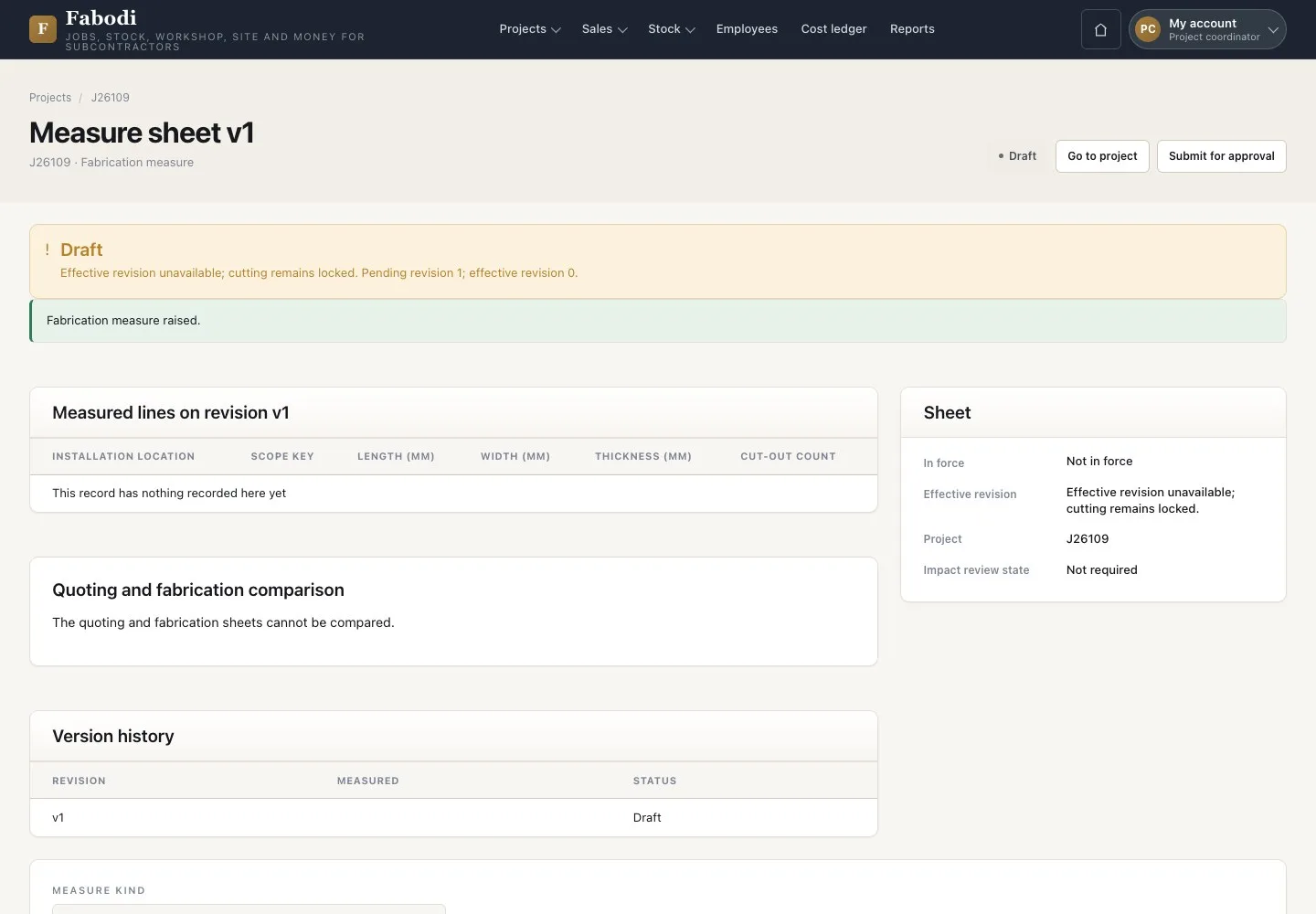
  1. On the project, press New fabrication measure.

Enlarge, then scroll

Open illustrated screen ↗Full image ↗

Project coordinator · Measure and approve01

Assign the measurer

Project coordinator

Assign the measurer

2Step 2 of 10

  1. Choose the Capture assignee: a worker, supervisor, coordinator or director.
  2. Save draft.

Enlarge, then scroll

Open illustrated screen ↗Full image ↗

Project coordinator · Measure and approve02

Measure on site

Worker

Measure on site

3Step 3 of 10

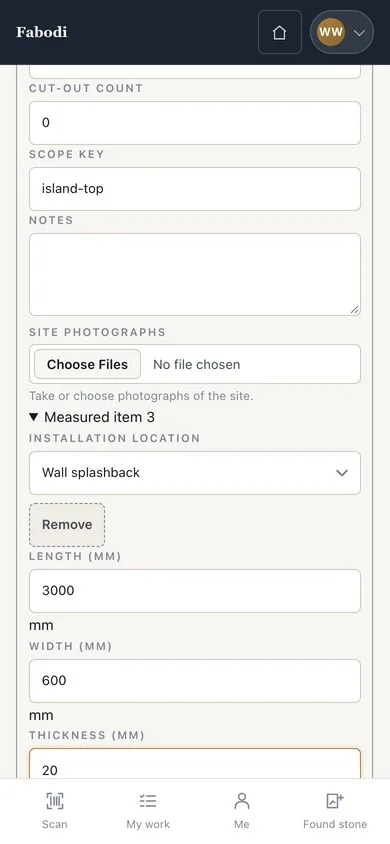
  1. The assigned person opens Site measure on the phone.
  2. Measure this on each quoted piece, then enter the size found on site.
  3. Add site photographs and save.

Only the assigned person edits these lines. The draft survives a weak signal.

Open illustrated screen ↗Full image ↗

Project coordinator · Measure and approve03

Submit for approval

Project coordinator

Submit for approval

4Step 4 of 10

  1. The sheet compares the site sizes with the quoting measure.
  2. Submit for approval freezes it.

Enlarge, then scroll

Open illustrated screen ↗Full image ↗

Project coordinator · Measure and approve04

The director reviews

Director

The director reviews

5Step 5 of 10

  1. Open the sheet at Pending and read the differences.
  2. Approve, Approve with exception or Return for re-measure.

You cannot approve a sheet you created.

Enlarge, then scroll

Open illustrated screen ↗Full image ↗

Project coordinator · Measure and approve05

Return for re-measure

Director

Return for re-measure

6Step 6 of 10

  1. Give the reason. The sheet goes back as Returned.

Open illustrated screen ↗Full image ↗

Project coordinator · Measure and approve06

Measure again

Project coordinator

Measure again

7Step 7 of 10

  1. The coordinator presses Re-measure and the sheet is a Draft again.
  2. The measurer corrects the line, then the coordinator submits again.

Enlarge, then scroll

Open illustrated screen ↗Full image ↗

Project coordinator · Measure and approve07

Approve

Director

Approve

8Step 8 of 10

  1. Approve locks what will be cut.
  2. Work orders can only follow this approved revision.

Enlarge, then scroll

Open illustrated screen ↗Full image ↗

Project coordinator · Measure and approve08

Approve with exception

Director

Approve with exception

9Step 9 of 10

  1. Use it when a difference is accepted on purpose.
  2. The reason stays with this revision.

Open illustrated screen ↗Full image ↗

Project coordinator · Measure and approve09

Move to Approved

Project coordinator

Move to Approved

10Step 10 of 10

  1. On the project, Move to Approved.
  2. Stone can now be held for the measured lines.

Open illustrated screen ↗Full image ↗

Check

The fabrication measure is approved and the job moves to Approved

Project coordinator · Measure and approve10
1 / 11
Privacy Terms