








Cut a work order

On the phone

  • An order assigned to you
  • The slab issued
Worker

Start your shift

Worker

Start your shift

1Step 1 of 8

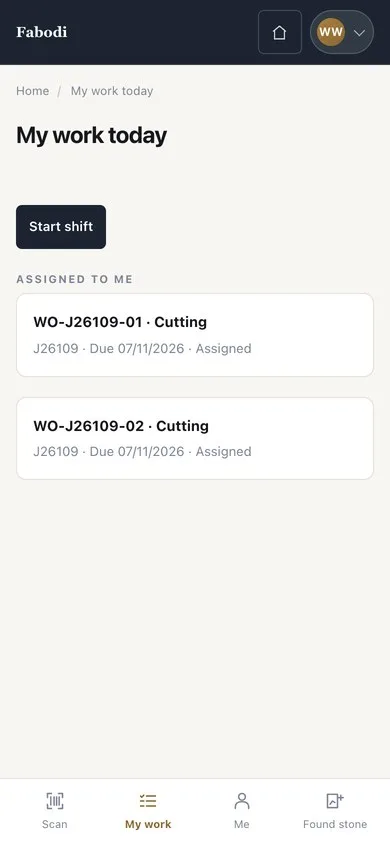
  1. My work today lists your orders.
  2. Press Start shift first.

Open illustrated screen ↗Full image ↗

Worker · Cut a work order01

Start the order

Worker

Start the order

2Step 2 of 8

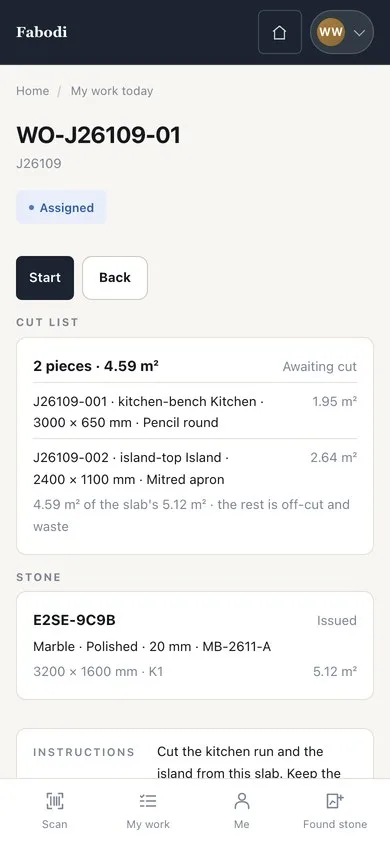
  1. Open the order: cut list, stone and instructions.
  2. Press Start.

Open illustrated screen ↗Full image ↗

Worker · Cut a work order02

Finish

Worker

Finish

3Step 3 of 8

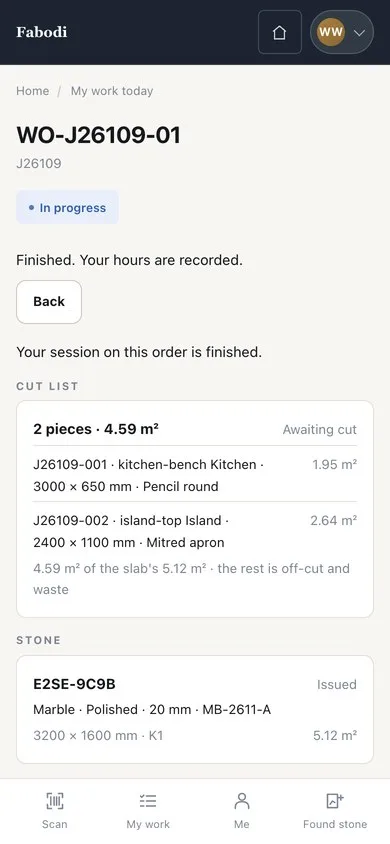
  1. Press Finish when the cutting is done.

A session must last more than a minute.

Open illustrated screen ↗Full image ↗

Worker · Cut a work order03

Keep the off-cut

Worker

Keep the off-cut

4Step 4 of 8

  1. Before you post the cut, open Keep an off-cut.
  2. Measure the piece, add one photograph, choose the store.

After the cut is posted the slab is consumed and nothing can be kept.

Open illustrated screen ↗Full image ↗

Worker · Cut a work order04

Save and label

Worker

Save and label

5Step 5 of 8

  1. Save and print label, then Keep it.
  2. The off-cut enters stock with its share of the cost.

Open illustrated screen ↗Full image ↗

Worker · Cut a work order05

Post the cut

Worker

Post the cut

6Step 6 of 8

  1. Enter the real size of each piece.
  2. Post cut reconciliation.

Open illustrated screen ↗Full image ↗

Worker · Cut a work order06

Cut posted

Worker

Cut posted

7Step 7 of 8

  1. The slab is consumed and its cost is locked to the job.

Open illustrated screen ↗Full image ↗

Worker · Cut a work order07

Report damage

Worker

Report damage

8Step 8 of 8

  1. Choose what is damaged, stage, cause and whether it can be used.
  2. Add a photograph. The form never asks who did it.

Make the area safe before you photograph it.

Open illustrated screen ↗Full image ↗

Check

The pieces are cut, the off-cut is kept and the cost of the stone is locked

Worker · Cut a work order08
1 / 9
Privacy Terms