





Find a tour
The home page, the tours, tours with VR, venues, places, a venue’s page and the page of a tour
- A current browser on a computer or a phone
Visitor
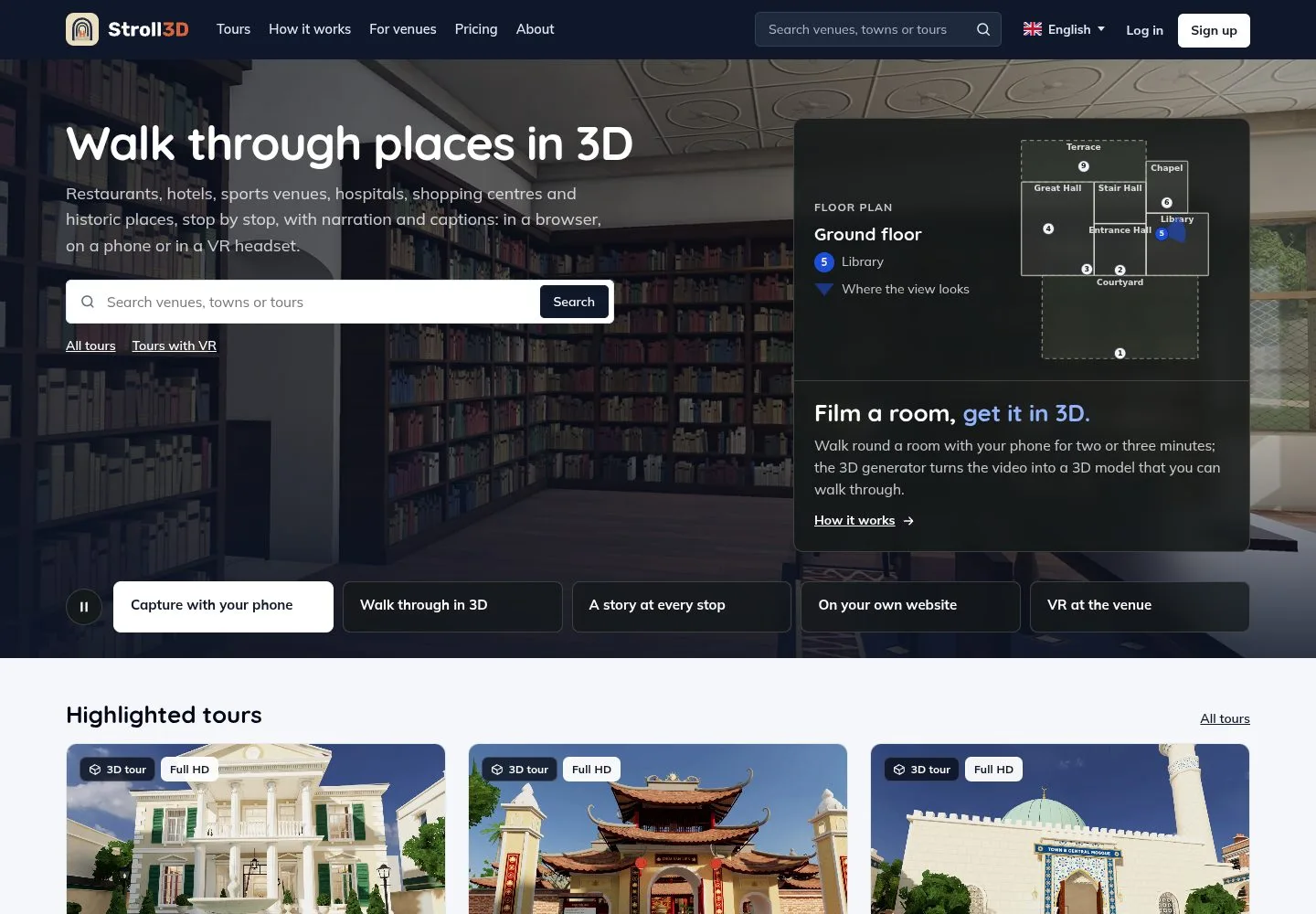
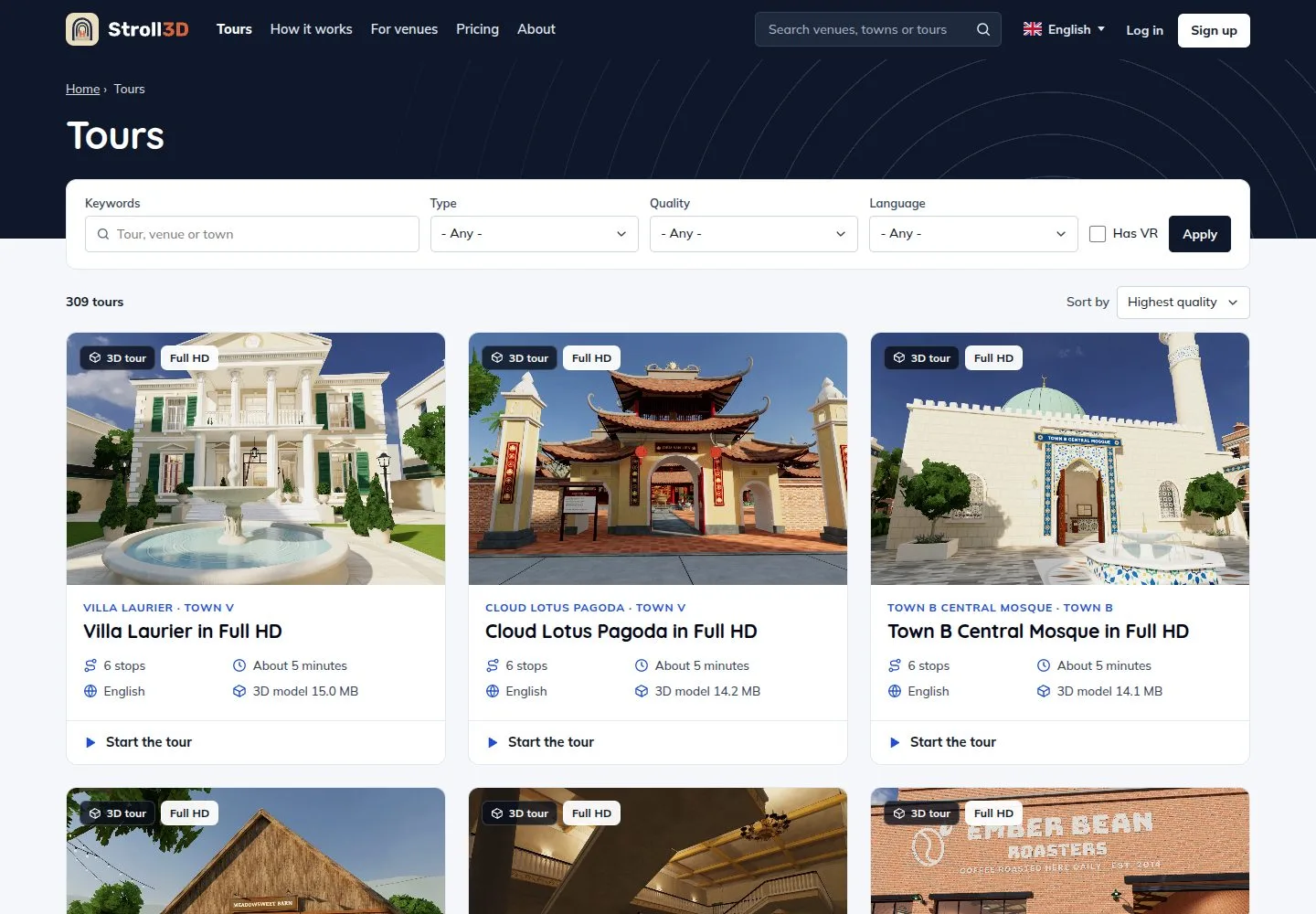
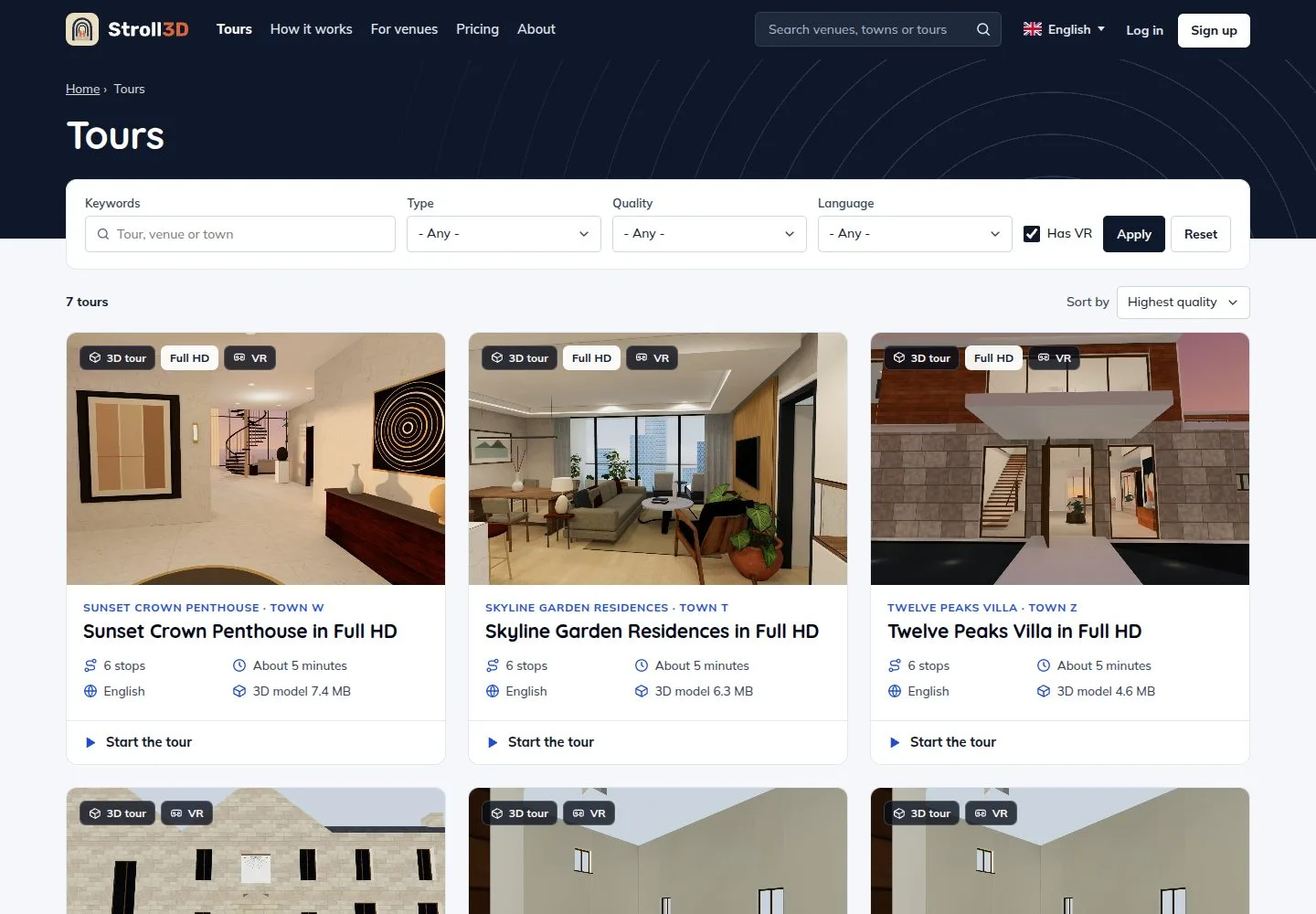
The home page
Visitor

1Step 1 of 8
- Type a venue, a town or a tour in Search venues, towns or tours and choose Search, or choose All tours or Tours with VR.
- The slideshow shows what Stroll3D does: Capture with your phone, Walk through in 3D, A story at every stop, On your own website and VR at the venue; Pause slideshow stops it.
- Highlighted tours, HD tours and SD tours show a few tours each; All tours, All HD tours and All SD tours open the lists.
Enlarge, then scroll
The tours
Visitor

2Step 2 of 8
- Tours, in the menu, lists the public tours. Narrow the list with Keywords, Type, Quality (Standard, HD, Full HD or 4K), Language and Has VR, then choose Apply; Sort by orders the cards.
- Each card shows its badges (3D tour, the quality and VR), its venue and town, its stops, its length, its languages and the size of its 3D model.
- Choose the title for the page of the tour, or Start the tour.
Enlarge, then scroll

The venues
Visitor

4Step 4 of 8
- The search opens Venues, the directory, with the same filters; Venues is also in the path at the top of each venue and tour.
- Each card shows the type of the venue, its name, its town, region and country, its stops, its length, its languages and its 3D models.
- Choose the name of a venue, or Start the tour; Browse by place opens Places.
Enlarge, then scroll


A venue’s page
Visitor

7Step 7 of 8
- The page of a venue opens with its cover picture, its type, its place and town, its summary, Start the tour and Visit website.
- Tours shows each tour with pictures of its stops, its rooms, stops, length, languages and points of interest: choose Start the tour, or About this tour for the page of the tour.
- Visit gives the opening hours, the website, the languages of the tours and virtual reality.
Enlarge, then scroll
The page of a tour
Visitor

8Step 8 of 8
- The page of a tour shows its stops, its rooms, the time with narration, its points of interest, its languages with captions, VR and the data needed to start.
- Choose Start the tour, Full screen or Text version. The stops, below, lists each stop with its room, narration and points of interest; Read them as text opens the text version.
Enlarge, then scroll
Check
The visitor has found a tour by name, place or type and opened its page
1 / 9